B9. Receipts, void & refund🔗
In brief🔗
You can find a receipt that has already been paid, reprint a copy of it, and — if necessary — void or refund it. The void and the refund create traced correction transactions, linked to the original receipt, and may require the approval of a manager.
Who / when🔗
For the Cashier, in case of a complaint, an error, or a request for a copy of a receipt.
Requirements🔗
🔑 Void a transaction / Perform a refund (often subject to approval for the Cashier role)
Step-by-step🔗
Find a receipt🔗
- Tap the Receipt search widget.
- The search screen opens, limited to the current session:
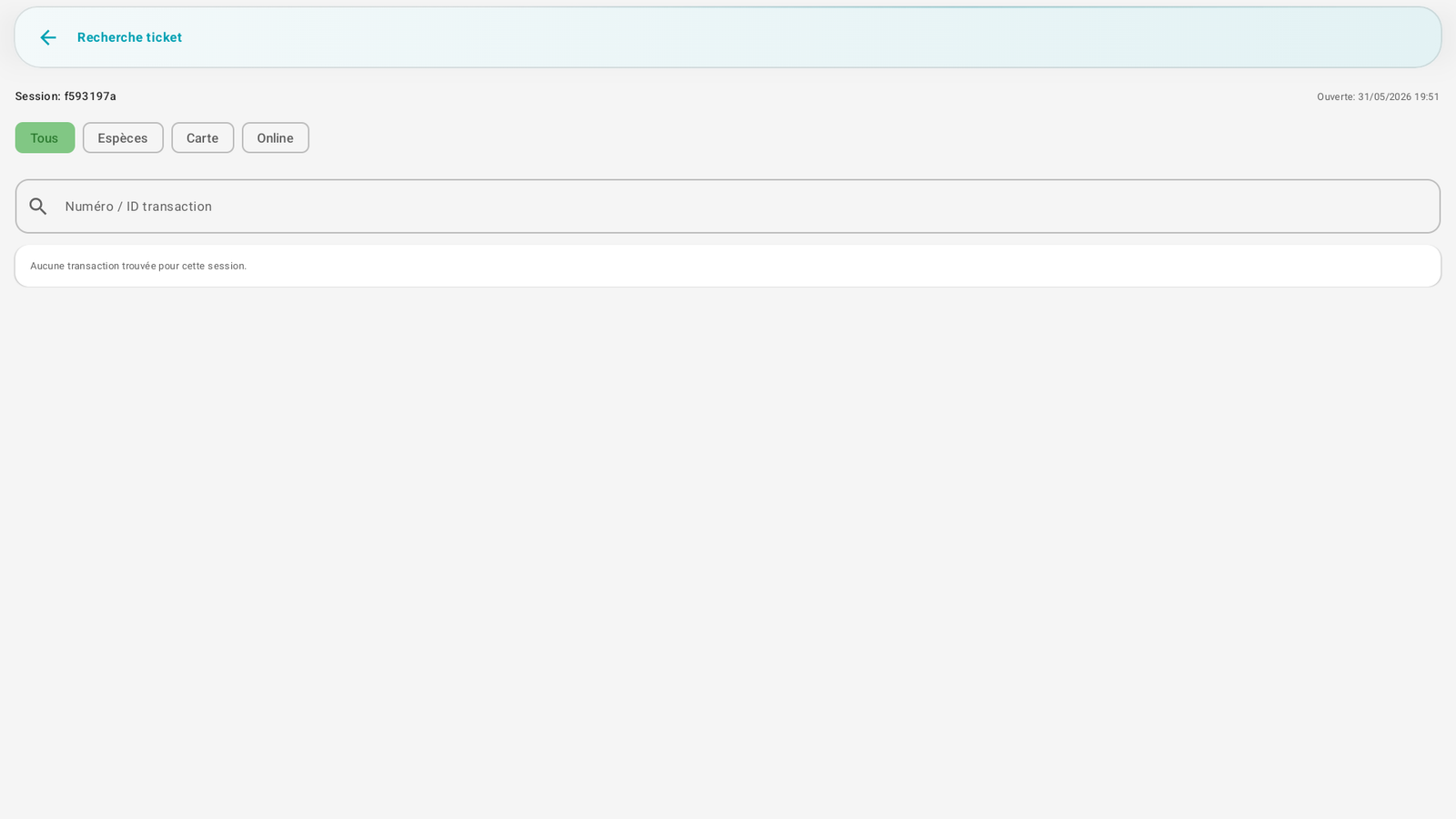
- Filter by payment method (All / Cash / Card / Online).
-
Or search by transaction number / ID.
-
Tap a receipt to see its details:
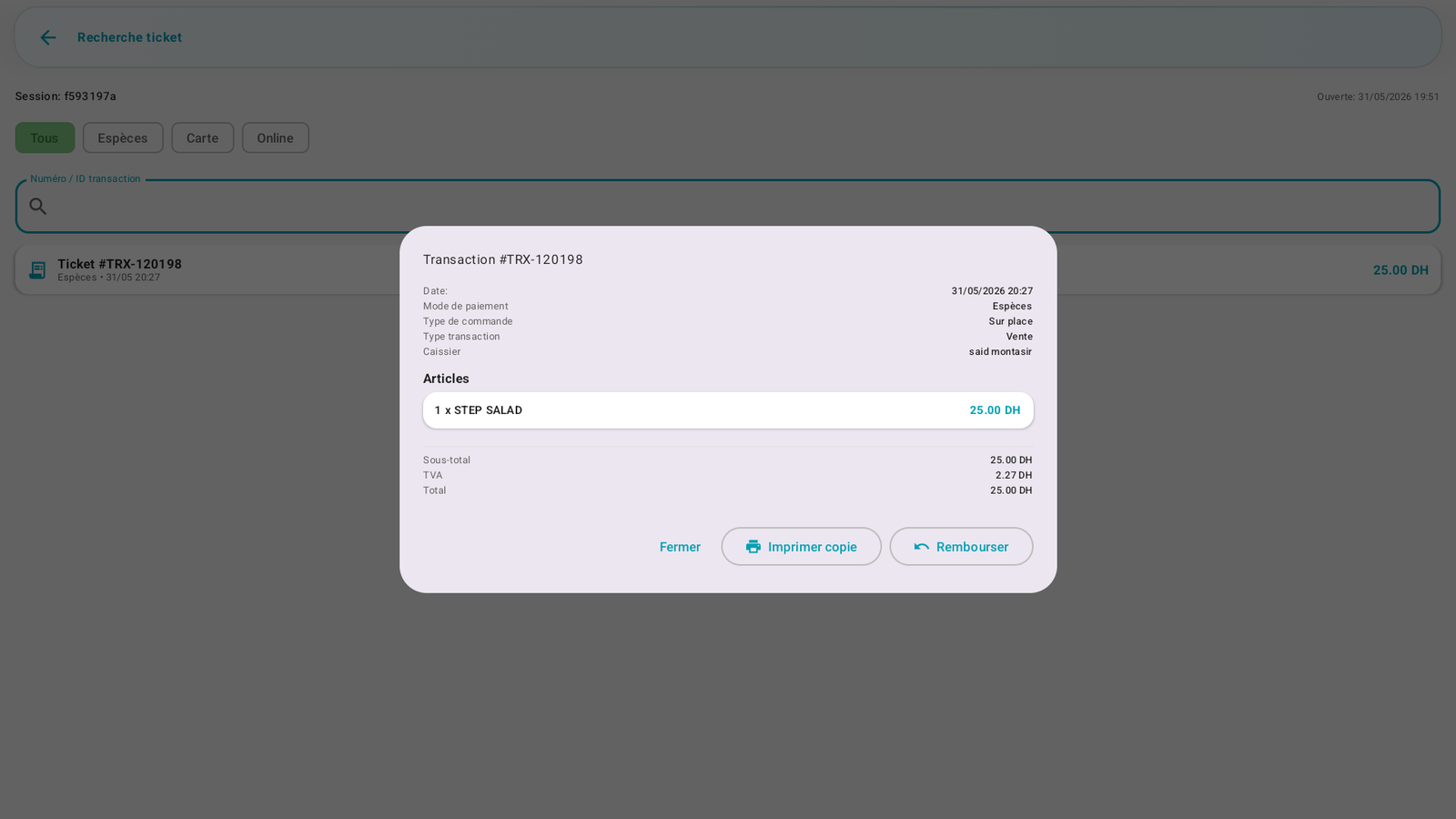
The details show the date, the payment method, the order type, the cashier, the items, the VAT and the total, with the available actions: Print copy, Void and/or Refund.
Reprint a copy🔗
In the receipt details, tap Print copy: a copy of the receipt is printed.
Void a receipt🔗
- In the receipt details, tap Void.
- Choose a standard reason or enter a specific reason.
- Confirm the operation. A Manager/Admin authorization may be requested depending on your role.
The void never deletes the original receipt: it creates a correction receipt linked to the original receipt. The original receipt remains viewable and marked VOIDED.
Refund a receipt🔗
- In the receipt details, tap Refund.
- Confirm the amount to refund and choose a reason:
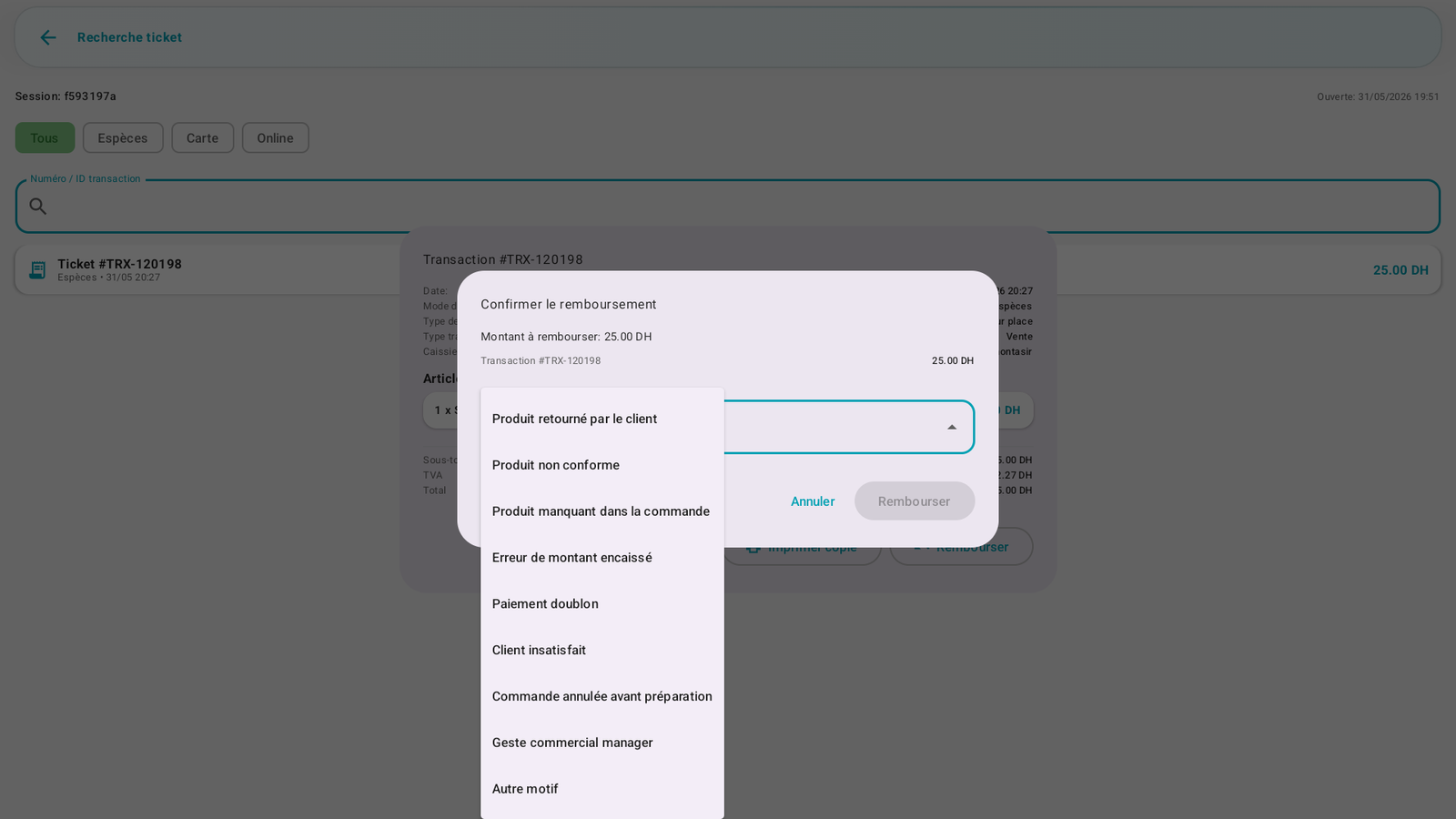
Reasons offered: Product returned by the customer, Non-compliant product, Missing product, Error in amount charged, Duplicate payment, Dissatisfied customer, Order cancelled before preparation, Manager goodwill gesture, Other reason. 3. Tap Refund.
Authorization (Cashier role)🔗
A refund by a Cashier requires an approval:
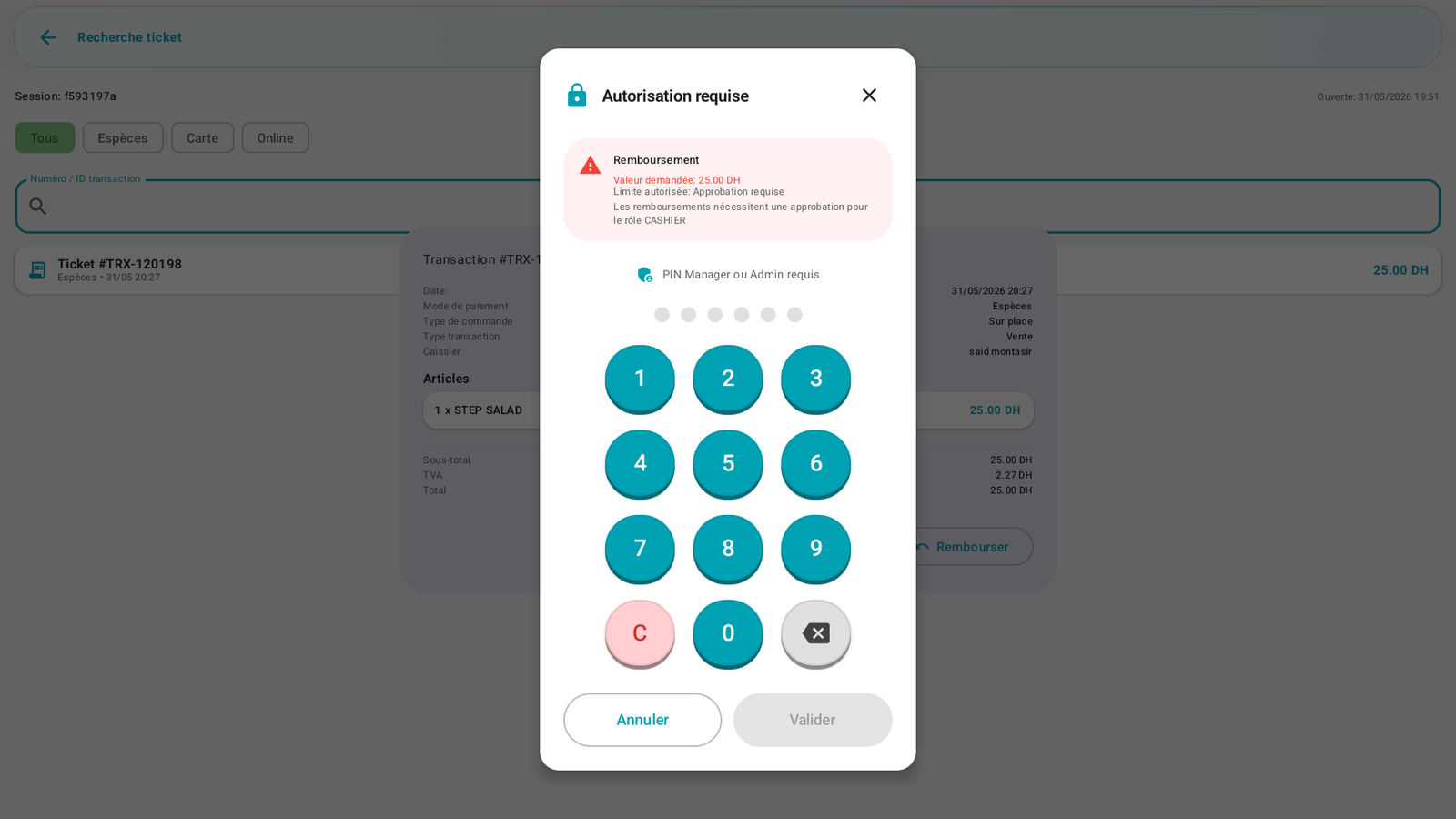
"Refunds require an approval for the CASHIER role." A Manager or Admin enters their PIN to validate.
Result🔗
Once validated:
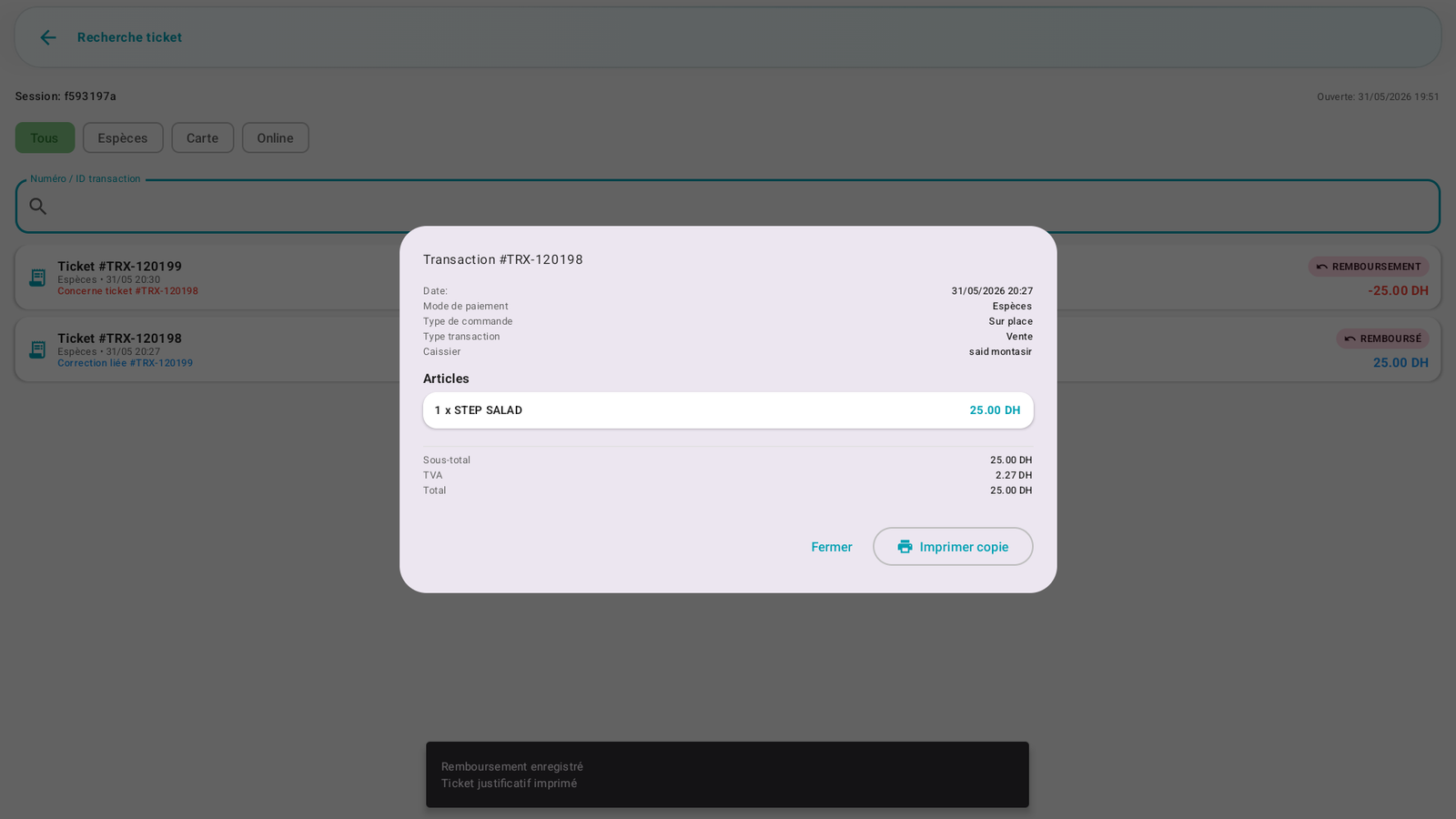
- A supporting receipt is printed ("Refund recorded").
- A new refund transaction is created (e.g. TRX-120199, negative amount, REFUND badge), linked to the original receipt (e.g. TRX-120198, now marked REFUNDED).
- The correction receipts indicate the original receipt concerned. On the item lines, the prices remain readable normally; the direction of the correction is carried by the receipt type and its total.
Messages & edge cases🔗
- The search is limited to the current session: a receipt from a previous session does not appear there (it belongs to a past Z closure).
- The void or the refund does not delete the original receipt: the operation creates a linked correction — this is fiscal compliance (nothing is erased).
- Voided receipts, refunded receipts, void receipts and refund receipts are flagged with badges in the receipt search and the reports.
Tips🔗
- Always indicate a specific reason: it feeds the tracking and explains the cash discrepancy.
- For a simple duplicate request, use Print copy rather than a refund.