C12. Permissions & roles🔗
In brief🔗
The Access and permissions screen defines who is allowed to do what: the rights of each role, the sensitive actions subject to a threshold, and who can validate an override.
Who / when🔗
For the Admin, when setting up the security policy, then to adjust it.
How to access🔗
Admin → Permissions.
Requirements🔗
🔑 Manage permissions (reserved for the Admin)
Screen tour🔗
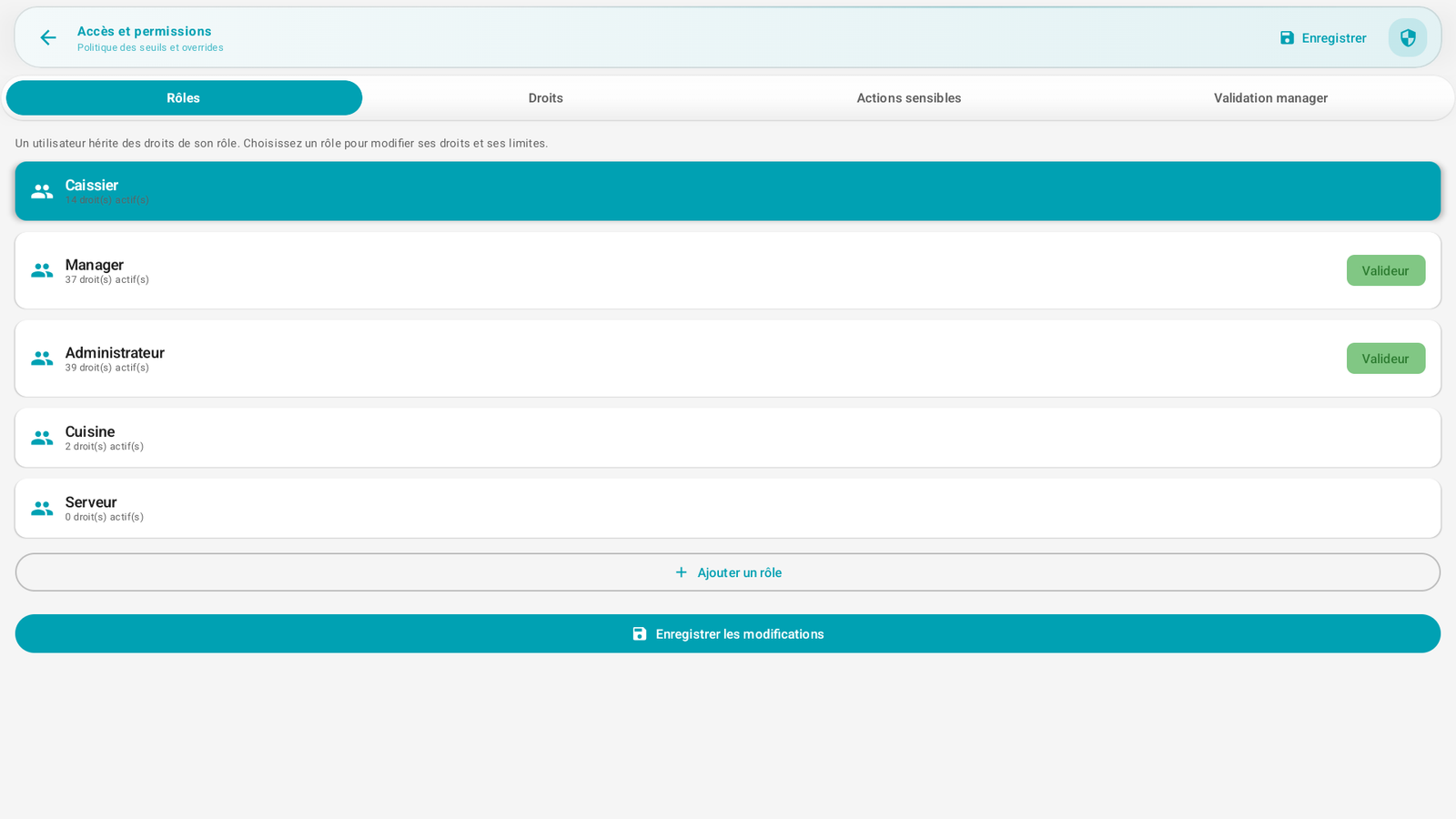
Four tabs:
| Tab | Content |
|---|---|
| Roles | The list of roles with their number of active rights. |
| Rights | The detail of the rights, enabled per role. |
| Sensitive actions | The operations subject to a threshold/approval (discount, refund…). |
| Manager validation | Who can approve an override (Validator badge). |
In the Roles tab, you see for example: Cashier (14 rights), Manager (37 rights, Validator), Administrator (39 rights, Validator), Kitchen (2 rights), Server (0 rights). "A user inherits the rights of their role." You can Add a role and Save the changes.
Step-by-step🔗
Modify the rights of a role🔗
- Roles tab, tap a role (e.g. Cashier).
- In Rights, enable/disable the permissions.
- Save the changes.
Define a sensitive action and its threshold🔗
- Sensitive actions tab: choose an action (e.g. refund, discount).
- Set the threshold beyond which an approval is required.
Designate the validators🔗
- Manager validation tab: indicate which roles can approve (Validator badge — typically Manager and Administrator).
Link with day-to-day operation🔗
It is this policy that triggers the "Authorization required" screen seen at the register: for example, a Cashier who refunds must have it validated by a Manager/Admin (see Receipts, void & refund and Discounts & promo codes).
Messages & edge cases🔗
- A role with 0 rights (e.g. Server by default) can do almost nothing until it is assigned rights.
- Only Manager and Admin are Validators by default.
Tips🔗
- Calibrate the thresholds according to trust: a low discount threshold forces approval and limits abuse, without blocking the small common discounts.