C8. Multi-register & network🔗
In brief🔗
Two complementary screens manage network operation: Network & registers (the register's role in the store) and Connected devices (tablets, kiosks, connected displays). 🧩 Multi-register depends on the Local multi-register module; the companion devices on the Multi-device module.
Who / when🔗
For the Admin, when a store has several registers or companion devices (PDA, kiosk, kitchen display).
How to access🔗
Admin → Network & registers and Admin → Connected devices.
Requirements🔗
🔑 Manage settings · 🧩 Local multi-register / Multi-device
Network & registers🔗
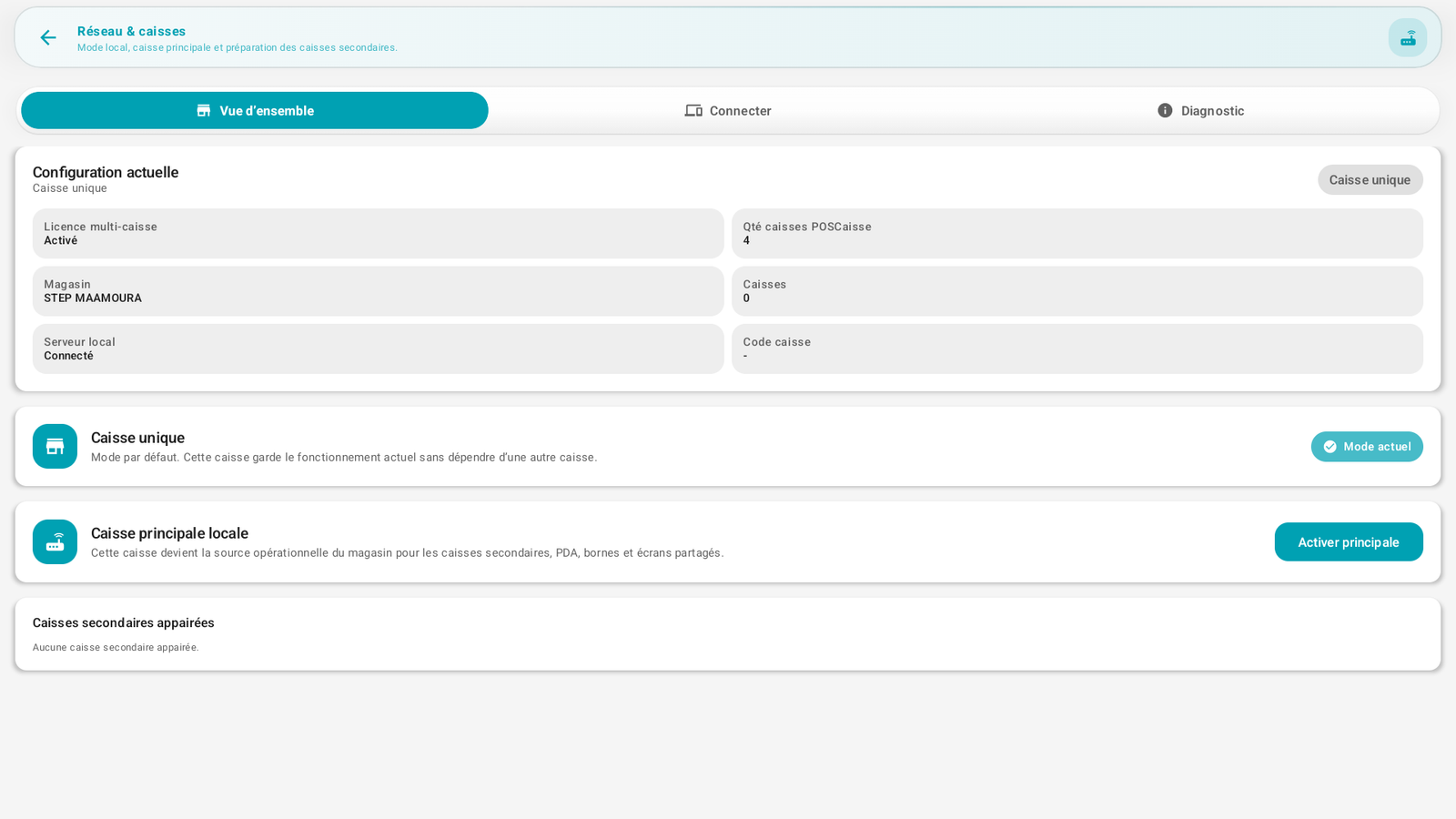
Overview / Connect / Diagnostics tabs. The Current configuration shows the mode, the multi-register license, the store, the local server and the register code.
Three possible modes:
| Mode | Role |
|---|---|
| Single register | (default) The register works alone, without depending on another. |
| Local primary register | This register becomes the operational source of the store for the secondary registers, PDAs, kiosks and shared screens. |
| Secondary register | Attached to a primary register. It keeps its local settings and its fiscal receipts, but uses the primary one for shared data. |
The Paired secondary registers section lists the attached registers.
Local-first
Multi-register works on the local network: the primary register hosts a local server to which the others connect. No dependency on the cloud for day-to-day operation.
Starting rule
A new installation starts in Single register. It can then become the store's primary register, or be attached to an existing primary register.
Who manages what?🔗
- The primary register manages the store's common data: held orders, tables, shared stock, companion devices, kiosks and shared screens.
- A secondary register keeps its local settings: receipt printer, payment terminal, customer display, cash session, receipts paid on this register and the fiscal signature specific to this register.
- The BO must read the primary register for the consolidated store view, and each register for the fiscal detail specific to its station.
Connected devices🔗
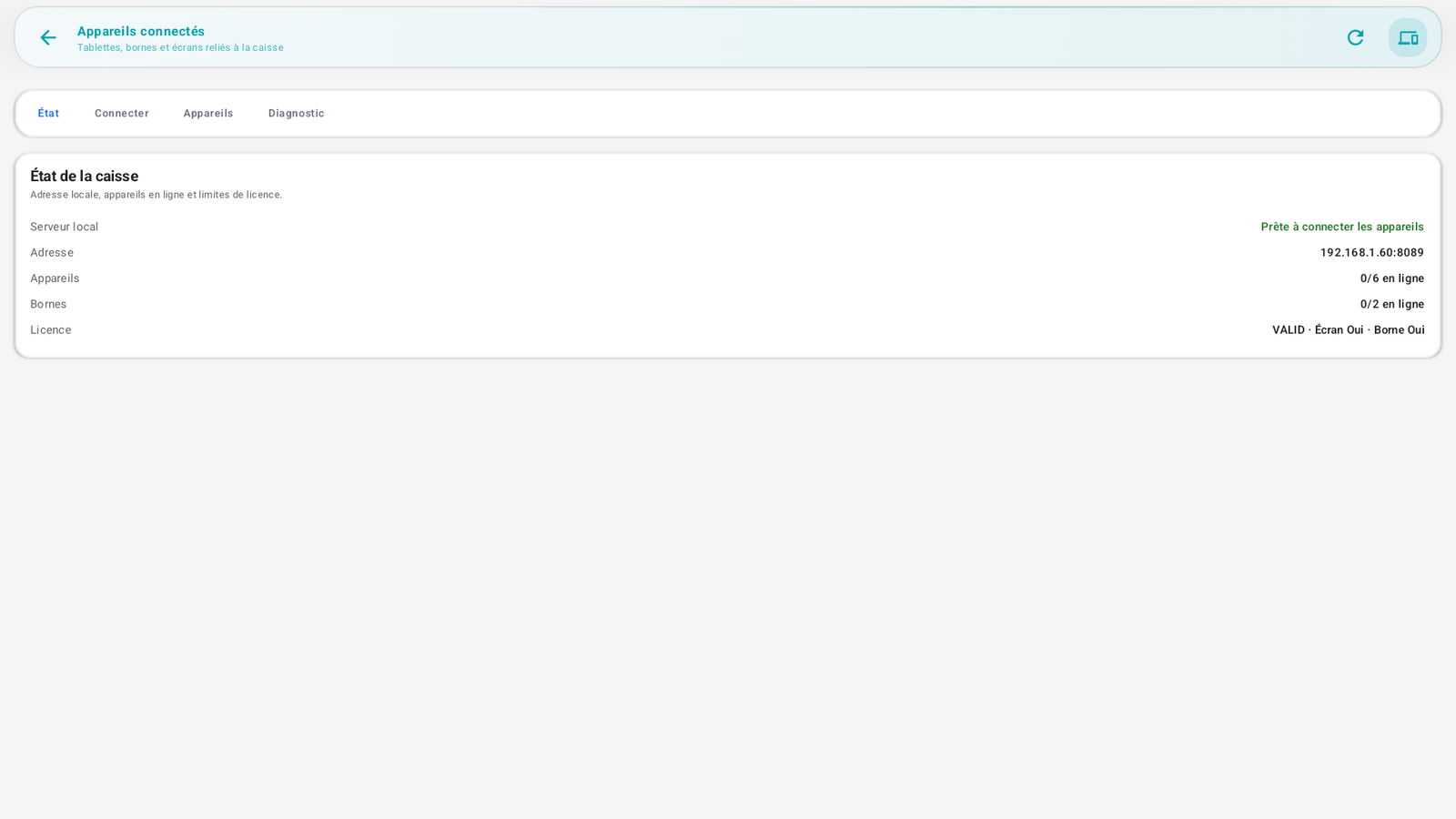
Status / Connect / Devices / Diagnostics tabs. The register status displays:
- Local server ("Ready to connect devices"),
- the local address (e.g. 192.168.1.60:8089),
- the number of devices and kiosks online (e.g. 0/6, 0/2),
- the license status (display/kiosk authorized).
This is where you pair the server tablets (PDAs), kiosks and shared screens to the register.
Step-by-step🔗
Switch to primary register🔗
- Network & registers → Overview.
- On Local primary register, tap Activate primary.
- The secondary registers and devices can then connect to it.
Attach a secondary register🔗
- On the secondary register: Network & registers → Connect.
- Launch the search for the primary register.
- If it is not found automatically, scan the QR code displayed on the primary register, or manually enter the address and the code displayed by the primary register.
- Validate the pairing from the primary register if requested.
Connect a companion device🔗
- Connected devices → Connect.
- Follow the pairing (QR / code / IP) from the companion device.
- The device appears in the Devices tab.
Messages & edge cases🔗
- The number of devices/kiosks is limited by the license (e.g. 6 devices, 2 kiosks).
- A stable Wi-Fi network is essential for the reliability of multi-register.
- If the primary register is unavailable, the secondary register keeps its local sales, but the actions that require the common source wait for reconnection.
- A refund of a receipt paid on another register requires the primary register to be reachable: it checks the receipt, locks the operation and avoids the double refund.
Tips🔗
- Designate only one primary register per store.
- Use the Diagnostics tab in case of a connection problem.