A5. Create your products🔗
In brief🔗
The products are what you sell. Each product belongs to a category, has a price (and possibly an XL price), a photo, and can be composed of ingredients. It is the heart of your menu.
Who / when🔗
For the Admin (or an authorized employee), after creating the categories.
How to access🔗
Admin → Products.
Requirements🔗
🔑 Manage products
Screen tour🔗
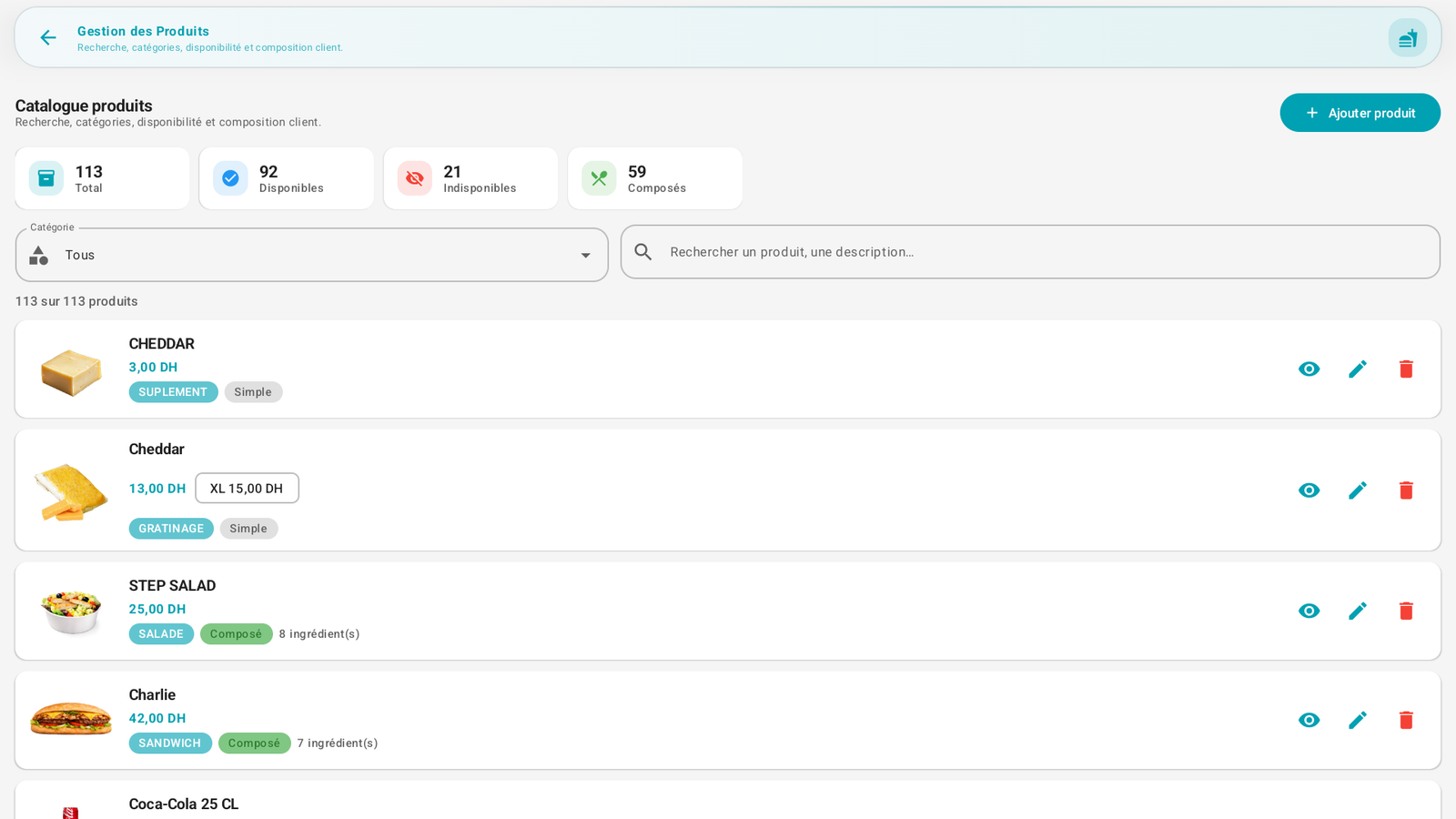
- Statistics banner: Total, Available, Unavailable, Composed.
- Filter by category ("All") and search bar (by name or description).
- List of products: for each product, the photo, the name, the price (and the XL price if it exists, e.g. XL 15,00 DH), the category badge and a Simple or Composed (X ingredient(s)) badge.
- To the right: eye icon (preview), pencil (edit), trash (delete).
- Top right: + Add product.
Step-by-step procedures🔗
Add a product🔗
- Open Admin → Products.
- Tap + Add product. A multi-step window opens.
- Step 1 — Basic information:
- Name, Description.
- Price (and XL Price if you offer an XL size).
- Category it belongs to.
- Image of the product.
- Step 2 — Menu ingredients: select the ingredients that make up the product (the product then becomes Composed). Leave empty for a Simple product.
- Confirm: the window asks you to confirm the save.
Edit a product🔗
- Tap the pencil icon.
- Go through the same steps (information, ingredients).
- Confirm.
Make a product unavailable🔗
- A product can be Available / Unavailable (out of stock). An unavailable product stays in the menu but cannot be sold. The Unavailable counter of the banner reflects it.
Delete a product🔗
- Tap the trash, then confirm.
Messages & edge cases🔗
- Simple vs Composed: a Composed product has a list of ingredients (useful for customizations and, if the BackOffice module is active, for stock tracking by recipe).
- XL price: only appears if you have entered it; it allows offering two sizes without creating two products.
Tips🔗
- Use the filter by category to work family by family during the initial entry.
- The eye icon gives a quick preview without opening the full edit.
- The photos make the sales screen much faster to read for the cashier — take the time to fill them in.