C10. Online order module settings🔗
In brief🔗
This screen attaches the register to an online store and configures the Firebase connection used to receive online orders. 🧩 It depends on the Online orders module.
Order processing is documented elsewhere
This chapter covers the configuration of the module on the register side. The receipt and processing of online orders (dashboard, drivers…) are covered in the Online order guide.
Who / when🔗
For the Admin, when setting up online ordering.
How to access🔗
Admin → Online orders.
Requirements🔗
🔑 Manage settings · 🧩 Online orders module
Screen tour🔗
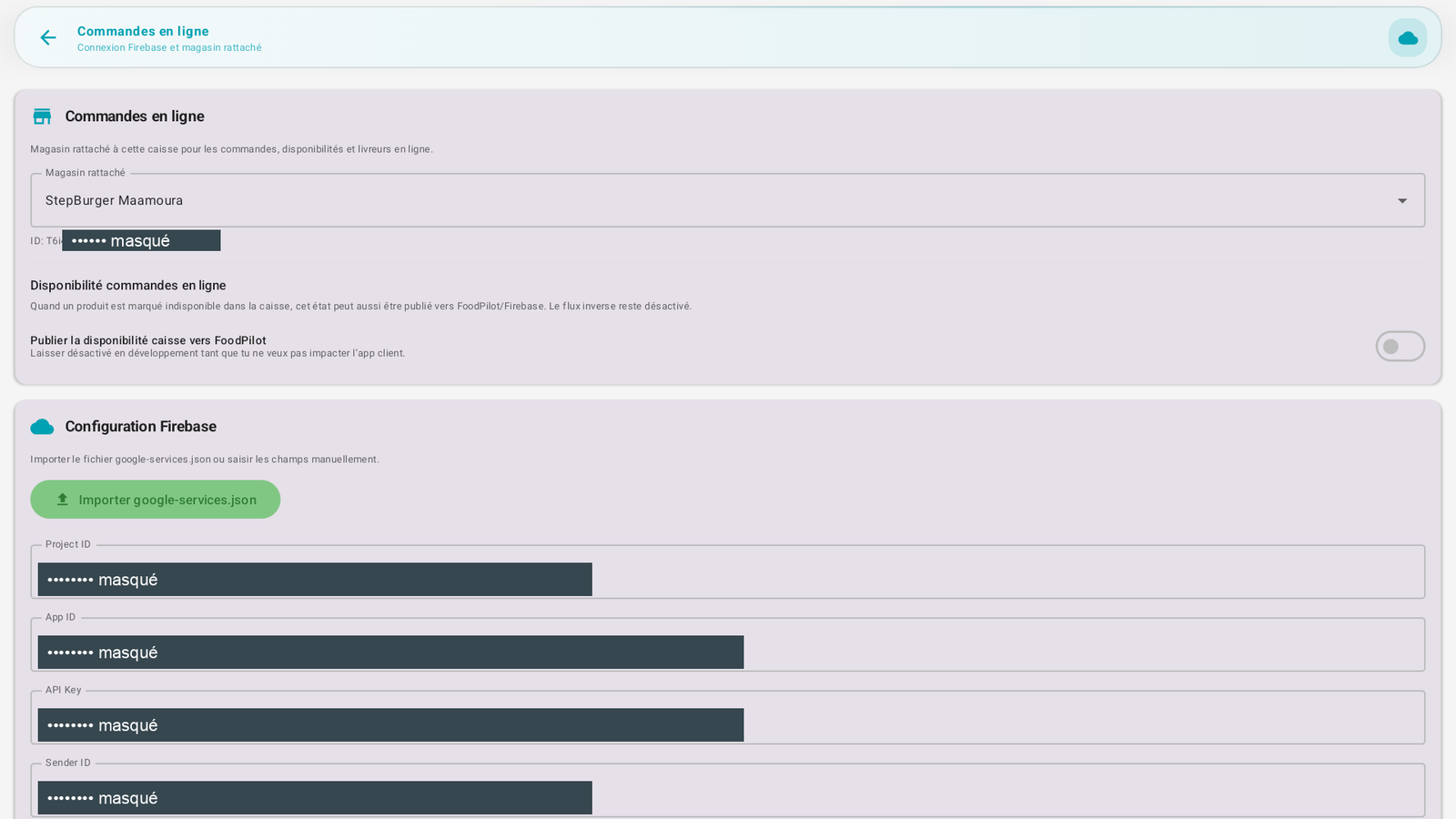
(The technical credentials are hidden in the screenshot.)
- Online orders: the store attached to this register (e.g. Main store) for orders, availabilities and drivers.
- Online order availability: the option "Publish register availability to PaderfSuite" — when a product is marked unavailable at the register, this state can be published to PaderfSuite. "To leave disabled in development as long as you do not want to impact the customer app."
- Firebase configuration: import the google-services.json file or manually enter the fields (Project ID, App ID, API Key, Sender ID…).
Step-by-step🔗
Attach the store🔗
- In Attached store, select your online store.
Configure Firebase🔗
- Tap Import google-services.json (recommended) or enter the fields manually.
- Save.
Publish availability (optional)🔗
- Enable "Publish register availability to PaderfSuite" only when you want the stock-outs at the register to carry over to the customer app/site.
Messages & edge cases🔗
- The Firebase credentials are sensitive: do not share them (they allow access to your online order project).
- The reverse flow (PaderfSuite → register) for availability remains disabled.
Tips🔗
- Prefer importing the google-services.json file: fewer entry errors than manually entering the keys.
See also🔗
- C11. Licenses & modules
- Online order guide (order processing, drivers)