C3. Suppliers🔗
In brief🔗
The Suppliers screen keeps the directory of your suppliers (name, supply category, phone). It is used in particular during supplier payments from the register.
Who / when🔗
For the Admin (or an authorized employee), when adding/updating a supplier.
How to access🔗
Admin → Suppliers.
Requirements🔗
🔑 Manage suppliers
Screen tour🔗
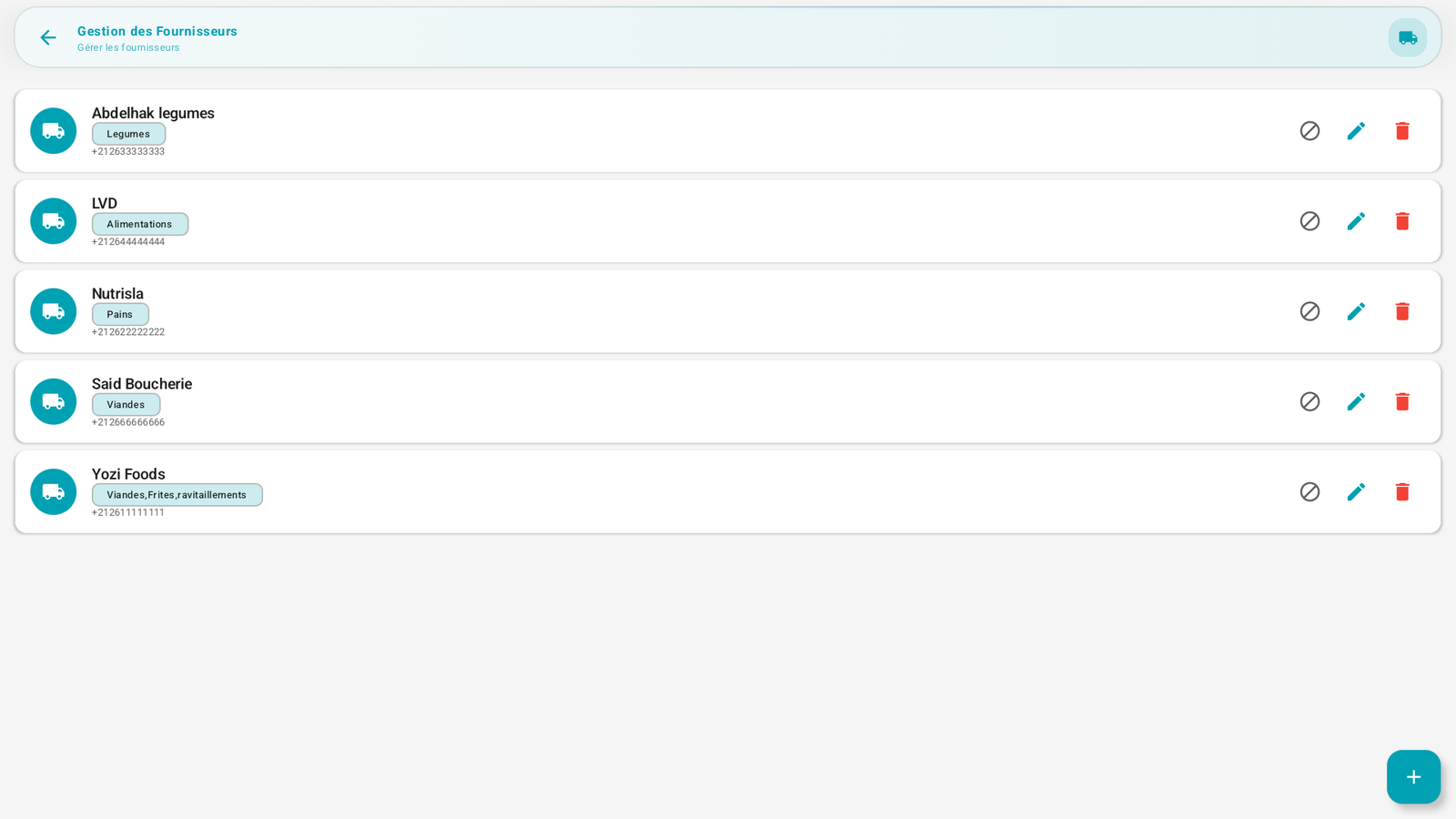
Each supplier is a line with: an icon, their name, a category badge (e.g. Vegetables, Groceries, Breads, Meats…), their phone, and the actions deactivate, modify (pencil), delete (trash). The + button adds a supplier.
Step-by-step🔗
Add a supplier🔗
- Tap +.
- Fill in the name, the supply category/categories (e.g. Meats, Fries, supplies) and the phone.
- Save.
Modify / delete🔗
- Pencil to modify, trash to delete, deactivate icon to make inactive without deleting.
Link with the register🔗
The Pay supplier widget on the POS screen (see Drawer & cash movements) records a cash out from the drawer to pay a supplier. Keeping the directory up to date facilitates this tracking.
Tips🔗
- Fill in the category: it helps organize purchases and supply.