B6. Take payment🔗
In brief🔗
Taking payment means receiving the payment and closing the sale: a receipt is created (numbered and signed) and printed. PosCaisse handles cash (with change calculation), card, split payment and meal vouchers.
Who / when🔗
For the Cashier, at the end of each order.
Requirements🔗
🔑 Perform a sale
Step-by-step🔗
Pay in cash (with change)🔗
- With the cart ready, tap the Cash widget (or Pay then Cash).
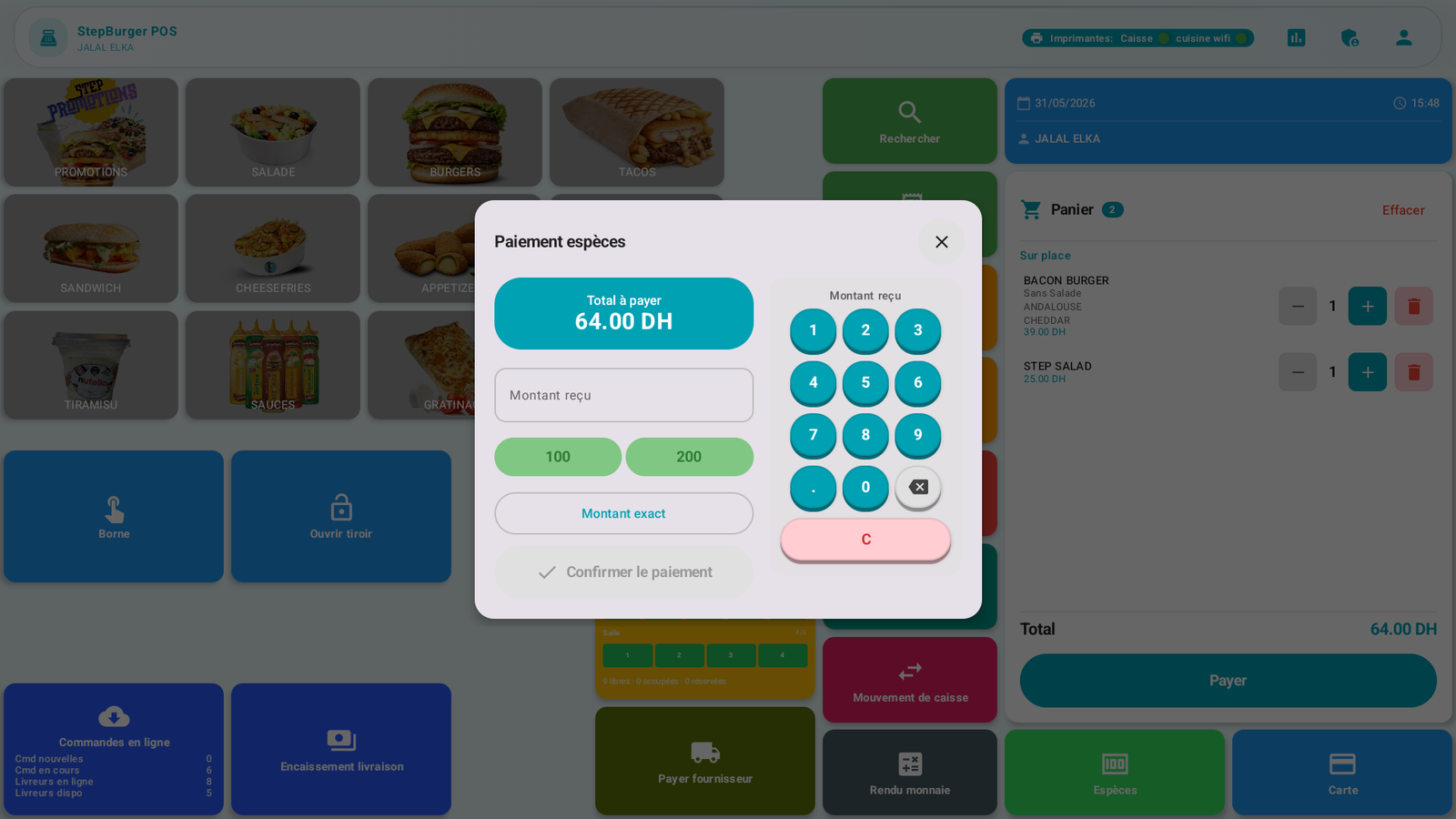
- The Cash payment window displays the Total due. Enter the amount received:
- with the numeric keypad, or
- with the shortcuts (100, 200…), or
- with Exact amount.
- PosCaisse calculates the Change due automatically.
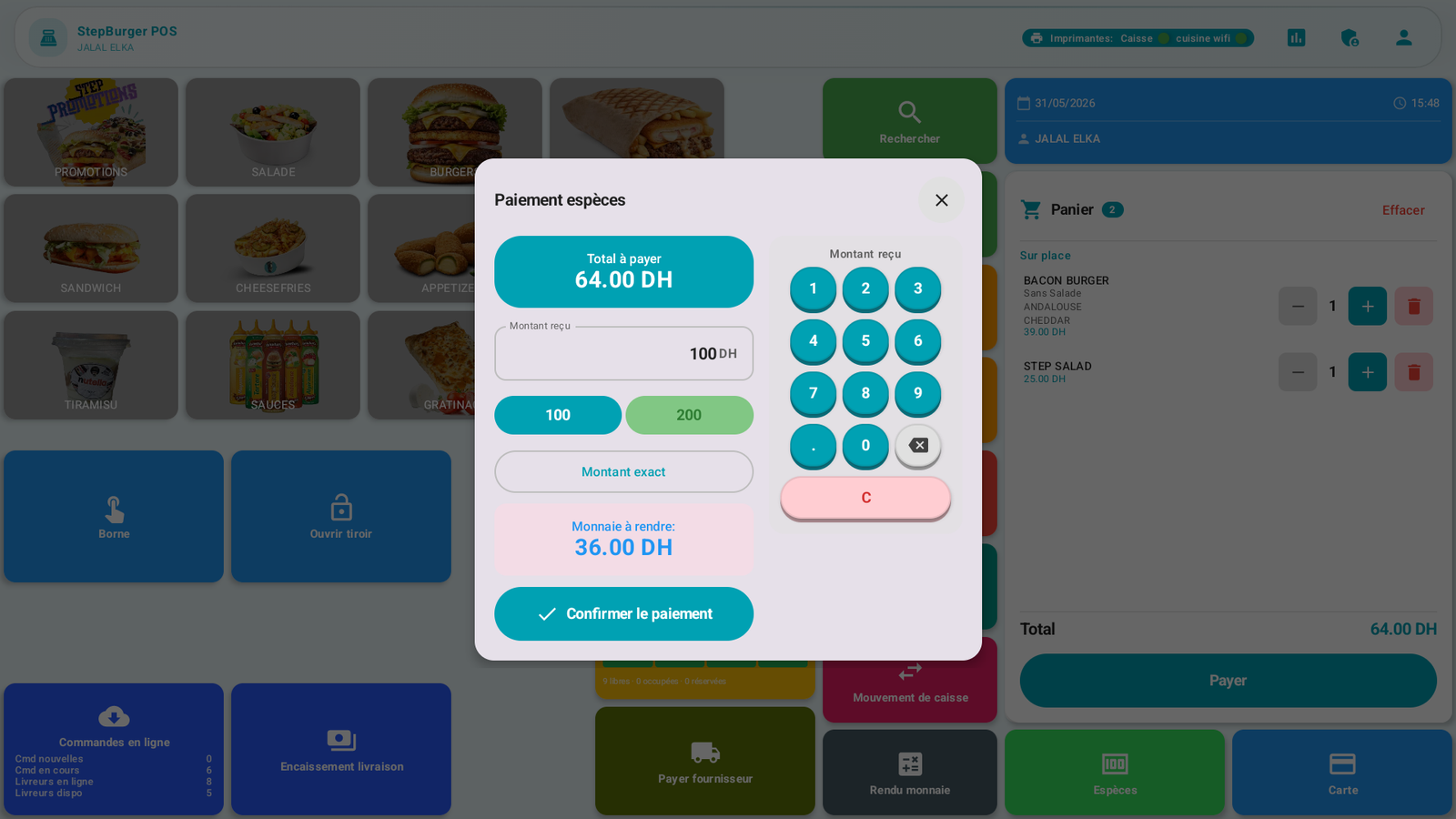
Example: total 64 DH, received 100 DH → Change due: 36.00 DH.
- Tap Confirm payment.
- Choose the order type if requested (Dine-in / Takeaway / Delivery / Drive).
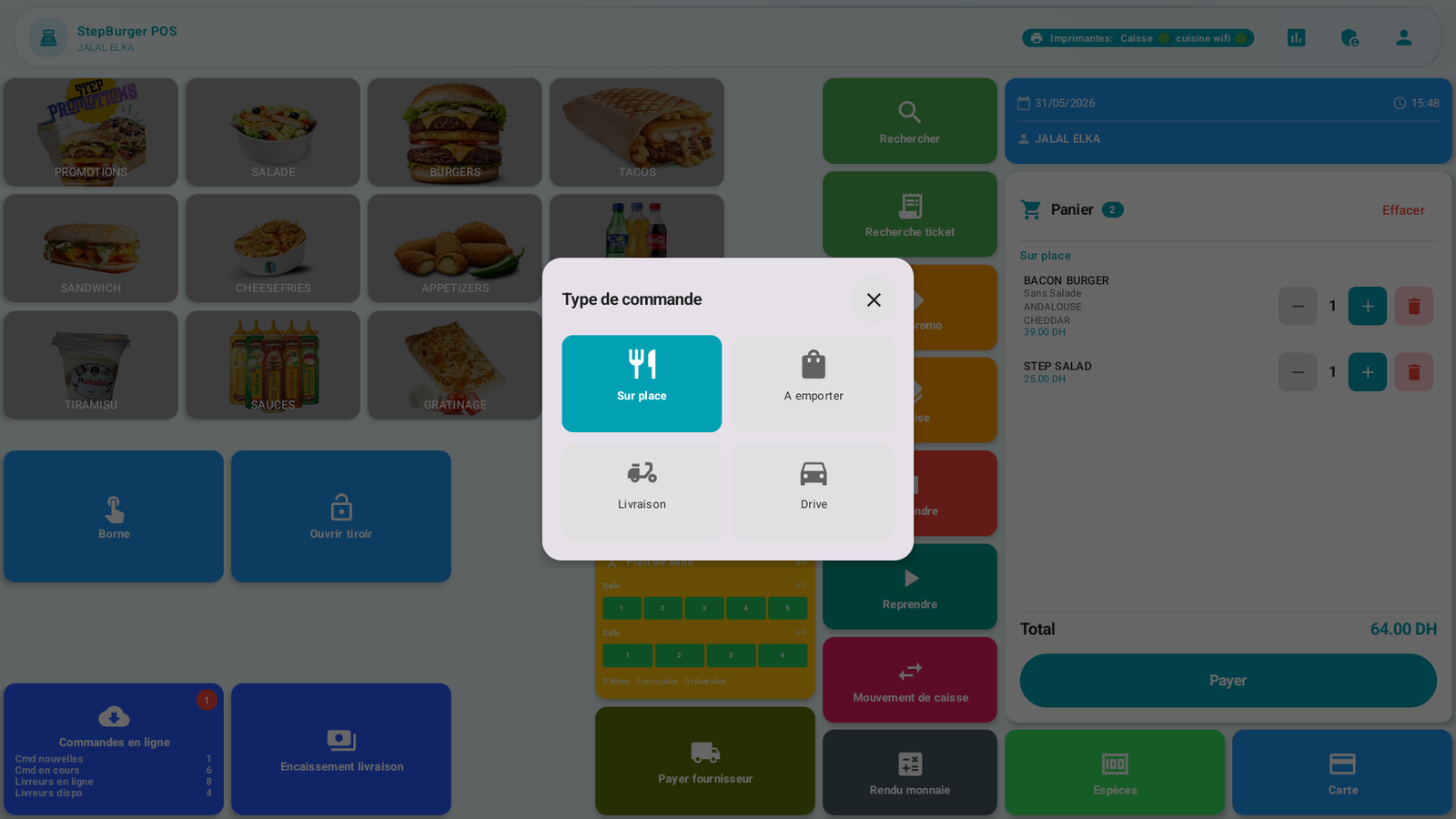
- The sale is finalized: the receipt prints, the cash drawer opens, and the cart empties, ready for the next customer.
Pay by card🔗
- Tap Card.
- Follow the prompt (and the payment terminal if connected).
- Confirm, choose the order type, the receipt prints.
Split payment🔗
If the customer pays with several methods (e.g. part in cash, the rest by card), use the Split payment widget: you split the amount between the methods until the total is covered.
Meal voucher🔗
The Meal voucher widget allows you to take payment with a meal voucher.
Messages & edge cases🔗
- The cash drawer opens automatically during a cash payment (if connected).
- The receipt is final once confirmed: it is numbered, signed and counted in the Z report. To correct it, you must go through a void or a refund (see Receipts, void & refund).
- If the printer is in error, printing may be put on hold: check the printer status at the top of the screen.
Tips🔗
- The Exact amount button avoids entry when the customer gives the exact change.
- Check the change due displayed before opening the drawer: it is calculated for you.