C11. Licenses & modules🔗
In brief🔗
The License & Modules screen displays the activation state of the register, its link to the PaderfSuite cloud, and the list of active modules. This is where modules are requested or updated.
Who / when🔗
For the Admin, to check the validity of the license or to upgrade the modules.
How to access🔗
Admin → Licenses.
Requirements🔗
🔑 Manage licenses (reserved for the Admin)
Screen tour🔗
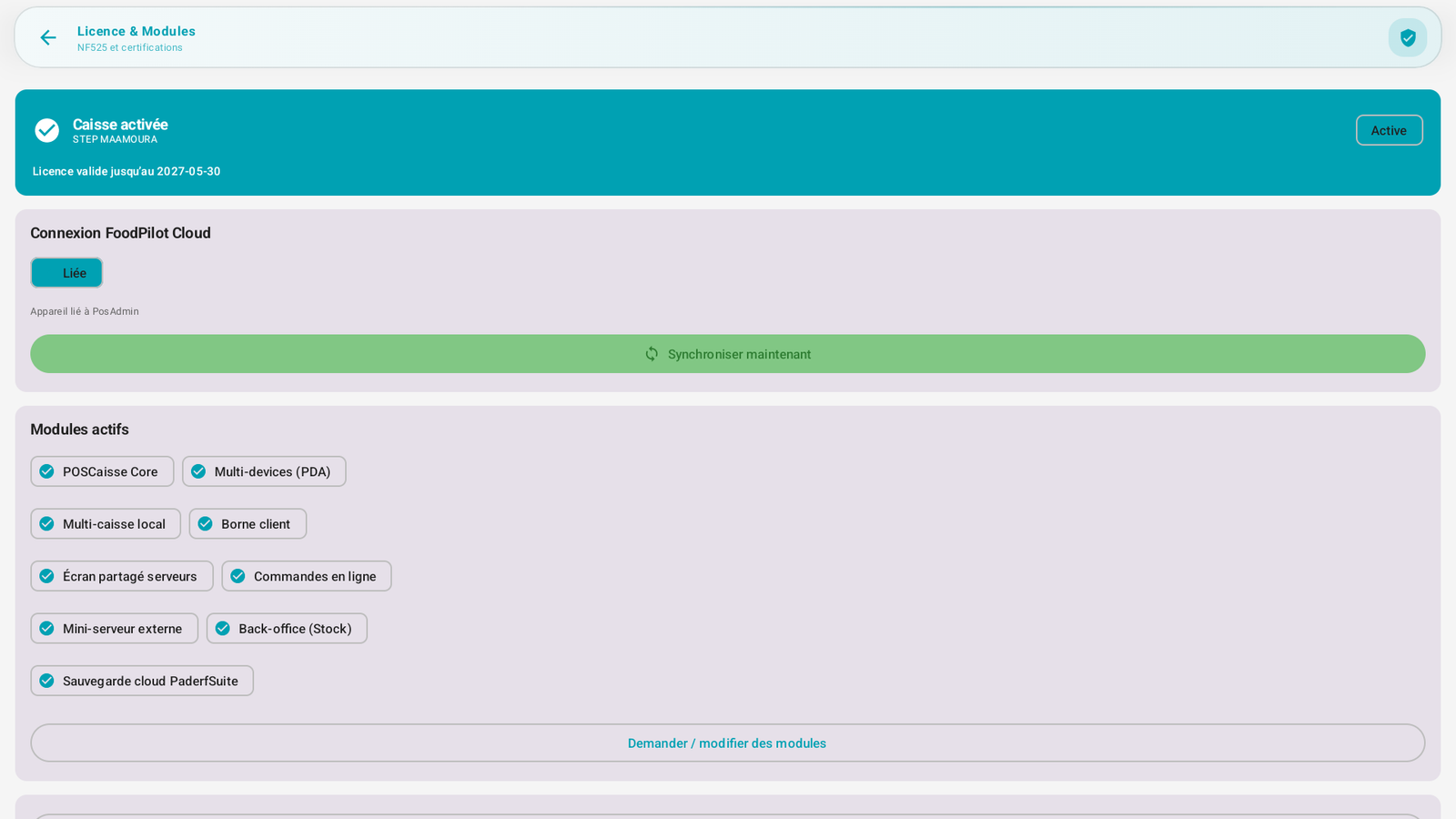
- Register activated: name of the store (e.g. Main store), Active status, and the license's validity date (e.g. valid until 2027-05-30).
- PaderfSuite Cloud connection: Linked status (register attached to the PaderfSuite license service) + Synchronize now button.
- Active modules: the list of unlocked modules, for example:
| Module | Role (see intro) |
|---|---|
| POSCaisse Core | Sales foundation |
| Multi-devices (PDA) | Companion devices |
| Local multi-register | Several registers |
| Customer kiosk | Self-service kiosk |
| Server shared screen | Secondary screen |
| Online orders | Receiving online orders |
| External mini-server | Dedicated server |
| Back-office (Stock) | Stock & recipes |
| Cloud backup | Backup to the PaderfSuite cloud |
- Request / modify modules button.
Some modules also display limits: number of PDAs, kiosks, shared screens, number of authorized registers, cloud quota and backup retention period.
Step-by-step🔗
Synchronize the license🔗
- Tap Synchronize now: the register retrieves the up-to-date state of its license from the PaderfSuite service.
Request/modify modules🔗
- Tap Request / modify modules.
- Select the desired modules, then synchronize to apply.
Messages & edge cases🔗
- The validity date must remain in the future: watch its approach to renew in time.
- A license not linked to the cloud can still work, but the link facilitates module updates.
Tips🔗
- After any module change on the PaderfSuite side, do Synchronize now so that the register takes it into account immediately.