C14. Backup & restore🔗
In brief🔗
The Backup center protects your data: it creates complete archives (database, images, metadata, control fingerprints), allows you to restore, to export the fiscal data, to schedule automatic backups and — optionally — to send to the cloud.
Who / when🔗
For the Admin, regularly (the backup is your safety net), and before any risky operation.
How to access🔗
Admin → Backup.
Requirements🔗
🔑 Export data and Manage settings
Screen tour🔗
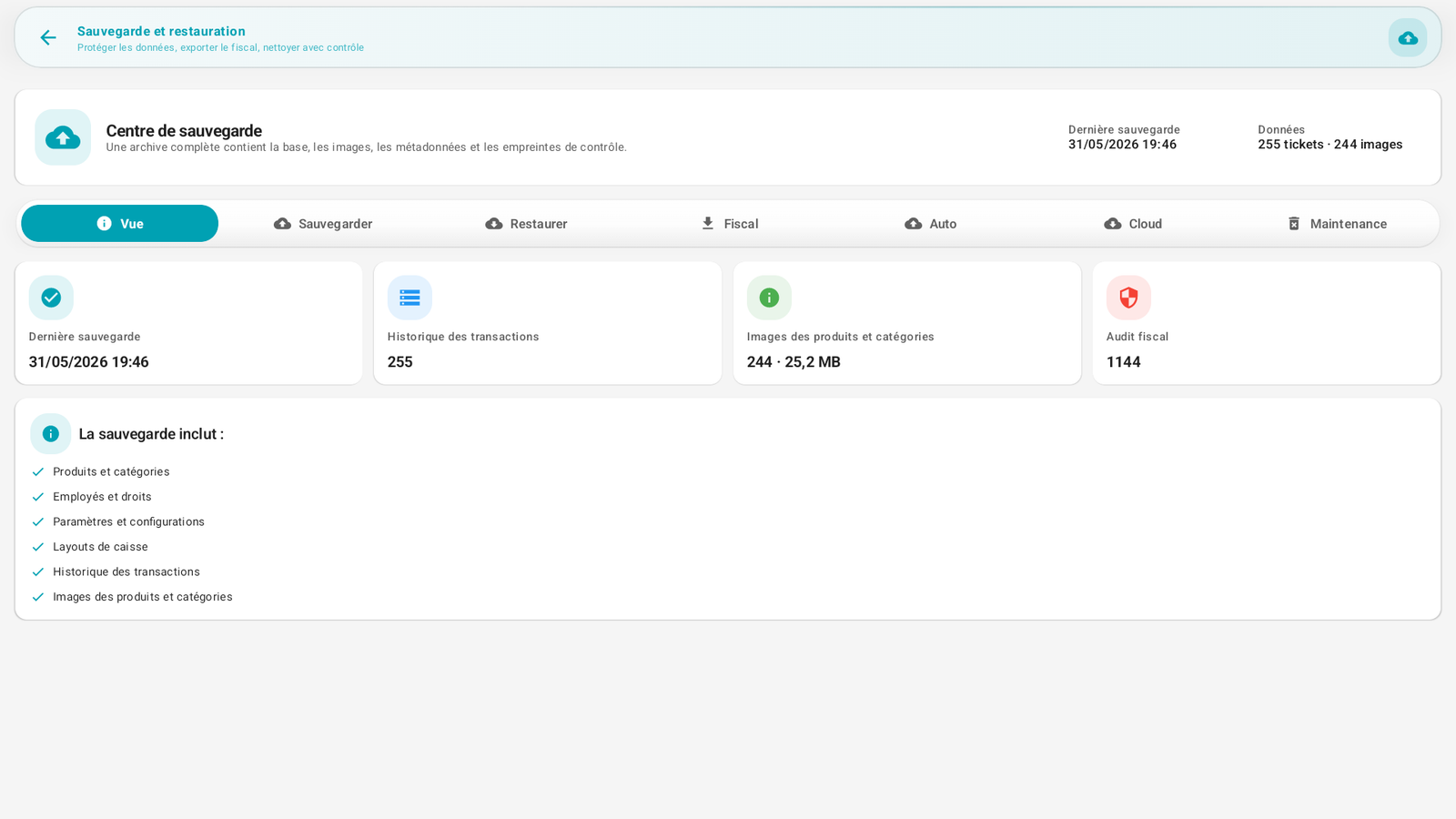
Header: last backup and data volume (e.g. 255 receipts · 244 images). Seven tabs:
| Tab | Role |
|---|---|
| View | Status: last backup, no. of transactions, images, fiscal audit. |
| Backup | Create a complete archive now. |
| Restore | Restore from an archive (local/external/cloud). |
| Fiscal | Export the fiscal data. |
| Auto | Schedule automatic backups (frequency, destination). |
| Cloud | View, download and restore the cloud backups. |
| Maintenance | Cleanup with control. |
The backup includes: products & categories, employees & rights, settings, register layouts, transaction history, images.
Step-by-step🔗
Back up now🔗
- Backup tab → launch the creation of the archive.
- Choose the destination: local storage, external folder (USB stick), or cloud (if the module is active).
Schedule an automatic backup🔗
- Auto tab → enable, choose the frequency and the destination (Local storage / External folder / PaderfSuite Cloud).
- If the cloud destination exceeds the authorized quota, reduce the retention period or request a suitable pack from PaderfSuite.
Restore a backup🔗
- Restore tab → select the archive (local, external or cloud).
- If the archive is encrypted, enter the key/password.
- Choose the sections to restore (catalog, sales, settings…) then confirm. (The current database will be replaced; the app may restart.)
Cloud backup (option)🔗
- Cloud tab (🧩 Cloud backup module) → view the space used, the quota, the retention period and the list of available backups.
- The backups indicate their date, their size, their origin (manual/automatic), their app version and their encryption state.
- To restore from the cloud, tap Download / restore: PosCaisse downloads the archive, checks its integrity fingerprint, then uses the same restore wizard as for a local archive.
Encryption and backup
If the database is encrypted (Advanced settings), the backup is too. Before a cloud upload of an unencrypted database, the register warns you and offers to open the encryption settings. Without the key, an encrypted archive is unrecoverable.
Messages & edge cases🔗
- A complete archive contains database + images + metadata + control fingerprints (integrity).
- The restore must only be done with an archive coming from this same register (the identity is verified — see License activation).
Tips🔗
- Enable an automatic backup (Auto tab): the best backup is the one you don't have to remember to make.
- Keep a copy off the device (external folder or cloud): in case of loss/theft of the register, this is what saves your data.