B4. Dine-in / takeaway / delivery🔗
In brief🔗
Each order has a type: Dine-in, Takeaway, Delivery or Drive. The type can change the display (receipt, kitchen) and, depending on the configuration, the taxation.
Who / when🔗
For the Cashier, for every order.
How it is presented🔗
Depending on the layout, the order type appears at the top of the cart (e.g. Dine-in) and/or is requested at the moment of payment:
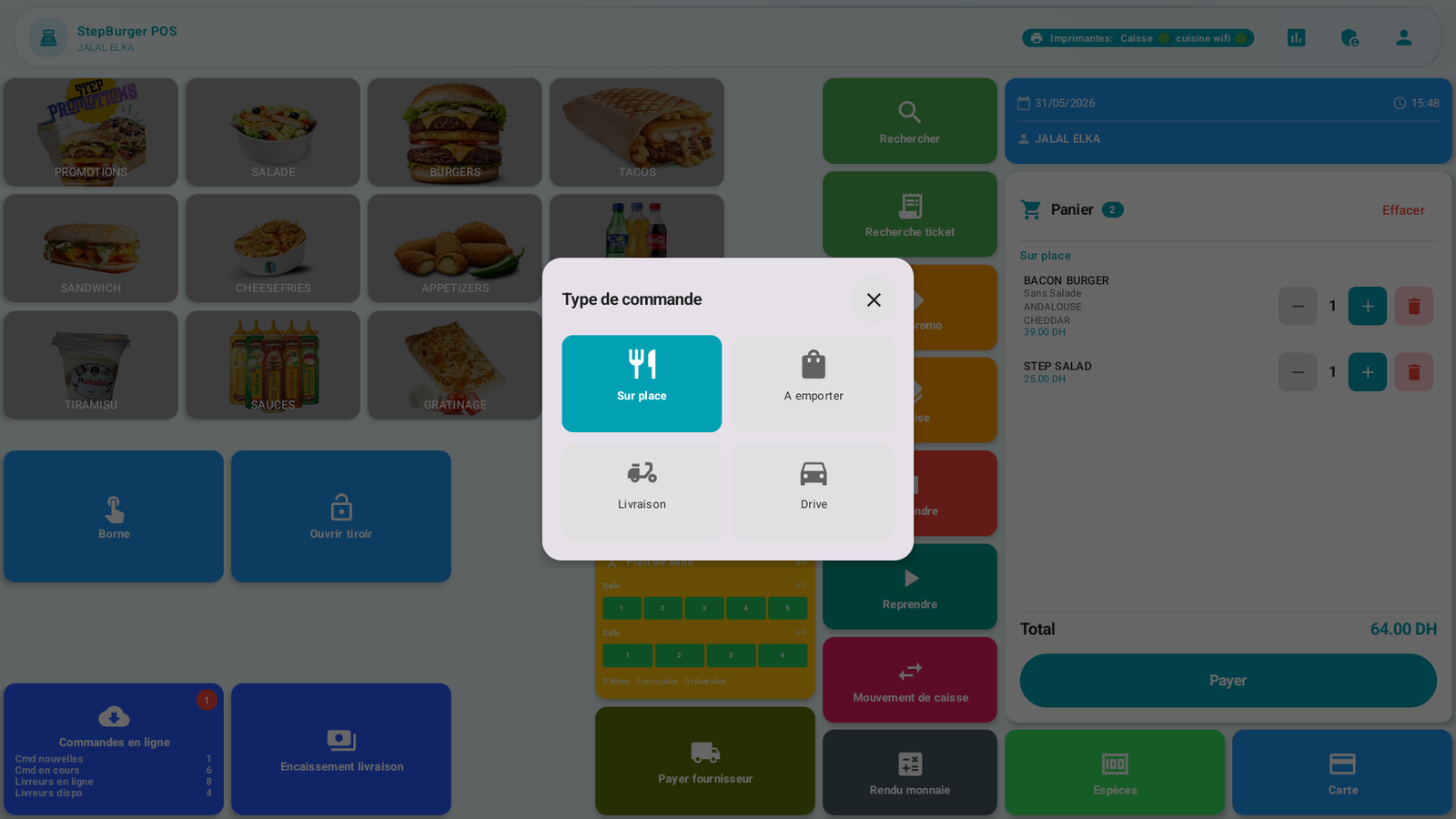
The four possible choices:
| Type | For what |
|---|---|
| Dine-in | The customer eats on the premises. |
| Takeaway | The customer takes their order away. |
| Delivery | The order is delivered. |
| Drive | Drive-through pickup. |
Procedure🔗
- During the order, the default type is shown at the top of the cart (often Dine-in).
- To change it, use the Order type widget (if present), or make your choice in the window that appears when validating the payment.
- Tap the desired type: it applies to the order.
Messages & edge cases🔗
- The order type may be requested automatically at payment if none was chosen beforehand (as in the screenshot above).
- The Delivery / Drive types can be linked to the Online order module for tracking drivers (see the Online order guide).
Tips🔗
- Get into the habit of setting the type from the start of the order when it is obvious (e.g. the "takeaway" queue).
See also🔗
- B6. Take payment
- A7. Configure the POS screen (Order type widget)