B7. Stock Movements🔗
In short🔗
The stock movements journal tracks every change in the quantity of your ingredients: stock in, stock out, adjustments, waste, and more. Each line tells you what moved, by how much, why, and who triggered it. It is your reference history whenever you need to understand why a stock level changed. From this screen you can also record a manual movement when a change wasn't logged automatically.
Who / when🔗
For the manager or kitchen lead who wants to review history, correct a stock level by hand, or log a breakage, a return, or a one-off adjustment.
How to get there🔗
Kitchen & Recipes → Stock Movements
Prerequisites🔗
🔑 View stock (recording a manual movement requires Manage stock)
Screen tour🔗
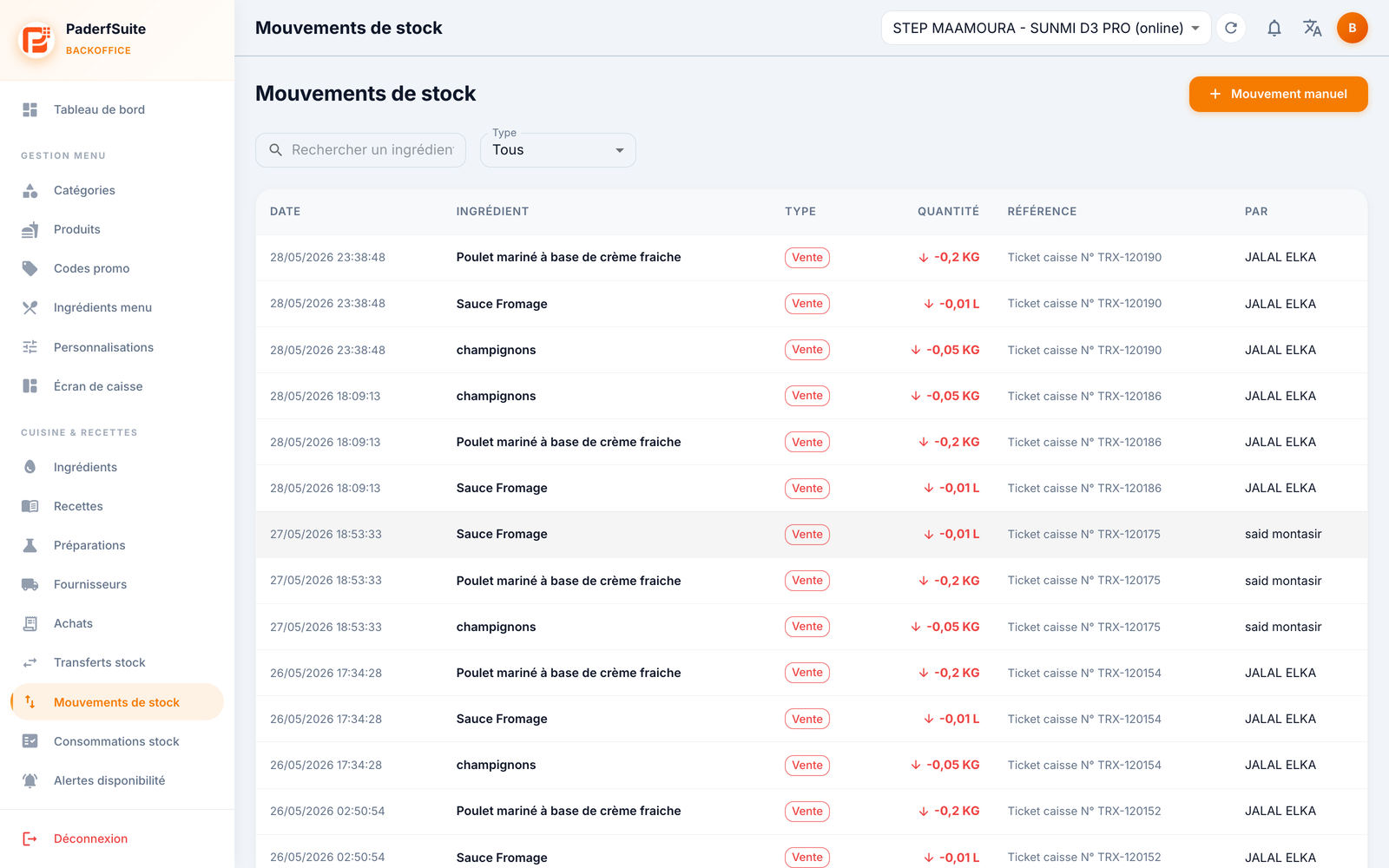
At the top, a search bar and a type filter let you show a single movement category (14 types available).
The table lists movements with the following columns, in order:
- Date: date and time of the movement.
- Ingredient: the ingredient involved.
- Type: a colored chip indicating the nature of the movement (reception, sale, waste, adjustment, etc.).
- Quantity: the change, prefixed with its sign + (in) or − (out).
- Reference: the document or event behind the movement (order, transaction, inventory, etc.).
- By: who made the movement (employee or automatic).
Step-by-step🔗
Record a manual movement🔗
- Click the manual movement button.
- Fill in the dialog fields:
- Ingredient: the ingredient to adjust.
- Type: the nature of the movement (one of the 14 types).
- Quantity: the number of units.
- Direction: required when the type doesn't imply it (in or out).
- Waste reason: required if the movement is a waste entry.
- Cost per unit: the per-unit cost, to value the movement.
- Reason: a free comment justifying the operation.
- Photo: a photo proof, requested in the case of waste.
- Confirm. The movement appears at the top of the journal and the ingredient's stock is updated.
Find a movement🔗
- Use the search to filter by ingredient or reference.
- Use the type filter to isolate a single category (for example, only waste or only receptions).
Messages & edge cases🔗
- The direction is requested only for ambiguous types; for the others it is inferred automatically.
- The reason and the photo are requested only for waste movements, in order to keep a documented record of the loss.
- Most movements are created automatically by the POS (sales, receptions, transfers, inventory): manual entry is reserved for special cases.
Tips🔗
- For a synthetic analysis of waste (value, rate, breakdown by cause), use the Waste & Loss screen instead.
- The cost per unit entered for a manual movement is used to correctly value your waste and variances in reports.