B1. Ingredients (stock)🔗
In brief🔗
The Ingredients screen is the heart of stock management. It lists every raw material in the restaurant (cheddar, fries, chicken, beverages…) along with its current level, its unit, its alert threshold and its cost per unit. This is where you monitor levels, manage lots and expiry dates (DLC), and organize your ingredients into categories.
Who / when🔗
For the manager and the purchasing officer. Check it daily to spot ingredients running low, and keep it up to date whenever you add a new ingredient or change a supplier, unit or cost.
How to get there🔗
Kitchen & Recipes → Ingredients
Prerequisites🔗
🔑 View stock (read-only) · Manage stock (creating, editing, deleting, managing lots and categories)
Screen tour🔗
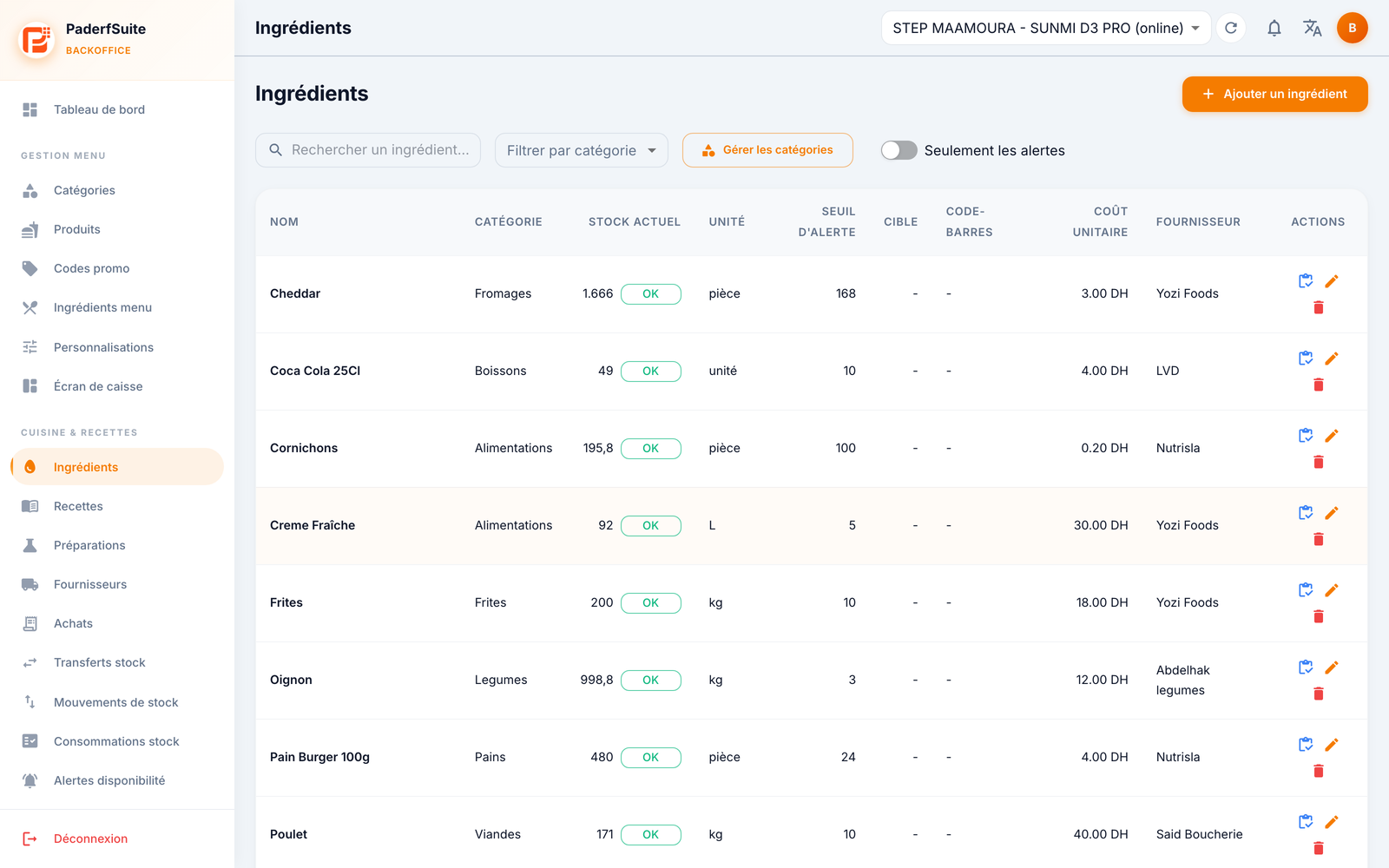
The toolbar at the top of the list offers:
- a search by ingredient name;
- a filter by category;
- the Manage categories button;
- an Only alerts toggle (shows only ingredients below their threshold);
- the Add ingredient button (top right).
The table shows the following columns, in order:
| Column | Meaning |
|---|---|
| Name | Ingredient label |
| Category | Storage family (Cheeses, Beverages, Meats…) |
| Current stock | Quantity in stock, with a colored dot (green = OK, orange = low, red = out of stock) |
| Unit | Unit of measure (kg, g, L, mL, unit, piece) |
| Alert threshold | Level below which an alert is triggered |
| Target | Target stock level for replenishment |
| Barcode | Associated barcode (for scanning) |
| Cost per unit | Cost price per unit, in DH |
| Supplier | Default supplier |
| Actions | Open details · Edit · Delete |
Step-by-step procedures🔗
Add or edit an ingredient🔗
Click Add ingredient (or the pencil icon on a row). The dialog asks for:
- Name (required);
- Category (required);
- Unit (required): KG, G, L, ML, UNIT or PIECE;
- Alert threshold and Minimum stock;
- replenishment Target;
- Default order quantity;
- Cost per unit (in DH);
- Barcode;
- Supplier;
- Initial stock (only when creating);
- the Active toggle.
View ingredient details (3-tab drawer)🔗
Click the details action on a row to open the side drawer. It contains three tabs:
- Lots / Expiry: the list of received lots, with lot number, expiry date (DLC, shown by a colored dot depending on urgency), remaining / received quantity, cost, usage, supplier and dates. Add a lot button.
- Price history: how the cost per unit has changed over time (variation, update source, percentage).
- Recipe units: the correspondence between the unit used in recipes and the stock unit (1 recipe unit = a factor of the stock unit).
Manage ingredient categories🔗
Click Manage categories. The dialog lets you create and organize categories (name, display order, color). They are then used for filtering and sorting the list.
Messages & edge cases🔗
- Deletion: if you delete an ingredient, a confirmation is requested. An ingredient used in recipes should be handled with care.
- The expiry (DLC) dots flag lots nearing expiration: keep an eye on them to limit waste.
Tips🔗
- Turn on Only alerts to focus on what needs to be reordered.
- Fill in the cost per unit carefully: it feeds the food cost of recipes and the margin of products.
- Enter barcodes to speed up receiving and inventory with a scanner.