A3. Promo codes🔗
In short🔗
Promo codes create discounts that can be applied on the POS and in online ordering: fixed amount, percentage, or free delivery, with a validity period and conditions (minimum amount, targeted products or customers).
Who / when🔗
For the manager launching a commercial offer: a launch promotion, a loyalty code, a weekend deal, or a discount reserved for specific customers.
How to get there🔗
Menu Management → Promo codes
Prerequisites🔗
🔑 Manage products
Screen tour🔗
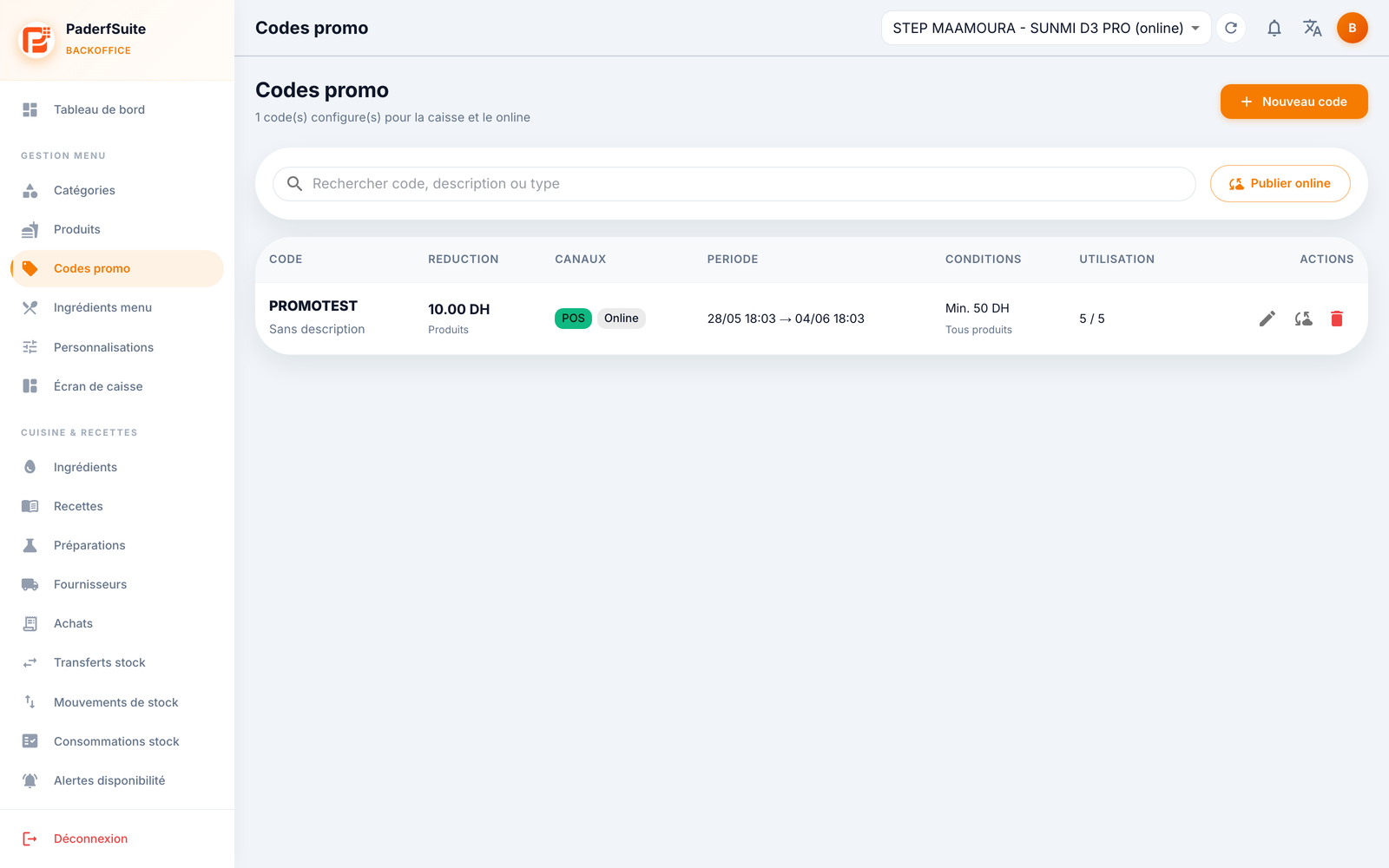
At the top: the number of configured codes, a search bar (code, description, or type), the Publish online button, and New code on the right.
The table shows the following columns, in order:
- Code: the code to enter, with the description below it and, where applicable, Inactive, Expired, or Scheduled badges.
- Discount: the value and its type (amount in DH, percentage, or free delivery).
- Channels: POS (register), Online, and Auto customer badges indicating where the code applies.
- Period: the start and end dates and times.
- Conditions: minimum amount, eligible products, targeted customers.
- Usage: number of uses consumed against the limit (e.g. 5 / 5).
- Actions: edit, publish to Step Client, delete.
Step-by-step procedures🔗
Create a promo code🔗
- Click New code.
- Fill in the code's identity:
- Code (required; it is locked once in edit mode)
- Type: fixed amount, percentage, or free delivery
- Value
- Description
- Set the channels (toggles): Active, POS, Step Client, Auto.
- Define the validity:
- Start and end date and time
- Minimum order amount
- Usage limits (total and per customer)
- Calculation base
- Free delivery option in addition to the discount
- Specify the targeting if needed: eligible products, phone numbers of the relevant customers.
- Confirm.
Edit a code🔗
Click the pencil. All settings can be changed except the Code itself, which remains locked.
Publish to Step Client🔗
Use the Publish online button or the Step Client publish action on a row to make the code available on the customer side.
Delete a code🔗
Click the trash icon on the row and confirm.
Messages & edge cases🔗
- The Inactive, Expired, and Scheduled badges indicate that a code is not (or not yet) active: check the dates and the Active toggle.
- When usage reaches the limit (e.g. 5 / 5), the code can no longer be applied.
Tips🔗
- Schedule the start and end in advance so a promotion activates and deactivates automatically.
- The Auto customer channel lets you apply a discount without the customer entering the code.