A2. Products🔗
In brief🔗
Products are the items sold at the register and online: name, price, image, VAT, visibility, customizations and stock linkage. This is the central screen of your menu, and the richest one in the back office.
Who / when🔗
For the manager who creates and maintains the menu: adding a new dish, updating a price, enabling a product for online ordering, or linking a product to stock and recipes.
How to access it🔗
Menu management → Products
Prerequisites🔗
🔑 Manage products 🧩 Online Orders module (for Publish online menu and Retrieve online catalog)
Screen tour🔗
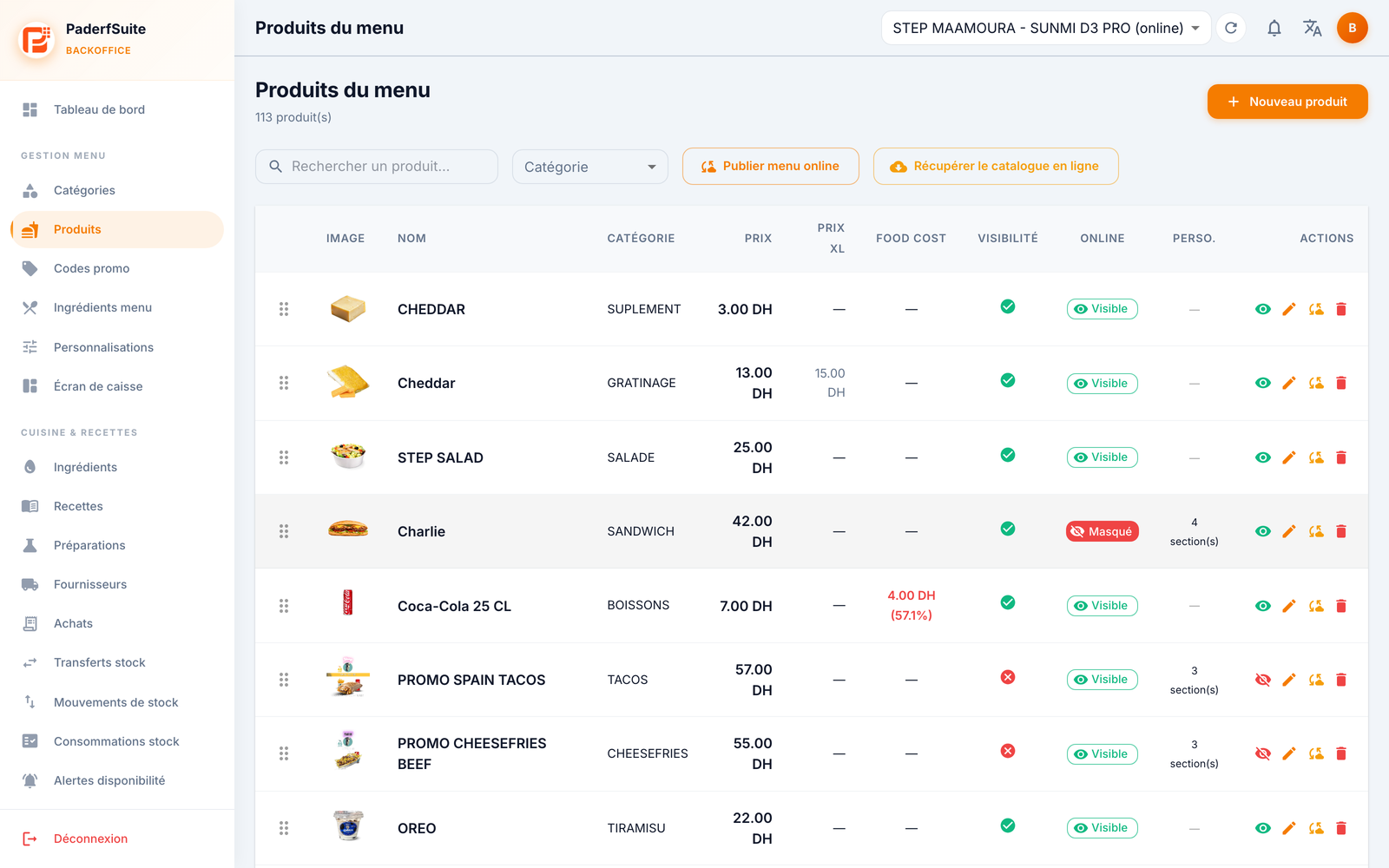
At the top: the total number of products, a search bar, a category filter, the Publish online menu and Retrieve online catalog buttons, and New product on the right.
Without the Online Orders module
The Publish online menu and Retrieve online catalog buttons appear only if the Online Orders module is enabled on the register. Without this module, they do not appear: only local product management and the New product action remain available.
The table shows, in order, the following columns:
- (handle): drag and drop to reorder.
- Image: the product thumbnail.
- Name: the name, with the Arabic name, the barcode and a Featured badge below it where applicable.
- Category: the category it belongs to.
- Price: the selling price.
- XL price: the price of the XL/large version, if defined.
- Food cost: the material cost in DH and its percentage, color-coded (green = healthy, red = high).
- Visibility: ✓ visible / ✗ hidden at the register.
- Online: a Visible or Hidden badge for online ordering.
- Cust.: the number of customization sections attached.
- Actions: preview, edit (pencil), customizations, delete.
Step-by-step procedures🔗
Create or edit a product🔗
Click New product, or the pencil on a row. The product dialog is organized into three tabs.
General tab🔗
- Name (required)
- Name AR (Arabic)
- Category
- Description and Description AR
- Image (upload or URL)
- Barcode
- SKU (internal reference)
- Color
Pricing tab🔗
- Price (required)
- XL price (large version)
- Cost (reference material cost)
- VAT %
- Promo price
Advanced tab🔗
- Switches: Active, Visible POS, Visible Online, Print in kitchen, Customizable, Composite, Category rules, Featured, Promotion.
- Preparation time.
- Stock mode: chooses how the product draws down stock —
- NONE: no stock link;
- RECIPE: drawn down via its recipe (ingredients);
- DIRECT: drawn down directly as a stocked item.
- Smart online stock: daily sales limit and automatic pausing (snooze) online.
- Composition: for a composite product, the list of included ingredients, each marked as included by default and/or removable by the customer.
- Tags and allergens.
Save to confirm.
Publish products online🔗
- Click Publish online menu.
- In the dialog, select the sections to publish.
- Run a dry-run (simulation) to check, review the summary, then confirm.
Retrieve the online catalog🔗
- Click Retrieve online catalog.
- The dialog compares the online catalog with your local products and shows a status per row (to create, already present, different…).
- Check the matches, then apply the retrieval.
Delete a product🔗
Click the trash icon on the row and confirm.
Messages & special cases🔗
- Publish online menu and Retrieve online catalog depend on the Online Orders module: without this module, these two buttons do not appear.
- A food cost shown in red flags a low margin: check the price or the recipe.
- To draw down stock automatically, choose the RECIPE mode (then fill in the recipe) or DIRECT.
Tips🔗
- Mark your best-sellers as Featured to highlight them.
- The XL price avoids creating a second product for the large size.
- Customization sections are managed from the dedicated row action, detailed in the Customizations chapter.