E4. Devices🔗
In brief🔗
This screen shows the actual state of the devices connected to the POS: printers, cash drawer, barcode scanner, NFC reader, payment terminal, and customer display. It is a read-only view: configuration and pairing happen elsewhere.
For whom / when🔗
For the manager who wants to check at a glance that their equipment is properly connected and operational, or to diagnose an offline printer before service.
How to get there🔗
System → Devices
Prerequisites🔗
🔑 Manage settings
Screen tour🔗
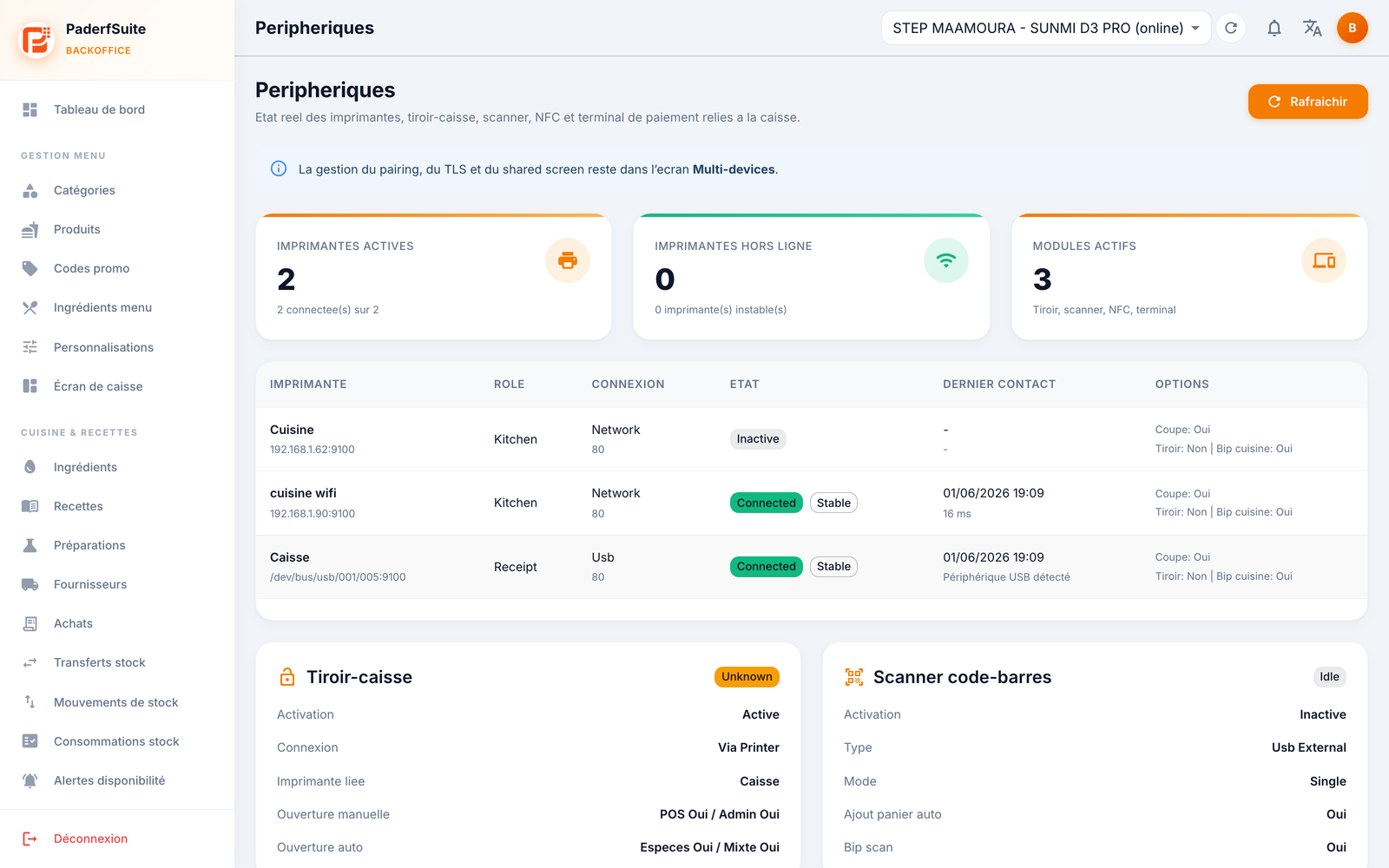
Read-only screen
This screen reflects the state of the equipment but does not let you configure it. Managing pairing, TLS, and the shared screen is done in the E5. Connected devices screen. For the actual device configuration, refer to the PosCaisse guide.
An information banner reminds you of this at the top. Three indicators summarize the situation (active printers, offline printers, active modules). The Refresh button is at the top right.
Printers table🔗
The columns, in order:
- Printer: name and address.
- Role: for example Kitchen or Receipt.
- Connection: link type (Network, USB…).
- State: Connected/Stable (green) or Inactive.
- Last contact: date and response time.
- Options: auto-cut, drawer opening, kitchen beep.
Device cards🔗
Five cards detail the state of each piece of equipment:
- Cash drawer: activation, connection, linked printer, manual opening, automatic opening.
- Barcode scanner: activation, type, mode, auto add to cart, scan beep.
- NFC reader.
- Payment terminal.
- Customer display.
Step-by-step procedures🔗
Check the device state🔗
- Open System → Devices.
- Review the indicators and the printers table.
- Check the State and the Last contact of each printer.
- Click Refresh to update.
Configure or pair a device🔗
- This screen does not allow configuration.
- To pair a device, go to E5. Connected devices.
- For the actual device setup, follow the PosCaisse guide.
Messages & edge cases🔗
- A printer that is Inactive or has no recent Last contact signals a connection problem to check on the hardware side.
- Any change is made from the POS (PosCaisse) or from Connected devices, not here.
Tips🔗
- Use this screen as a control dashboard before opening: a single glance is enough to spot an offline printer.
- The response time shown in Last contact helps spot a slow network connection.