D1. Employees🔗
At a glance🔗
The Employees screen gives you an overview of your team's performance: the revenue generated by each employee, their number of transactions and their last login. It's a read-only screen: you observe the results here, you don't edit the accounts.
Who / when🔗
For the manager who wants to compare the team's contribution, spot the most active employees or check the latest logins. Consult it at the end of a shift, a week or a month.
How to get there🔗
Management → Employees
Prerequisites🔗
🔑 Manage employees
Screen tour🔗
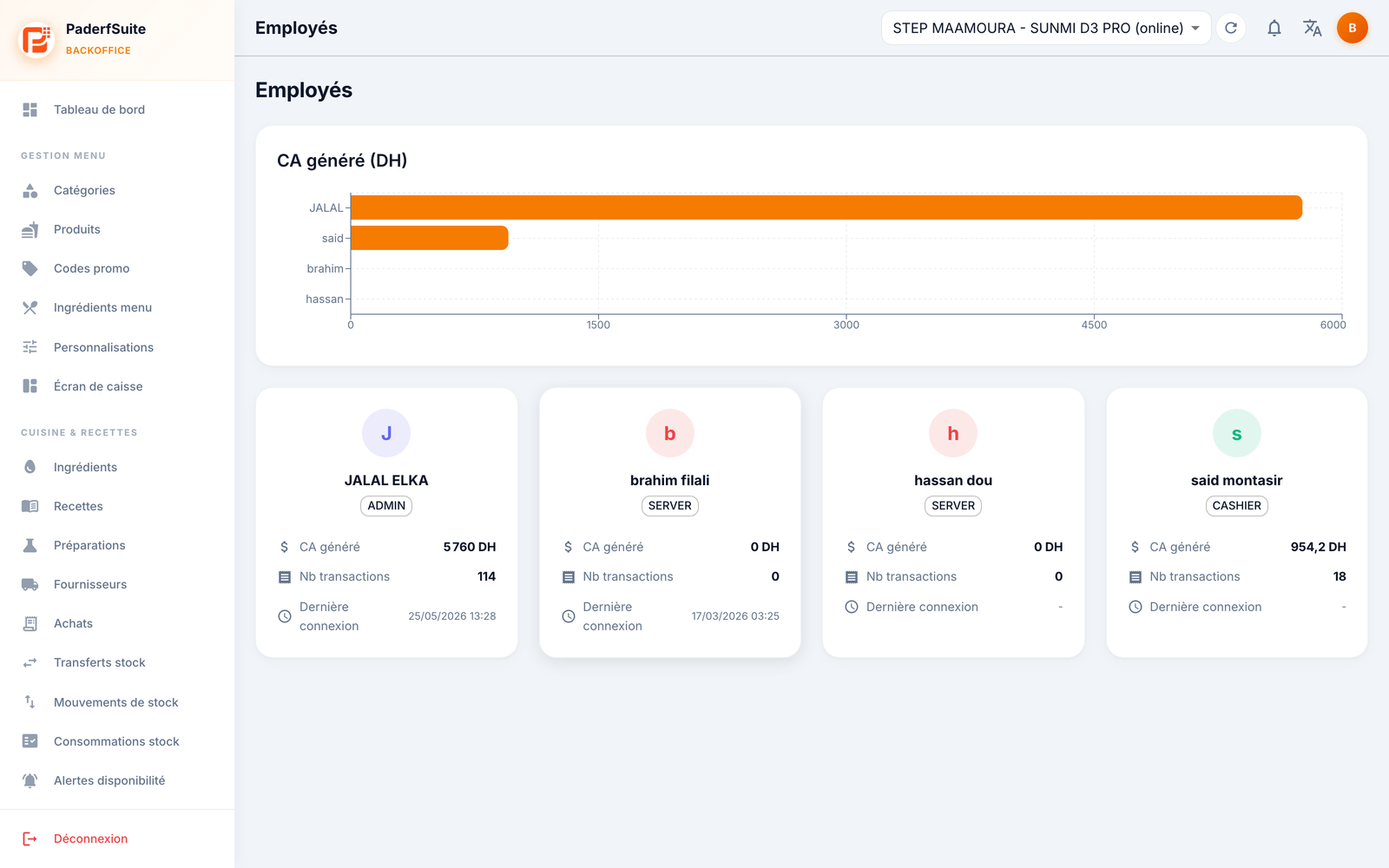
The screen has two blocks:
- Revenue generated chart (DH): a horizontal bar chart ranking the top 10 employees by revenue generated.
- Employee cards: one card per employee, showing:
- the avatar (the initial, colored by role) and the name;
- a role badge (Admin, Server, Cashier…);
- the revenue generated (in DH);
- the number of transactions;
- the last login (date and time, or a dash if never logged in).
Step-by-step procedures🔗
Compare team performance🔗
- Open Management → Employees.
- Read the Revenue generated chart for the ranking, then the cards for the detail (transactions, last login).
Check an employee's last login🔗
- Locate the employee's card.
- Read the Last login line: a dash means they haven't logged in yet during the period.
Messages & edge cases🔗
- This screen is read-only: no create, edit or delete action is available here.
- Creating employees, defining roles and managing PIN codes are done on the register (PosCaisse app), not in the Back-Office.
- The rights assigned to each role are viewed and set in Access & permissions.
Tips🔗
- An employee showing 0 transactions but a recent last login may indicate an account that's been created but isn't yet active on sales.
- Cross-reference this ranking with the Employee performance card in Sales & Statistics to analyze a specific period.