The interface & the dashboard🔗
In brief🔗
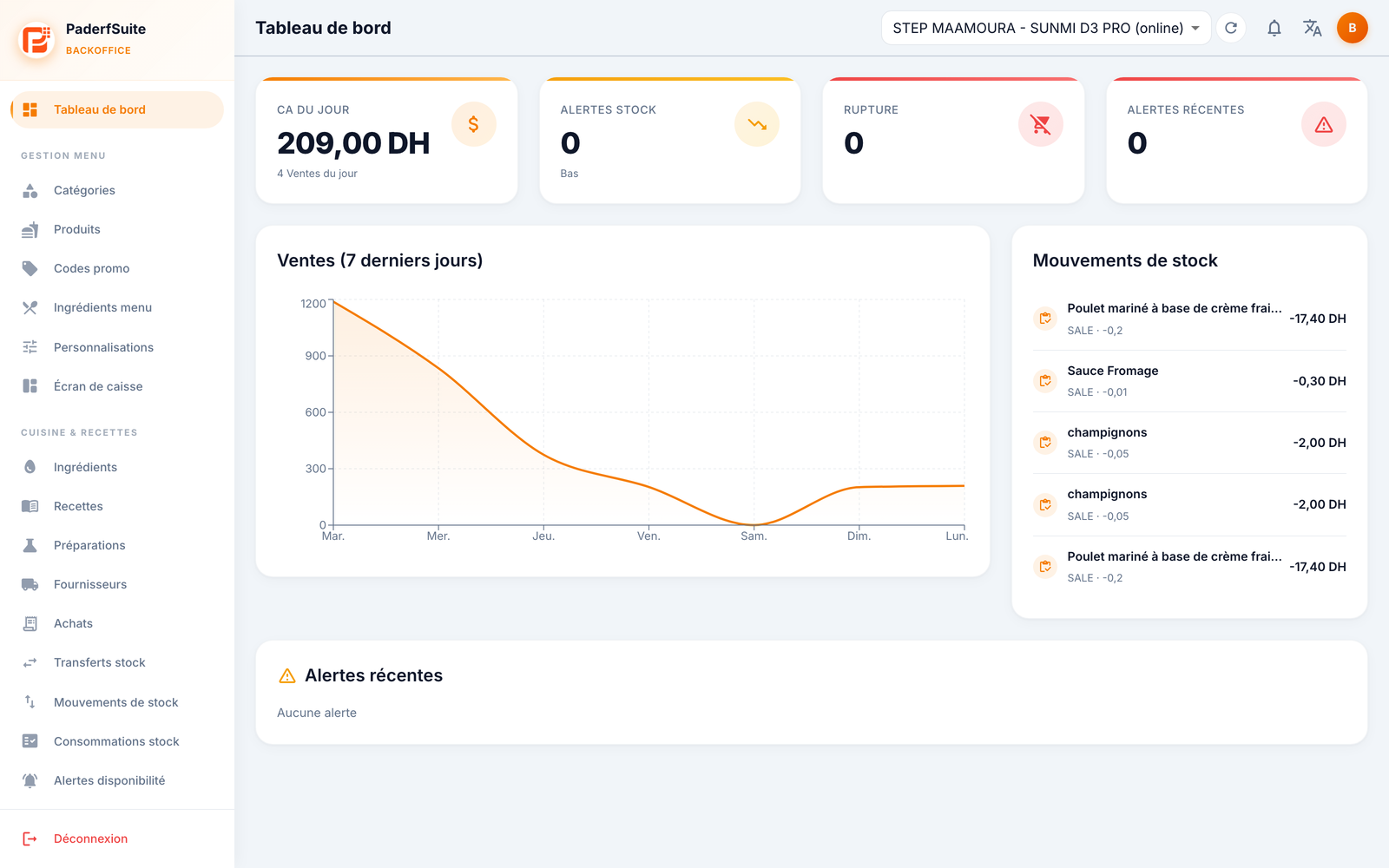
PosBackOffice is organized into three zones: the sidebar (navigation, on the left), the header (register selector, notifications, language, preferences, at the top) and the content area (the current screen). The first screen shown is the dashboard.
Overview🔗
The sidebar (navigation)🔗
On the left, the menu lists all the screens, grouped into sections:
| Section | Screens |
|---|---|
| (top) | Dashboard |
| Menu Management | Categories · Products · Promo codes · Menu ingredients · Customizations · POS Screen |
| Kitchen & Recipes | Ingredients · Recipes · Preparations · Suppliers · Purchase Orders · Stock Transfers · Stock Movements · Stock Consumption · Stock Availability · Inventory · Waste · Stock Alerts |
| Sales | Sales & Stats |
| Management | Employees · Tables · Reports |
| System | Settings · Licenses · Backups · Peripherals · Multi-devices · Customer display · Authorizations · Audit log |
The active screen is highlighted. At the bottom, the Logout button.
Don't see all the screens?
The menu adapts to your rights. An account without permission for a screen will not see it appear. Permissions are managed in Access & permissions.
The header🔗
At the top of every screen, from left to right:
- The title of the current screen.
- The register selector (store — device, online/offline) and its refresh button.
- The notification bell 🔔: a red badge shows the number of unread stock alerts. Click to view them and jump straight to the relevant screen.
- The 🌐 language icon: Français / English / العربية / Español.
- The avatar (your initial): opens the Preferences panel (interface language, back-office colors), detailed in Back-Office preferences.
The dashboard🔗
The dashboard is the home page. It gives the restaurant's state of health at a glance:
- Four key indicators at the top:
- Today's revenue (and the number of sales today);
- Low stock (ingredients below the alert threshold);
- Out of stock (ingredients at zero);
- Unread recent alerts.
- The revenue chart for the last 7 days.
- The list of latest stock movements.
- The list of low-stock ingredients (with their level and their threshold).
Multi-register
If your restaurant has several registers, the dashboard can display a consolidated revenue that adds up the main register and the secondary registers (This register / Secondary registers / Total).
Reading cues common to all screens🔗
- Each screen opens with a title and a short explanatory subtitle.
- The colored chips indicate a status: green = OK/active, orange = caution, red = problem/inactive.
- Lists often offer a search, filters and pagination (10/25/50/100 rows).
- Amounts are shown in dirhams (DH) according to the currency set in Settings.
You now know the interface. On to configuration, starting with Part A — Menu management.