B4. Suppliers🔗
In brief🔗
The Suppliers screen centralizes your sourcing partners: contact details, product categories, lead times and terms. Each supplier has a catalog that links its references (SKU, price, purchase unit) to your stock ingredients.
Who / when🔗
For the manager and the purchasing officer. Keep it up to date when a new supplier comes on board, when a price or contact detail changes, and to prepare purchase orders.
How to get there🔗
Kitchen & Recipes → Suppliers
Prerequisites🔗
🔑 View stock (read-only) · Manage suppliers (creation, editing, catalog)
Screen tour🔗
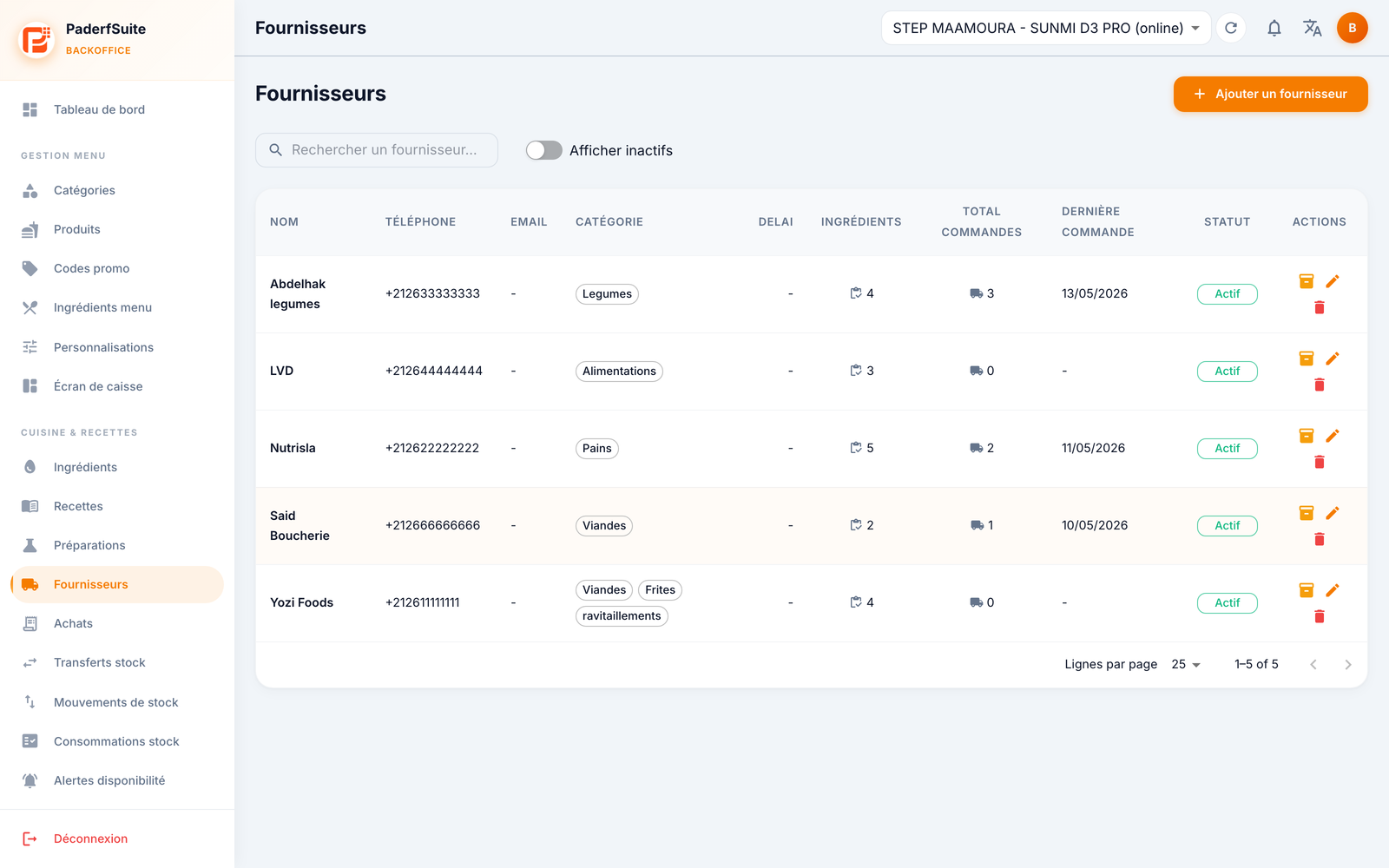
The toolbar offers a search by name and a Show inactive toggle. The Add supplier button is at the top right.
The table shows the following columns, in order:
| Column | Meaning |
|---|---|
| Name | Supplier name (and an optional note) |
| Phone | Contact number |
| Email address | |
| Category | Families supplied, shown as dots (Vegetables, Meats, Breads…) |
| Lead time | Usual delivery lead time |
| Ingredients | Number of ingredients supplied |
| Total orders | Number of orders placed |
| Last order | Date of the last order |
| Status | Active / inactive dot (clickable) |
| Actions | Catalog · Edit · Delete |
Step-by-step procedures🔗
Add or edit a supplier🔗
Click Add supplier (or the pencil icon). The dialog asks for:
- Name (required);
- Phone, Email;
- ICE / tax identifiers;
- delivery lead time;
- Minimum order;
- Payment terms;
- Preferred channel (how orders are placed);
- Address;
- Categories supplied;
- Notes.
Manage the supplier catalog🔗
From the catalog action on a row, you associate ingredients with this supplier. For each ingredient:
- the supplier's name for the item;
- SKU and barcode;
- Purchase unit and conversion factor to stock;
- Price;
- order Minimum;
- Lead time;
- Preferred marker.
Messages & edge cases🔗
- Deletion: a confirmation is requested. Prefer switching to inactive to keep the order history.
- The conversion factor (purchase unit → stock unit) is essential: it is what turns a purchased quantity (e.g. a box) into a stock quantity (e.g. kg).
Tips🔗
- Fill in the catalog carefully: it feeds the purchase suggestions and pre-fills the purchase orders.
- Mark a supplier as Preferred per ingredient to speed up ordering.