B2. Recipes🔗
In brief🔗
The Recipes screen links each product you sell to its ingredients. By describing what a dish contains, you automatically get its food cost and you let the stock be deducted with every sale.
Who / when🔗
For the manager and the chef. Fill it in when setting up a new product, then keep it up to date whenever a recipe changes or an ingredient cost evolves.
How to get there🔗
Kitchen & Recipes → Recipes
Prerequisites🔗
🔑 View stock (read-only) · Manage recipes (creating and editing recipes)
Screen tour🔗
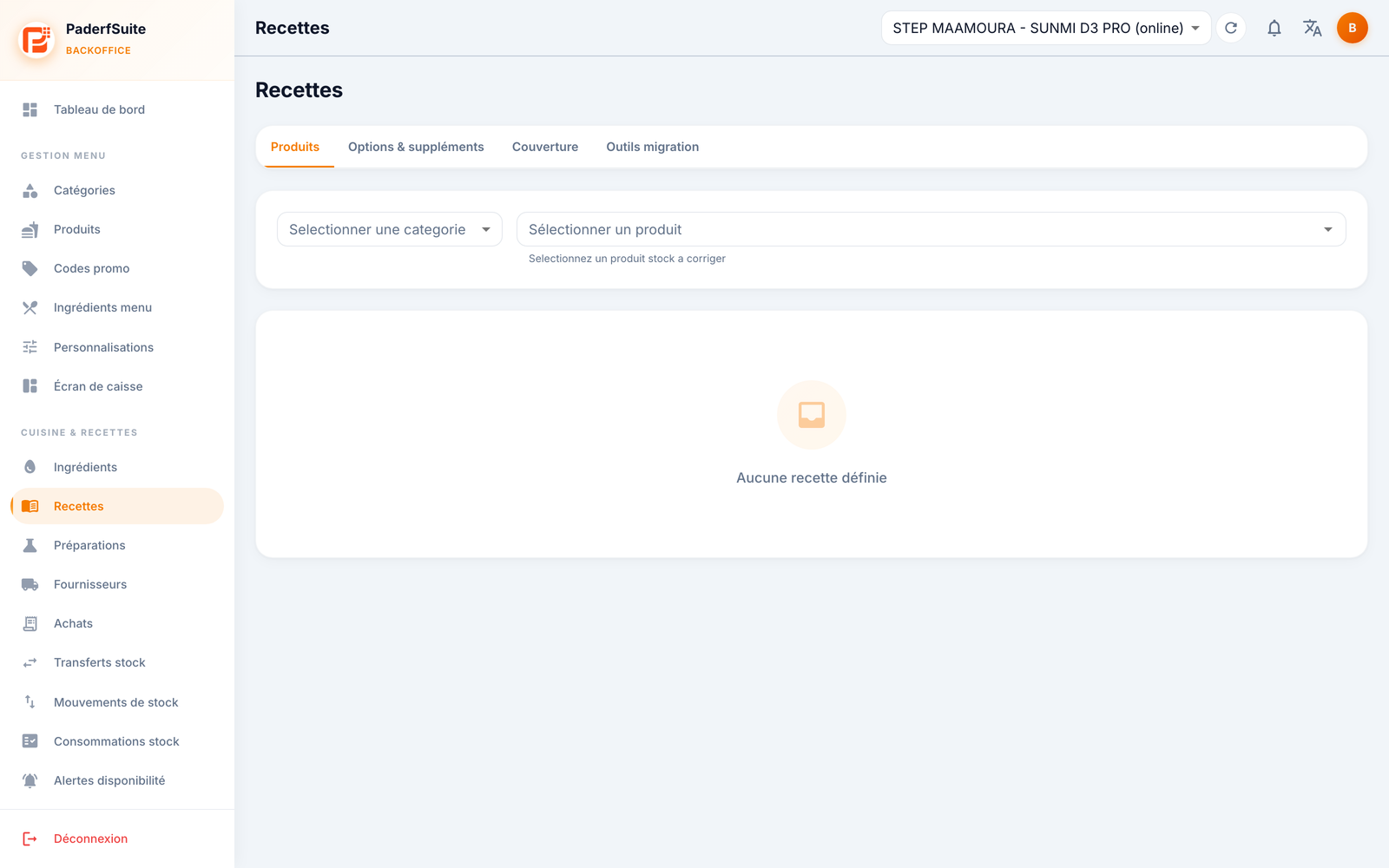
The screen is organized into four tabs:
- Products: select a category then a product to display (or create) its recipe. As long as no recipe is defined, the screen shows "No recipe defined".
- Options & supplements: the recipes attached to options and supplements (for example an extra cheese) and their impact on stock.
- Coverage: a progress overview of your recipes, with tracked / validated / drafts / missing dots and a table of products to fix.
- Migration tools: tools to analyze then apply an automatic recipe migration.
In the Products tab, once the recipe is open, each line shows: the ingredient, the linked menu ingredient, the quantity, the unit, the line cost and its status. The product's food cost % is calculated at the bottom, and a button lets you save the recipe.
Step-by-step procedures🔗
Create a product's recipe🔗
- In the Products tab, choose the category then the product.
- Add one line per ingredient via the recipe line dialog.
- Check the displayed food cost %.
- Save the recipe.
Recipe line dialog🔗
For each line, fill in:
- Ingredient (required);
- Linked menu ingredient (where applicable);
- the Affects stock toggle (does the line deduct stock at sale time?);
- Quantity;
- Unit.
Recipe of an option or a supplement🔗
In the Options & supplements tab, the option recipe dialog lets you define its impact on stock (to validate · consumes · does not consume) as well as its ingredient lines.
Messages & edge cases🔗
- No recipe defined: the selected product has no recipe yet; add its lines to get started.
- The Coverage tab lists missing products or ones to fix: handle them to make the stock deduction and food cost reliable.
Tips🔗
- The food cost % depends directly on the ingredients' cost per unit: keep it up to date in Ingredients.
- Use the Coverage tab as a checklist to reach 100% of validated recipes.