B10. Inventory🔗
In short🔗
Inventory lets you physically count your ingredients and compare that count against the expected stock calculated by the system. The gap between the two is displayed and valued in DH, revealing losses, theft, or data-entry errors. An inventory runs as a session: you start it, you count, then you close it to adjust stock.
Who / when🔗
For the manager or kitchen lead who runs periodic inventories (month-end, week-end) or a one-off count on a family of ingredients.
How to get there🔗
Kitchen & Recipes → Inventory
Prerequisites🔗
🔑 View stock (Manage stock to start and close a session)
Screen tour🔗
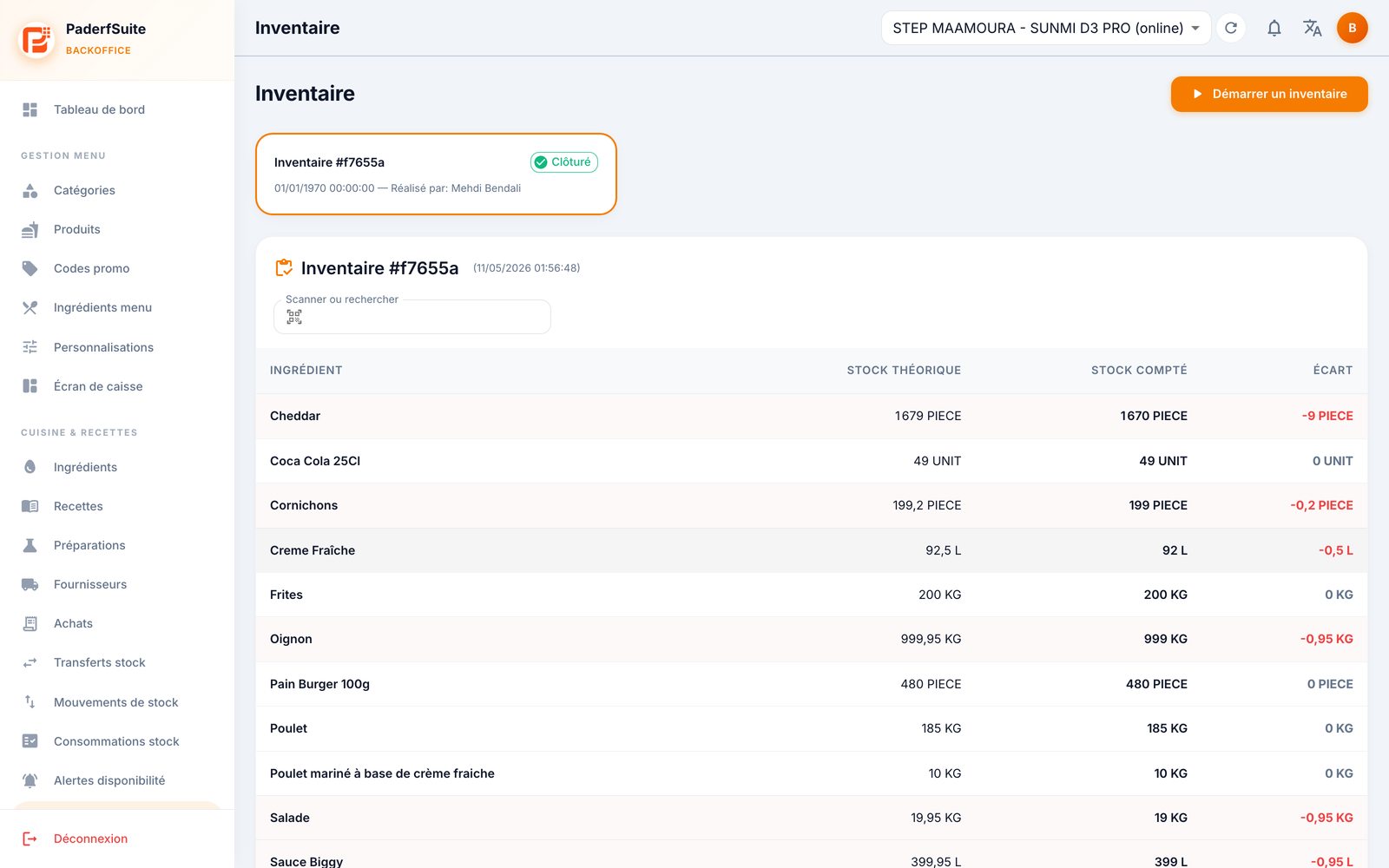
At the top, the Start inventory button and a scan / search field to find an ingredient.
The screen shows session cards (session number, status, count progress), then a detail table with the following columns, in order:
- Ingredient: the ingredient to count.
- Expected stock: the quantity expected by the system.
- Counted stock: the quantity actually counted (editable during the open session).
- Variance: the difference between counted and expected.
A valued variance total (in DH) sums up the financial impact of the inventory.
Step-by-step🔗
Start and run an inventory🔗
- Click Start inventory: a new session opens.
- Go through the table and enter, in the Counted stock column, the quantity actually present for each ingredient.
- As needed, use the scan / search field to quickly find an ingredient (by barcode or by name).
- The Variance column and the valued total update as you go.
Close an inventory🔗
- Once counting is complete, click Close.
- The session is frozen and stock is adjusted based on the counted quantities.
Messages & edge cases🔗
- The Counted stock column can only be edited during an open session; once closed, the session becomes history.
- A large valued variance signals a loss, theft, or data-entry error worth investigating.
Tips🔗
- Scanning greatly speeds up counting if your ingredients have a barcode (see B1. Ingredients (stock)).
- To analyze inventory variances over time, check the Inventory variances report in Reports.