B6. Stock transfers🔗
In brief🔗
Stock transfers let you send ingredients from one store to another, then receive the quantities actually delivered. The screen tracks each transfer from sending to receiving and highlights the discrepancies.
Feature restricted to cloud mode
Stock transfers are only available for PaderfSuite accounts in cloud mode (multiple stores). In local mode (standalone register), the screen shows an information message and the feature is not accessible.
Who / when🔗
For the manager of a multi-store network. Use it to help out a store, pool stock or reallocate goods between points of sale.
How to get there🔗
Kitchen & Recipes → Stock transfers
Prerequisites🔗
🔑 View stock (read-only) · Manage stock (creating and receiving transfers) · Multi-store cloud account
Screen tour🔗
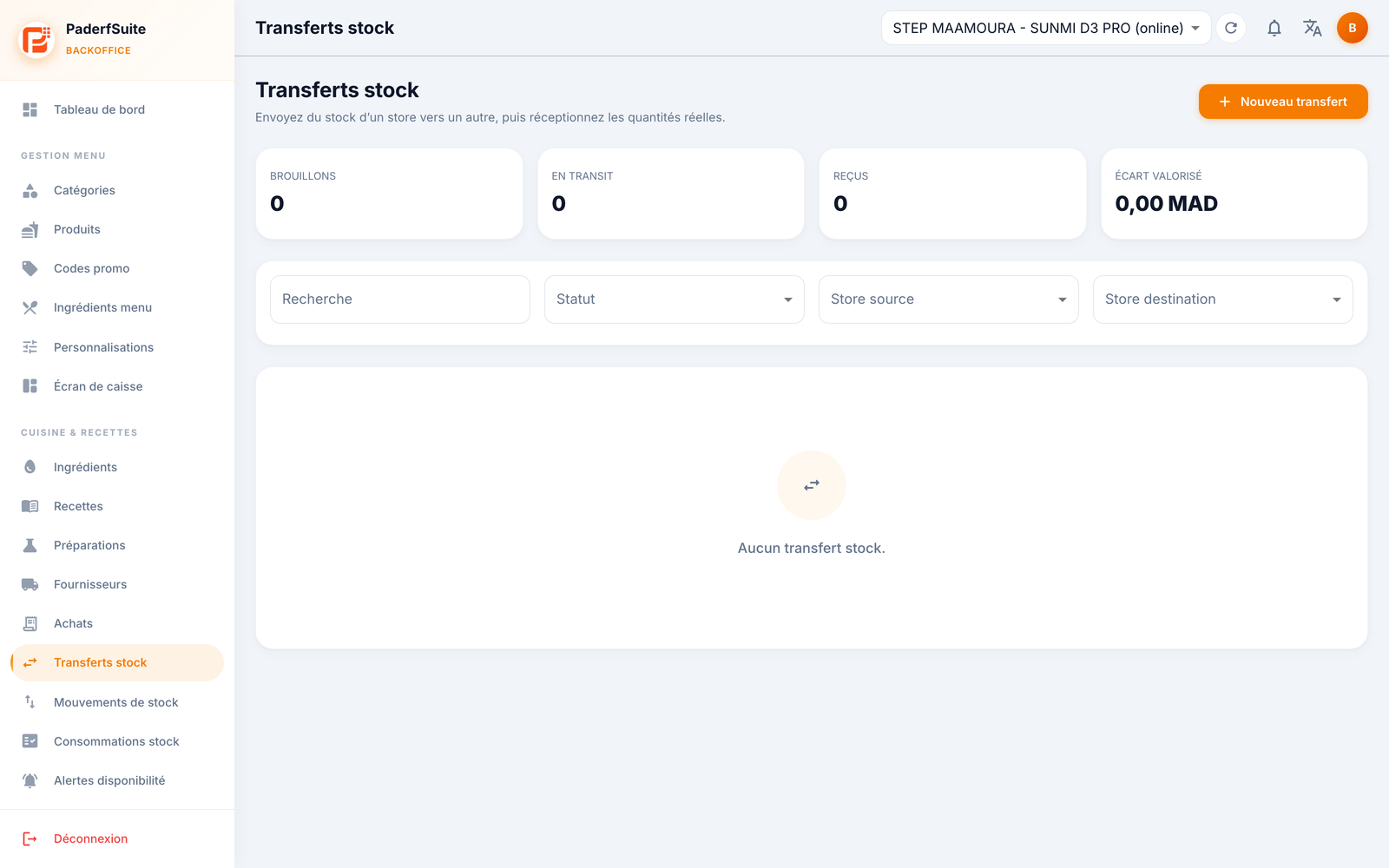
At the top, four indicators: Drafts, In transit, Received and Valued discrepancy (in DH). The toolbar offers a search and Status, Source store and Destination store filters. The New transfer button is at the top right. As long as no transfer exists, the screen shows "No stock transfer."
The table shows the following columns, in order:
| Column | Meaning |
|---|---|
| Transfer | Transfer reference |
| Route | Source store → destination store |
| Status | Draft, In transit, Received… |
| Lines | Number of items |
| Sent | Quantity sent |
| Received | Quantity received |
| Discrepancy | Difference between sent and received |
| Actions | Details · Receive · Send / Cancel |
Step-by-step procedures🔗
Create a transfer🔗
Click New transfer. The dialog asks for:
- the route: source and destination stores (and registers);
- the lines: source and destination ingredient, quantity, unit, cost, and the relevant lot / expiry (DLC).
Send the transfer🔗
From the corresponding action, confirm the sending. The transfer moves to In transit. You can also cancel a transfer.
Receive🔗
On arrival, the Receive action lets you enter the received quantity and note any discrepancy against the quantity sent.
Messages & edge cases🔗
- Non-cloud mode: the screen shows a message stating that the feature is restricted to cloud mode.
- Valued discrepancy: a discrepancy (breakage, loss in transit) is valued in DH in the top indicator; keep an eye on it to make your stock reliable.
Tips🔗
- Fill in the lot / expiry (DLC) when sending to keep traceability from one store to another.
- Use the In transit indicator to spot transfers awaiting reception.