E7. Customer Display🔗
In brief🔗
The customer display is the second screen, facing the customer, which shows their order, the total, and the payment status during checkout. This screen lets you personalize its appearance in the same visual editor (Canva-style) as the kiosk settings: background, logo, welcome message, product cards, total, and more. It is the web equivalent of the customer display configurable in PosCaisse.
Who / when🔗
For the manager who equips the till with a customer-facing display and wants to dress it in their own colors: at setup, when refreshing branding, or to polish the counter experience.
How to get there🔗
System → Customer Display
Prerequisites🔗
🔑 Manage settings
Screen tour🔗
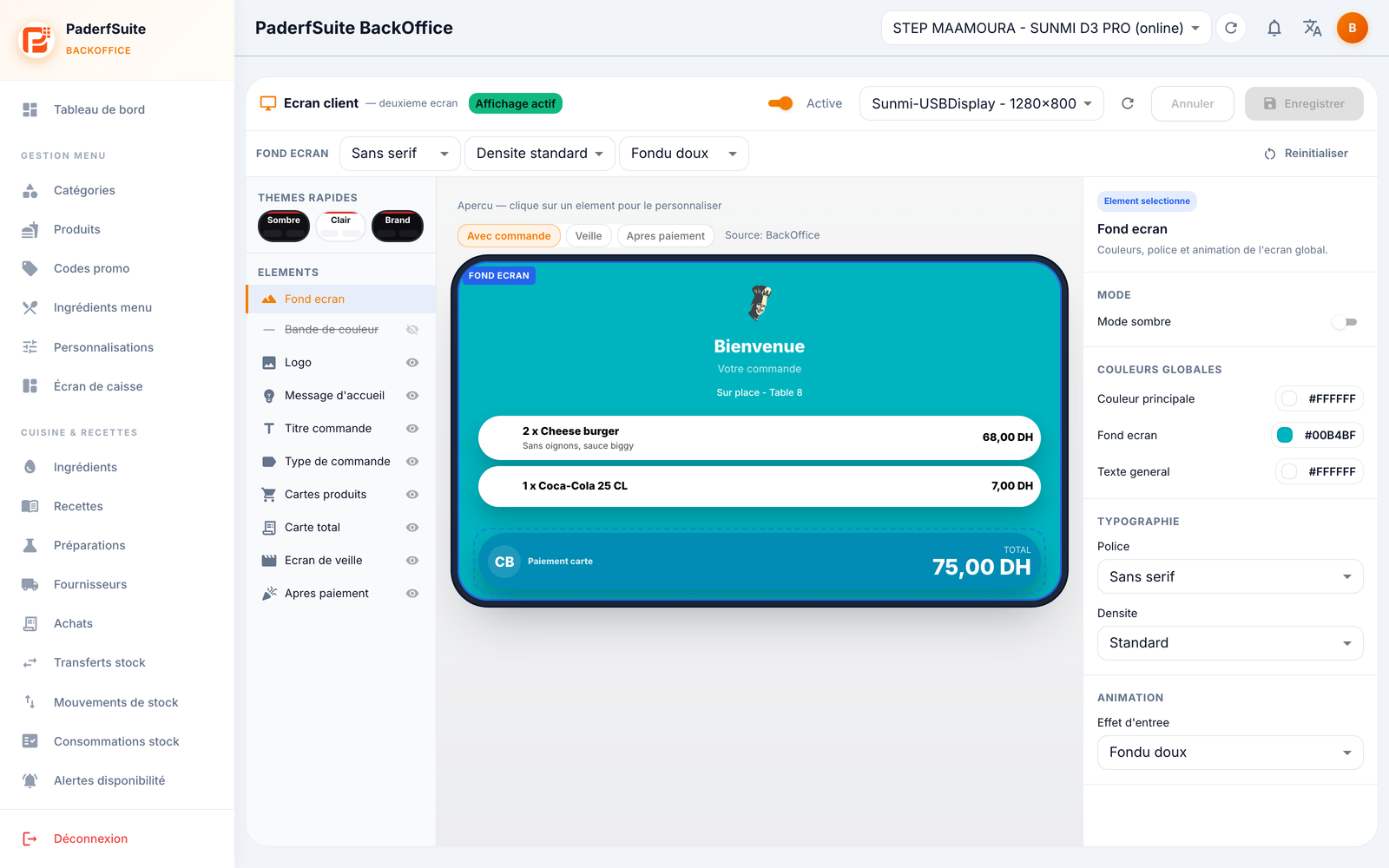
The layout is identical to the kiosk settings: three columns and a toolbar.
- Top bar: the Active status, the detected screen selector, the Cancel, Save (active only if you have changed something), and Reset buttons. A menu lets you set the display font and density.
- Preview (center column): it offers three modes to check every situation:
- With order: during order taking, with the item list and the total.
- Idle: when no order is in progress.
- After payment: the thank-you screen.
- Layers (left column), each hideable: Screen background, Color band, Logo, Welcome message, Order title, Order type, Product cards, Total card, Idle screen, After payment. Quick themes are also offered.
- Inspector (right column): the detailed settings of the selected element (colors, fonts, sizes, animations, idle media, product slideshow, thank-you message).
Step-by-step🔗
Check the three moments of the screen🔗
- In the preview, switch in turn to With order, Idle, and After payment.
- Confirm that each mode is readable and consistent with your branding.
Personalize the background and the color band🔗
- Select the Screen background or Color band layer.
- In the inspector, set the mode (light/dark), the global colors, the typography, and the entry animation.
- Save.
Configure the idle screen🔗
- Select the Idle screen layer.
- Choose the idle media (image, video, or product slideshow) to show when no order is in progress.
- Save.
Personalize the after-payment message🔗
- Select the After payment layer.
- Set the thank-you message, its colors, and its animation.
- Save.
Messages & edge cases🔗
- The Save button stays greyed out until a change has been made.
- If several screens are detected, use the screen selector at the top to target the right one.
- Reset restores the default configuration.
Tips🔗
- Remember to check the three preview modes before saving: a successful display looks polished both while idle and after payment.
- The idle media is a showcase: take advantage of it to cycle through your flagship products.