B5. Purchases & receiving🔗
In brief🔗
The Purchases screen manages the purchase orders sent to suppliers: from creating the draft to receiving the goods, with invoice control. It also offers automatic purchase suggestions and scanner-based receiving.
Who / when🔗
For the purchasing officer. Use it to order from your suppliers, track delivery progress and record receptions (which replenish stock).
How to get there🔗
Kitchen & Recipes → Purchases
Prerequisites🔗
🔑 View stock (read-only) · Manage stock (receiving, which updates stock)
Screen tour🔗
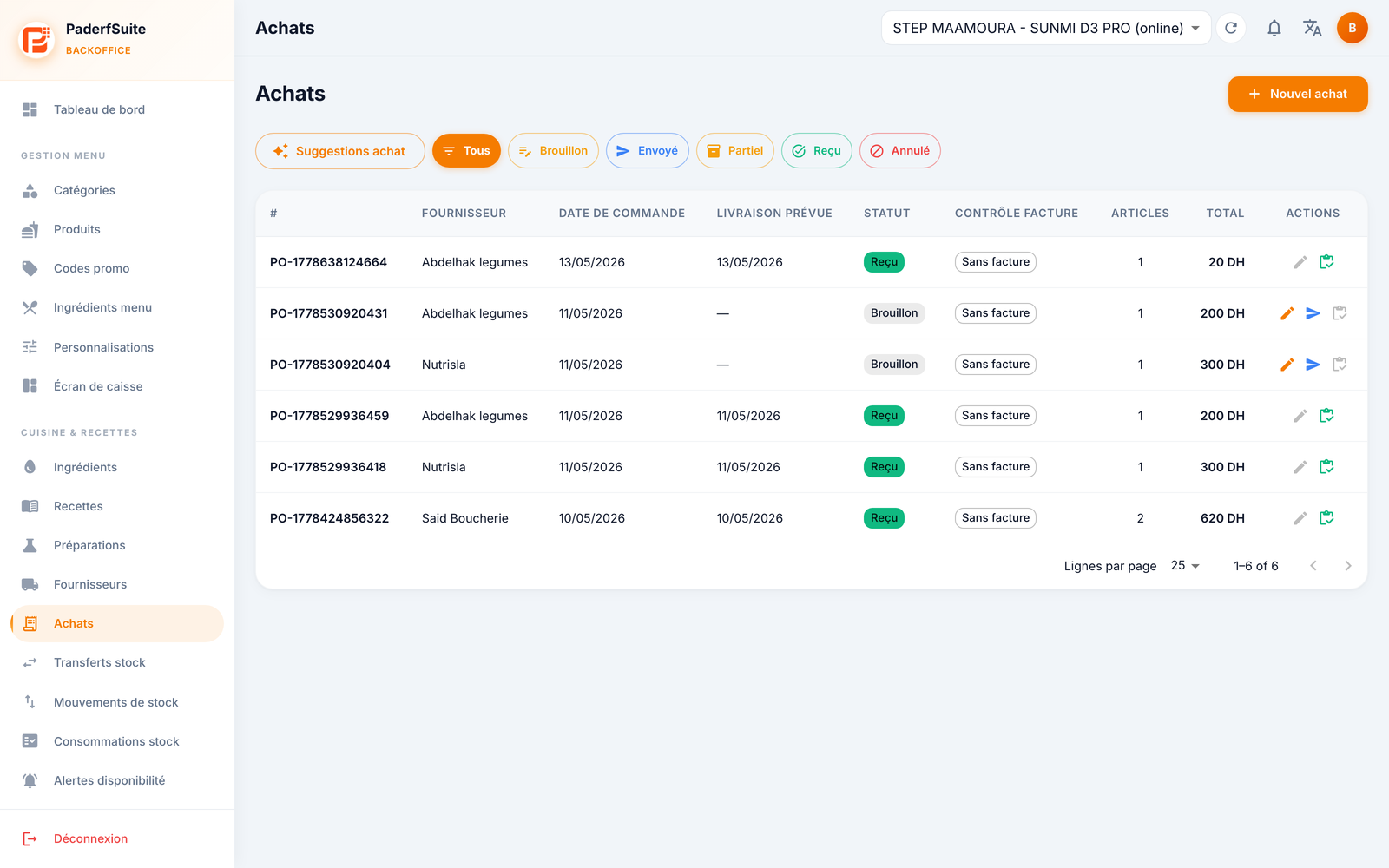
The toolbar offers the Purchase suggestions button, status filters (All · Draft · Sent · Partial · Received · Cancelled) and, at the top right, the New purchase button.
The table shows the following columns, in order:
| Column | Meaning |
|---|---|
| # | Purchase order number |
| Supplier | Recipient supplier |
| Order date | Creation date |
| Expected delivery | Expected delivery date |
| Status | Colored dot (Draft, Sent, Partial, Received, Cancelled) |
| Invoice control | Control status (e.g. No invoice) |
| Items | Number of lines |
| Total | Total amount, in DH |
| Actions | Edit · Send · Receive |
Step-by-step procedures🔗
Create a purchase order🔗
Click New purchase. The dialog asks for:
- Supplier (required);
- Expected delivery;
- Notes;
- the lines: ingredient, purchase quantity, purchase unit, conversion factor to stock, price per unit.
A preview is available before sending.
Use purchase suggestions🔗
Click Purchase suggestions. A table proposes quantities to order based on thresholds and targets; you can generate purchase order drafts from them.
Receiving & invoice control🔗
From the receive action on an order, the receiving and invoice control screen lets you:
- scan the barcodes of the received items;
- enter the invoice number, date and total;
- for each item: the received quantity, the invoiced quantity and the price.
If a barcode is not recognized, the Link a barcode action attaches it to the ingredient. Validating the reception replenishes the stock.
Mobile receiving (scan on PDA / phone)🔗
A shared link from the desktop receiving opens a full-screen page designed for a mobile device: scanning by camera or code entered by hand, list of items to receive (quantity, price) and a Confirm button. Handy for receiving right at the delivery area, code in hand.
Messages & edge cases🔗
- No invoice: an order can be received before the invoice; the invoice control still has to be completed afterwards.
- Partial status: only part of the order has been received; the rest can be received later.
Tips🔗
- Fill in the conversion factor on each line so that receiving adds the right quantity to stock.
- The invoice control helps detect a gap between ordered, received and invoiced before paying.