E2. Licenses & modules🔗
In brief🔗
This screen shows the state of your POS's PaderfSuite license: its status, edition, expiry date, the activated modules and their limits (number of PDAs, kiosks, kitchen screens, POS terminals). It is also where the POS is activated with PosAdmin.
For whom / when🔗
For the manager who wants to check what their license covers, verify an expiry date, or link their POS to activate new modules. The recovery mode is reserved for a technician intervention.
How to get there🔗
System → Licenses
Prerequisites🔗
🔑 Manage licenses
Screen tour🔗
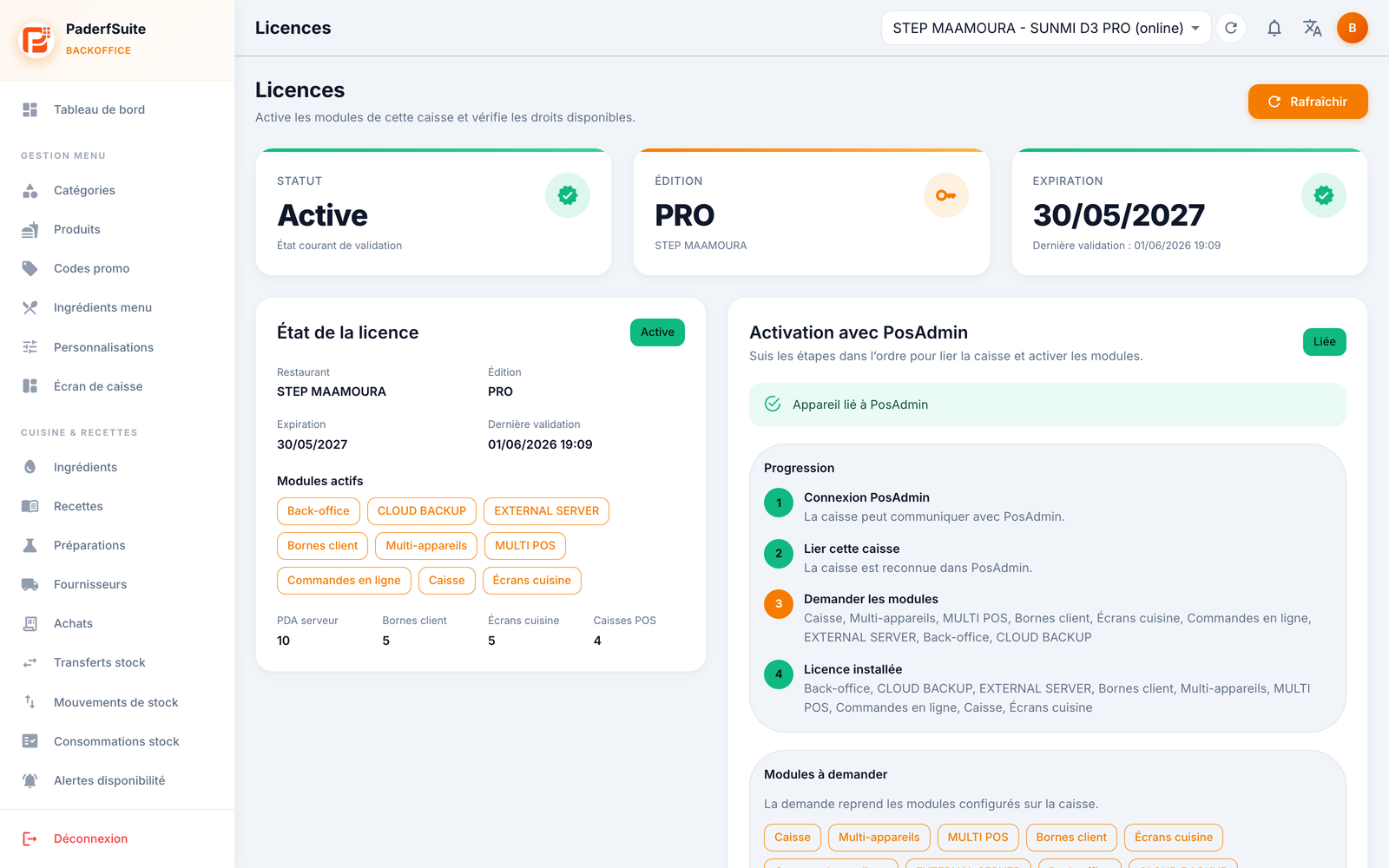
At the top right, the Refresh button updates the information.
The three indicators🔗
Three cards summarize the essentials:
- Status: for example Active.
- Edition: for example PRO, with the POS name.
- Expiry: the end-of-validity date.
License status card🔗
- A badge shows the state (for example Active).
- Active modules: the list of included modules (Back-office, Cloud Backup, External server, Customer kiosks, Online orders, POS terminals, POS screen…).
- Limits: the authorized quotas — server PDAs, customer kiosks, kitchen screens, POS terminals.
Activation with PosAdmin card🔗
POS activation in 4 steps:
- PosAdmin connection: the POS establishes communication with PosAdmin.
- Link this POS: PosAdmin recognizes the POS.
- Request modules: selection of the modules to activate.
- License installed: the modules are applied to the POS.
The progress of these steps is displayed, along with the list of modules to request.
Technician recovery mode🔗
A section dedicated to technical intervention: manual import of a license (.lic file), with display of the device's technical information and the required payload.
Step-by-step procedures🔗
Check the license status🔗
- Open System → Licenses.
- Review the Status, Edition, and Expiry cards.
- Check the active modules and their limits in the status card.
- If in doubt, click Refresh.
Activate the POS via PosAdmin🔗
- In the Activation with PosAdmin card, follow the steps in order: Connection, Link the POS, Request modules.
- Select the modules to request.
- Once the License installed, the modules become active on the POS.
Import a license in recovery mode (technician)🔗
- Retrieve the device's technical information shown in the recovery section.
- Import the supplied
.liclicense file. - Confirm the import.
Messages & edge cases🔗
- An approaching expiry date signals that the license must be renewed with PosAdmin.
- The limits (PDAs, kiosks, kitchen screens, POS terminals) determine the number of devices you can connect: see E5. Connected devices.
- The manual
.licimport is part of the technician recovery mode: use it only during a dedicated intervention.
Tips🔗
- If an expected module does not appear in Active modules, run the PosAdmin activation to request it.
- The Refresh button forces synchronization after a change made on the PosAdmin side.