A4. Menu ingredients🔗
In brief🔗
Menu ingredients are the components visible on the customer side (cheddar, onions, andalouse sauce…): the ones you can display in a composition, mark as removable and translate. They serve as a reference for customizations and recipes.
Who / when🔗
For the manager who defines the ingredients offered in compositions and options: when building the menu, to translate an ingredient, make it removable, or clean up duplicates.
How to access it🔗
Menu management → Menu ingredients
Prerequisites🔗
🔑 View stock (read-only) 🔑 Manage recipes (creation, editing, merging, alignment)
Screen tour🔗
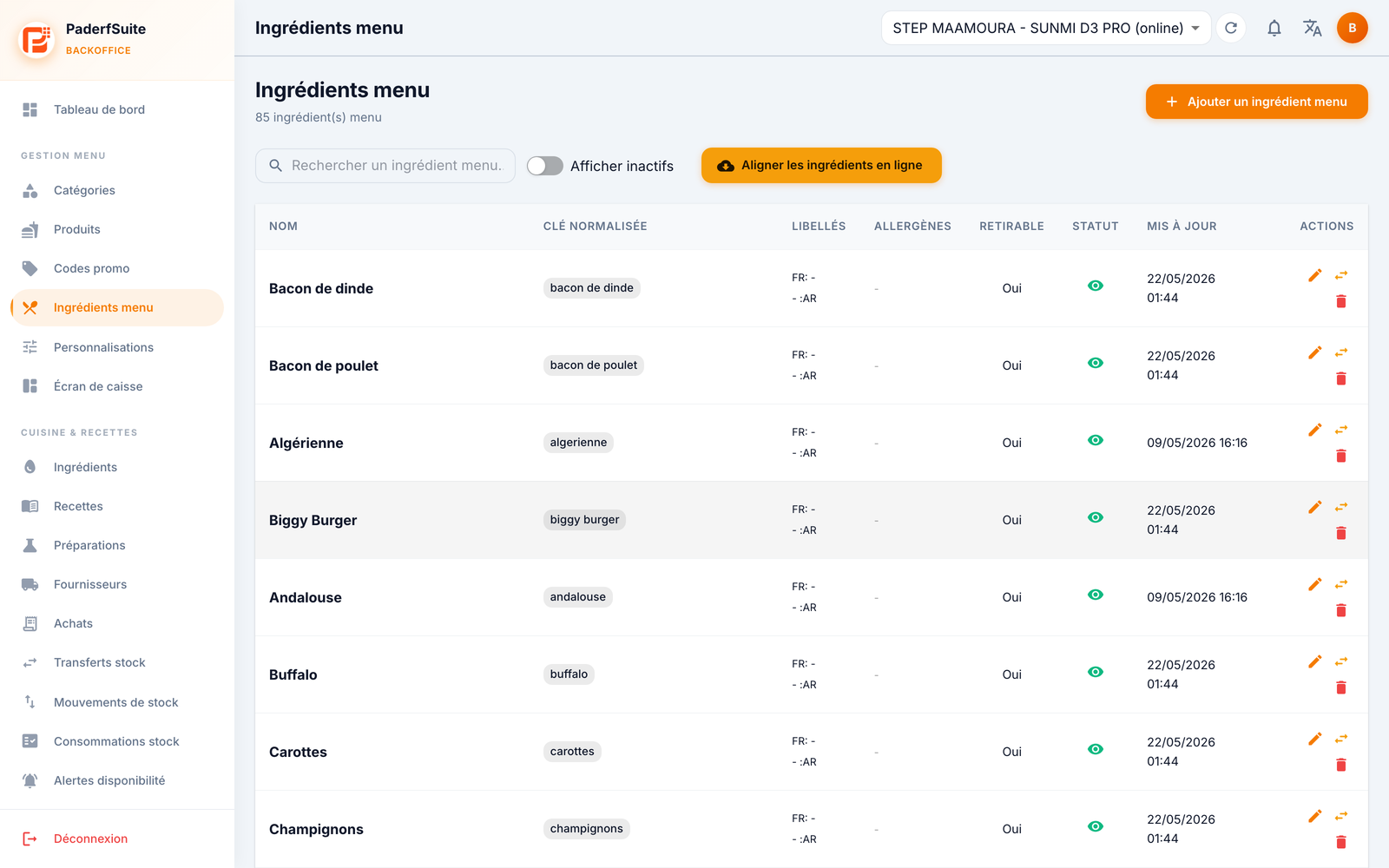
At the top: the number of menu ingredients, a search bar, a Show inactive switch and the Align online ingredients button. On the right, Add a menu ingredient.
The table shows, in order, the following columns:
- Name: the main name.
- Normalized key: a badge with the normalized name (used for matching).
- Labels: the local FR and AR labels.
- Allergens: the associated allergens.
- Removable: Yes / No — indicates whether the customer can remove this ingredient.
- Status: active (green) or inactive.
- Updated: the date of last update.
- Actions: edit, merge, delete.
Step-by-step procedures🔗
Create or edit a menu ingredient🔗
- Click Add a menu ingredient (or the pencil on a row).
- Fill in:
- Name (required)
- FR label
- AR label
- Allergens
- Display order
- Removable by default switch
- Active switch
- Confirm.
Merge duplicates🔗
- Click the Merge action on an ingredient.
- Choose the target ingredient that will keep the data.
- Confirm: the duplicates are consolidated onto the target.
Align online ingredients🔗
- Click Align online ingredients.
- The dialog compares your local menu ingredients with the already-published online catalog and lists the matches.
- Check, then apply.
Available with the Online Orders module
The Align online ingredients button only appears if the Online Orders module is enabled on the PosCaisse register.
Delete an ingredient🔗
Deletion deactivates the ingredient (it can still be found via the Show inactive switch) rather than erasing it permanently.
Messages & special cases🔗
- "Deletion" actually corresponds to a deactivation: the ingredient becomes inactive and is no longer offered, but its historical links are preserved.
- Merging is useful after an import: it avoids duplicates (for example two "andalouse" entries).
Tips🔗
- Fill in the FR and AR labels for correct display at the register and online depending on the language.
- Mark as removable the ingredients the customer can ask to remove; this setting feeds the customizations.