E9. Audit Log🔗
In brief🔗
The audit log records every sensitive action performed on the till: logins, sales, drawer openings, discounts, settings changes, and more. Each entry is timestamped and tied to a named user. It is an NF525-compliant trail, valuable in case of an audit or a dispute.
Who / when🔗
For the manager who wants to verify who did what: activity monitoring, tracking down a specific operation, checking after a cash discrepancy, or presenting evidence during a tax audit.
How to get there🔗
System → Audit Log
Prerequisites🔗
🔑 View the audit log
Screen tour🔗
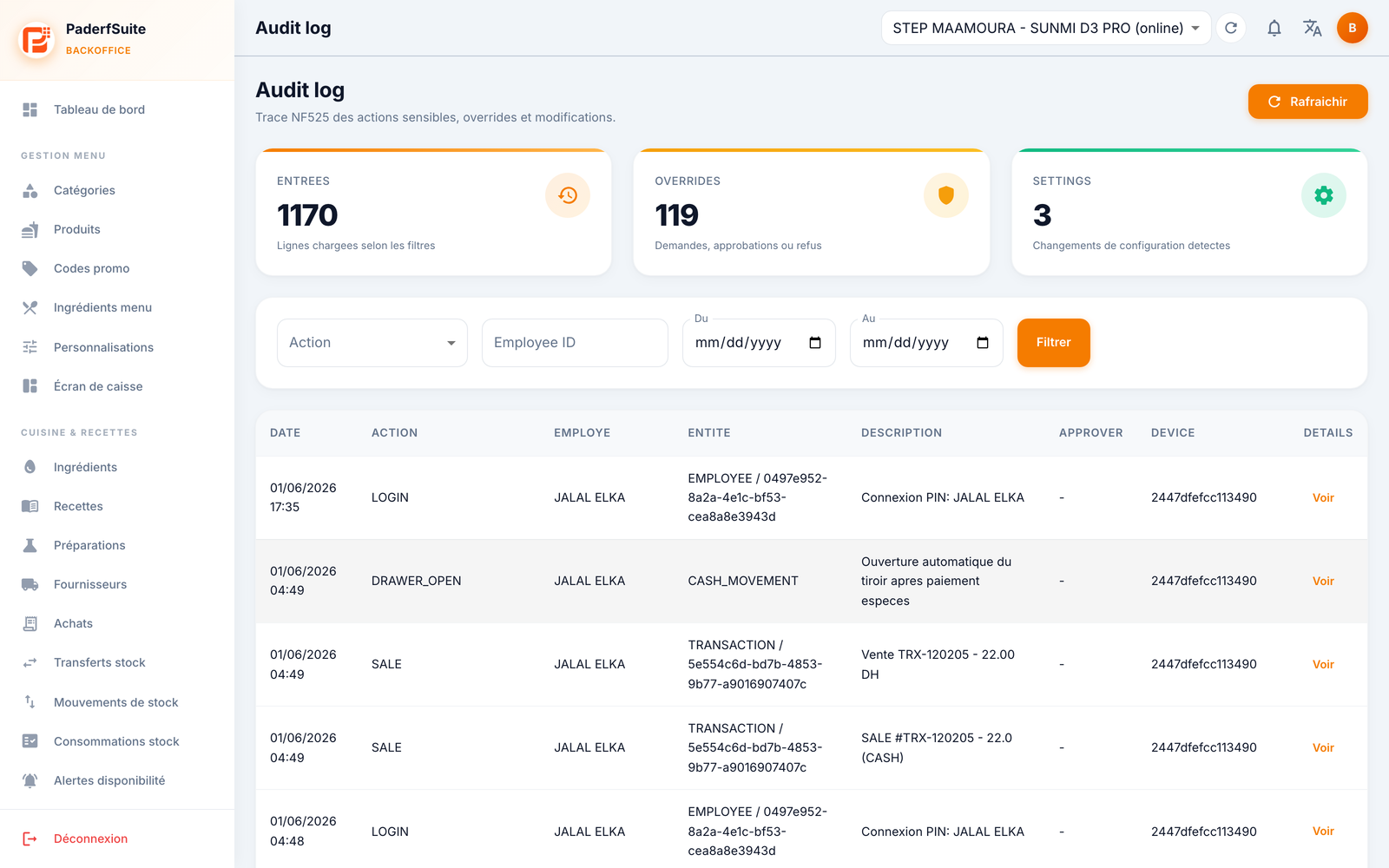
At the top, three indicators summarize the filtered period:
- Entries: the number of recorded rows.
- Overrides: the requests, approvals, or refusals of sensitive actions.
- Settings: the configuration changes detected.
Below, a filters area (Action, Employee ID, From / To) and a Filter button, then the table with the columns: Date, Action, Employee, Entity, Description, Approver (where applicable), Device, and Details. The View button in the Details column opens the detail dialog.
Step-by-step🔗
Search for an operation🔗
- Select the action type in the Action menu (for example SALE, DRAWER_OPEN, LOGIN).
- Specify the employee and/or a date range (From / To).
- Click Filter. The table and the indicators update.
View the details of an entry🔗
- Click View in the Details column of the relevant row.
- The dialog shows the full information. For a change, it displays the old value and the new value, so you can see exactly what changed.
Messages & edge cases🔗
- The log is read-only: entries cannot be edited or deleted, which guarantees their evidentiary value (NF525).
- If no rows appear, widen the date range or remove an overly restrictive filter.
Tips🔗
- In case of a cash discrepancy, filter on DRAWER_OPEN actions and the day's refunds to quickly trace the cause.
- Cross-reference this log with the History tab of Access & Permissions to track rights changes.