B9. Availability Alerts🔗
In short🔗
When an ingredient runs out, some products and options on your menu can no longer be prepared. This screen lists these shortages and, above all, the impacted products and options. In a single action, you can hide the affected items online so a customer can't order something unavailable, or dismiss the alert.
Who / when🔗
For the manager who wants to avoid online orders for items that can't be served: use it as soon as a shortage is flagged, especially during service.
How to get there🔗
Kitchen & Recipes → Availability Alerts
Prerequisites🔗
🔑 View stock (Manage stock to apply or dismiss an alert)
Screen tour🔗
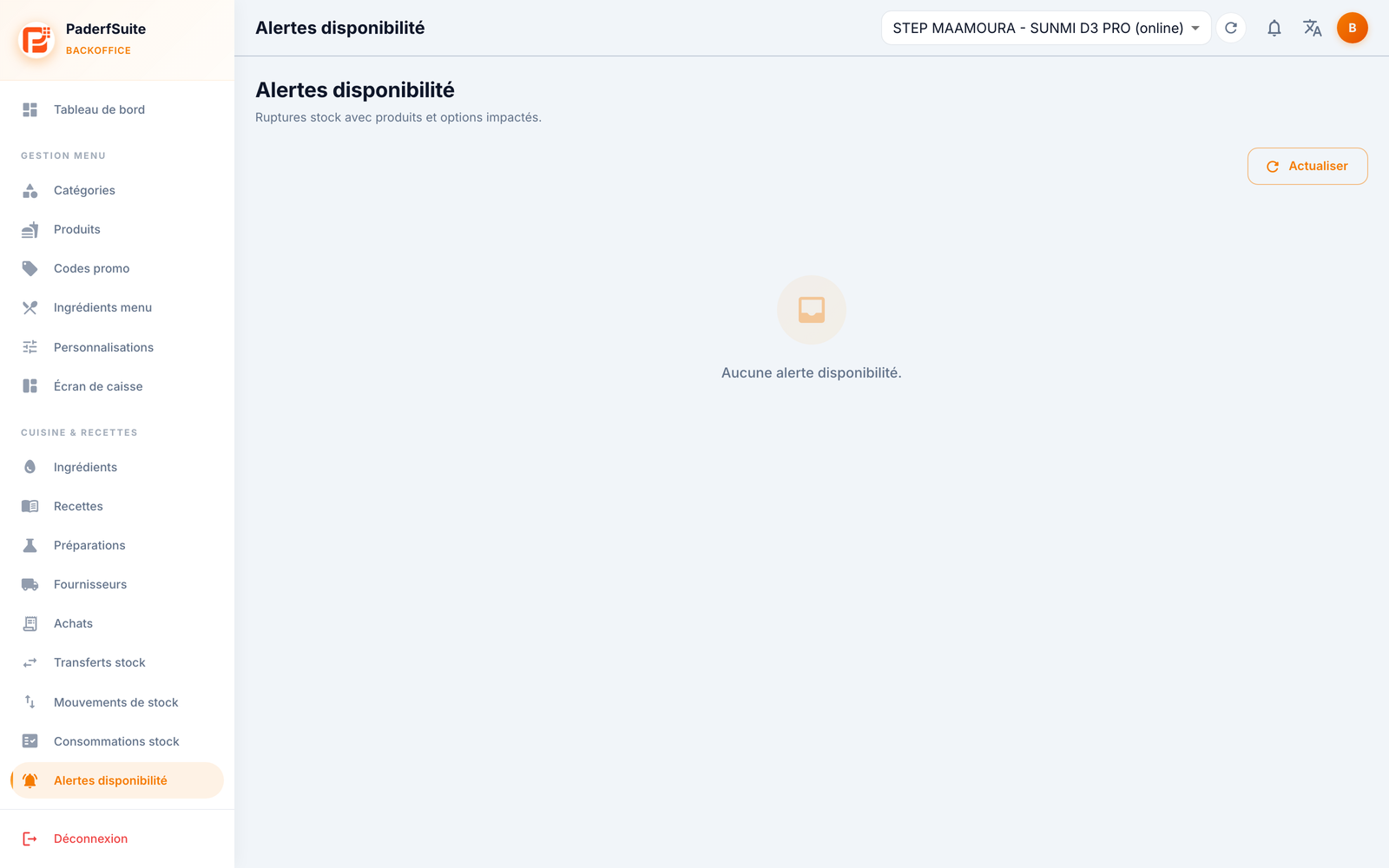
At the top, a Refresh button.
The table lists alerts with the following columns, in order:
- Ingredient: the ingredient out of stock or running low.
- Type: the nature of the alert.
- Stock: the remaining stock level.
- Products: the menu products impacted by this shortage.
- Options: the impacted options and supplements.
- Date: date and time of detection.
- Actions: Apply or Dismiss.
Step-by-step🔗
Hide impacted items online (Apply)🔗
- Spot the relevant alert and check the Products and Options columns to gauge the impact.
- Click Apply.
- The impacted products and options are hidden online: they can no longer be ordered online until stock is restored.
Dismiss an alert🔗
- Click Dismiss on the alert's row.
- The alert is set aside without hiding the items (useful when you know stock will be replenished right away).
Messages & edge cases🔗
- Apply acts only on online availability: it prevents online orders for items that can't be prepared.
- Remember to Refresh after a restock to confirm that the alerts have cleared and the items are available again.
Tips🔗
- A single ingredient can impact several products and options: the Products and Options columns show you the whole chain before you act.
- To understand which recipe links an ingredient to a product, refer to B2. Recipes.