
Visual reference
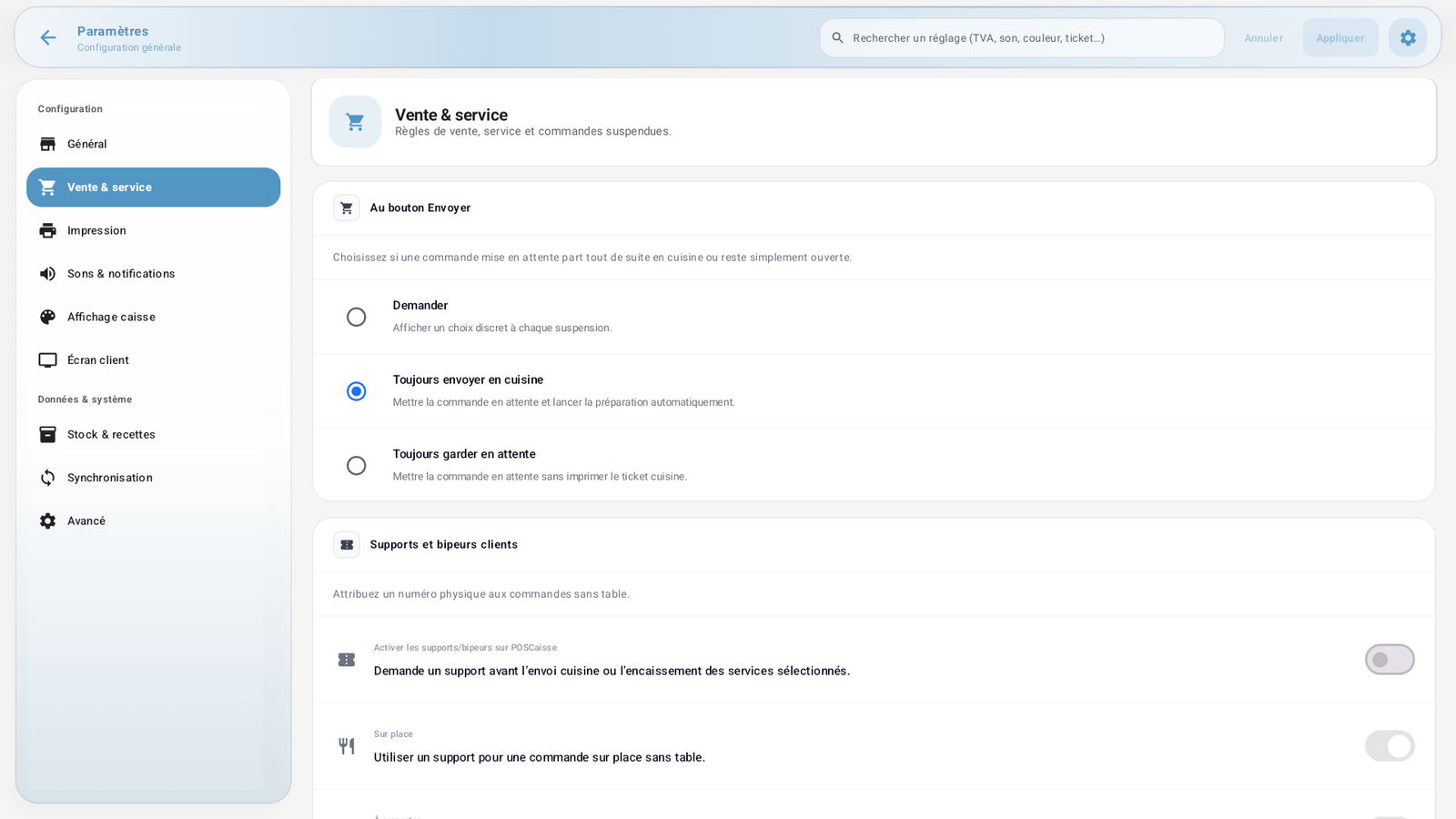 Enlarge screenshot
In brief
Holding sets an order aside to serve another customer, then recalling it later. Essential when a customer is still deciding or when several orders overlap.
Who / when
For the Cashier, whenever several orders must be managed in parallel.
Step-by-step
Hold an order
With an order in the cart, tap Send.
Behaviour depends on Settings → Sales & service → On Send: Ask, Always send to kitchen or Always keep on hold.
When prompted, Keep on hold saves the order without starting preparation; Send to kitchen sends it to preparation. Check the saved choice before a new service.
After confirmation, find the order in Recall. Wait for the result before repeating the action.
Recall an order
Tap the Recall widget.
The "Orders on hold" list appears:
Each order shows its number (e.g. H951000), the waiting time, the number of items, the cashier and the amount.
On an order, you can:
Action Effect Recall Brings the order back into the cart to take payment. Transfer Transfer it (e.g. to a table / another station). Split Separate the order into several. Merge Group several orders together. Mark ready Indicate that it is ready. Cancel Delete the order on hold.
Messages & edge cases
An order sent to the kitchen is already in preparation. If you recall it and add new items, only the new items to prepare should go back to the kitchen at payment.
The order on hold number (e.g. H951000) makes it easy to find again.
Tips
During the rush, Keep on hold avoids sending to the kitchen too early; Send to kitchen saves time when the order is firm.
Use Merge when two customers at the same table want to pay together.