
Save the order and deposit. Preparation comes later.
Visual reference
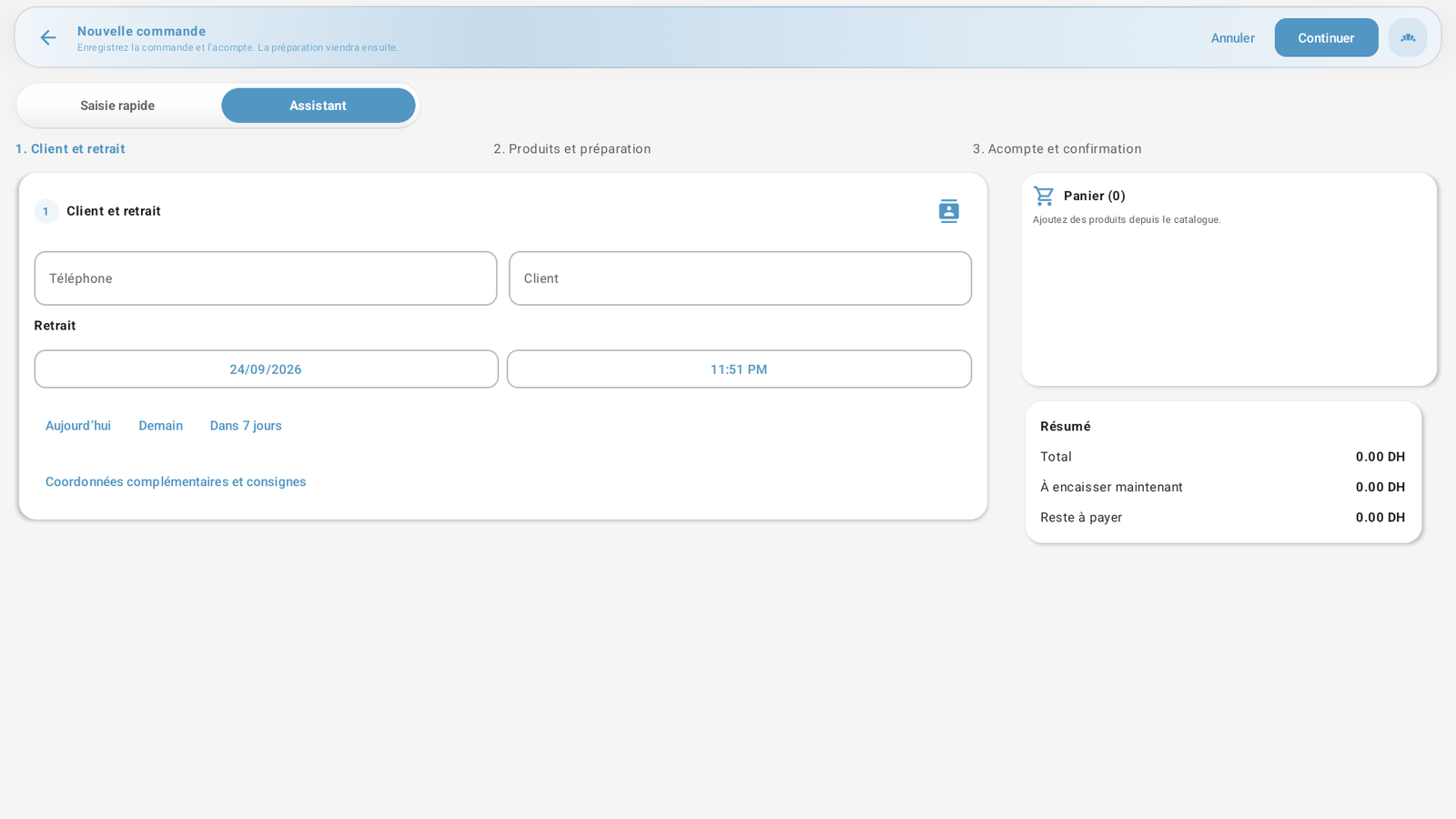 Enlarge screenshot
Find orders
Open Customer orders from the register or Admin → Bakery → Open orders. Choose pickup date and status. Filters include today, tomorrow, week, month, exact date and period. To find an older collected or canceled order, broaden the status filter too. The overdue counter is not limited to the current filter.
Customer and pickup
Choose New order, then Quick entry or Assistant.
Select a directory customer, or enter a valid name and phone number. An existing phone number should link to its existing record; do not create a duplicate.
Set pickup date and time, then useful contact details or instructions. Saving a new directory customer requires the corresponding choice at confirmation.
Products, deposit and confirmation
Find products and add quantities and customizations.
Review the total and choose no deposit, a partial deposit or the full amount. A deposit must be positive and no greater than the total.
Select the actual payment method and confirm with a cash session and required permissions.
Check confirmation and the amount actually recorded. A fully paid order still needs preparation and handover.
Preparation and kitchen scheduling
In preparation tracking, check products and date. For the kitchen, choose On confirmation, a scheduled date/time or Manual. The form suggests the previous day at 09:00; if that time has passed, explicitly choose another option. In manual mode, use Send now after confirmation.
Sending follows configured destinations. It does not automatically create production, consume ingredients or mark the order ready. After register downtime, check recovery and reminders when it restarts. Acceptance by the kitchen server does not prove the team has read the ticket.
Hand over the order
Open the record, check preparation and mark ready only when the products actually are. Review deposits and advances already used, then Collect the balance and hand over the order. Do not record deposits as a new payment. Handover on account requires an authorized account and terms; a debt is not a cash payment.
Cancel or correct
Use the record’s actions for amendments, cancellation or a no-show. Some dates are locked after kitchen sending starts: do not create a second order to conceal rescheduling. Canceling and refunding a deposit are separate operations; check payments, amounts already refunded and reasons before returning money.
Interruption and printing
If the order is saved but the deposit failed, retry only the deposit or finish without it. For an uncertain state, use Check and resume the operation with the same employee. Check the order and payments first. The receipt confirms the order, not handover. An unconfirmed print requires checking the printer, without creating another order or payment.