
Visual reference
 Enlarge screenshot
In brief
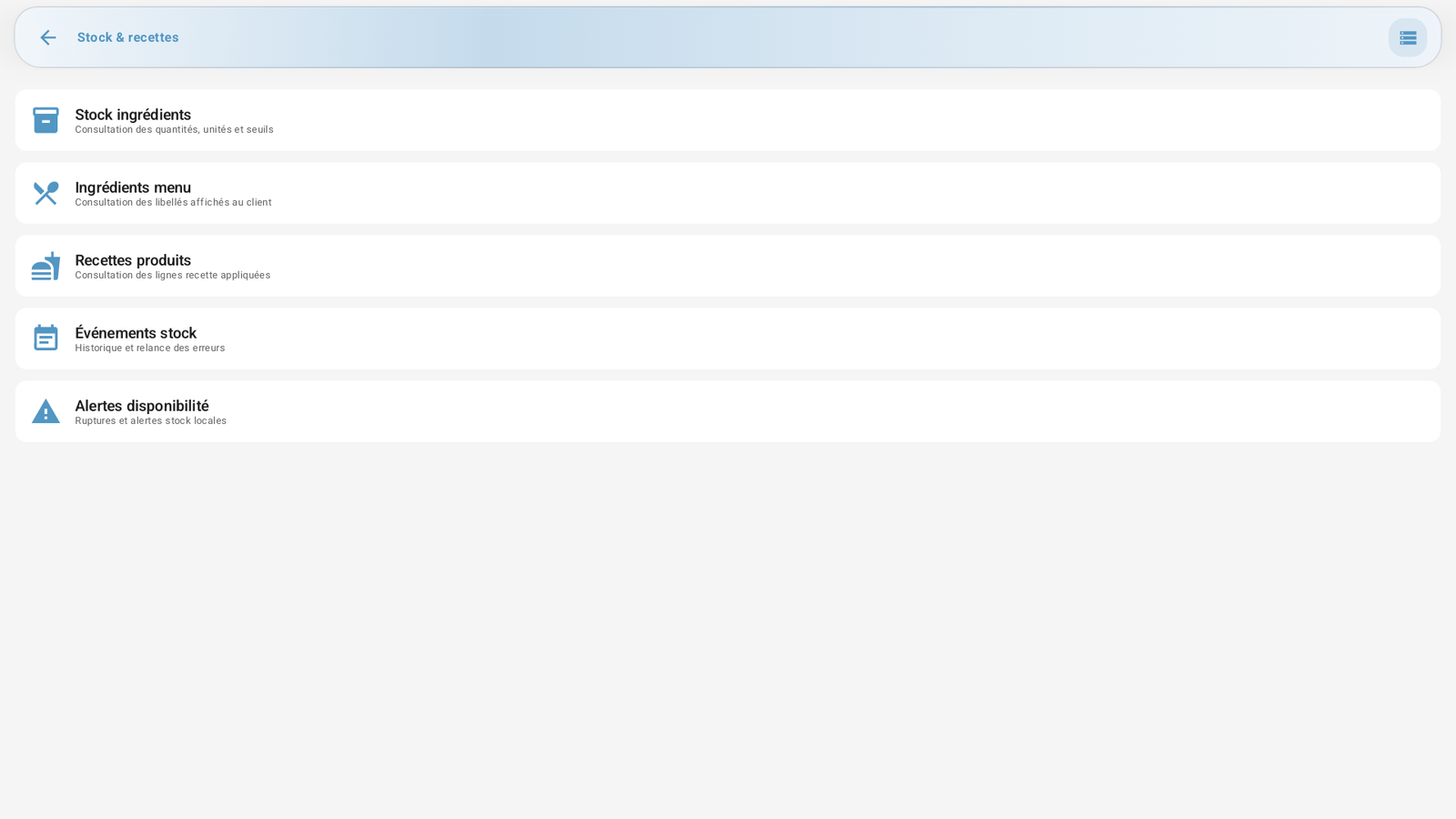
The Stock & recipes screen lets you view the state of the local stock, the recipes and the alerts. 🧩 It depends on the BackOffice module. Creation and editing of ingredients/recipes are done in PosBackOffice; here, it is essentially consultation and troubleshooting.
Who / when
For the Admin (or an authorized employee), to check the stock, understand a stock-out, or retry a count error.
How to access
Admin → Stock & recipes.
Requirements
🔑 View the stock / Manage the stock · 🧩 BackOffice module
Screen tour
Five cards:
| Card | Content |
|---|---|
| Ingredient stock | View of quantities, units and alert thresholds. |
| Menu ingredients | View of the labels displayed to the customer. |
| Product recipes | View of the recipe lines applied (which product consumes what). |
| Stock events | History of stock counts and retry of errors. |
| Availability alerts | Local stock stock-outs and alerts. |
Step-by-step
Check a stock level
Open Ingredient stock: the list shows, per ingredient, the current stock, the unit and the alert threshold (flagged if the stock is below the threshold).
Understand / retry a count error
Open Stock events: each consumption event has a source, a reference, a status (pending / failed) and a possible error message.
On a failed event, use the Retry action.
Handle an alert
Open Availability alerts: the active stock-outs and alerts are displayed.
You can acknowledge an alert (mark as read).
Messages & edge cases
View only: to create/modify recipes or adjust stocks, use PosBackOffice (see the BO guide).
Tracking of the actual stock must be enabled in Settings → Stock.
Tips
Watch the Availability alerts before the service to avoid selling an out-of-stock product.
In case of a stock discrepancy, the Stock events often explain the cause (failed count to retry).
See also
PosBackOffice guide (full management of stock and recipes)