
Coordinate order dispatch, preparation stations and customer handover. These tools complement tables and held orders; they do not replace payment confirmation.
Visual reference
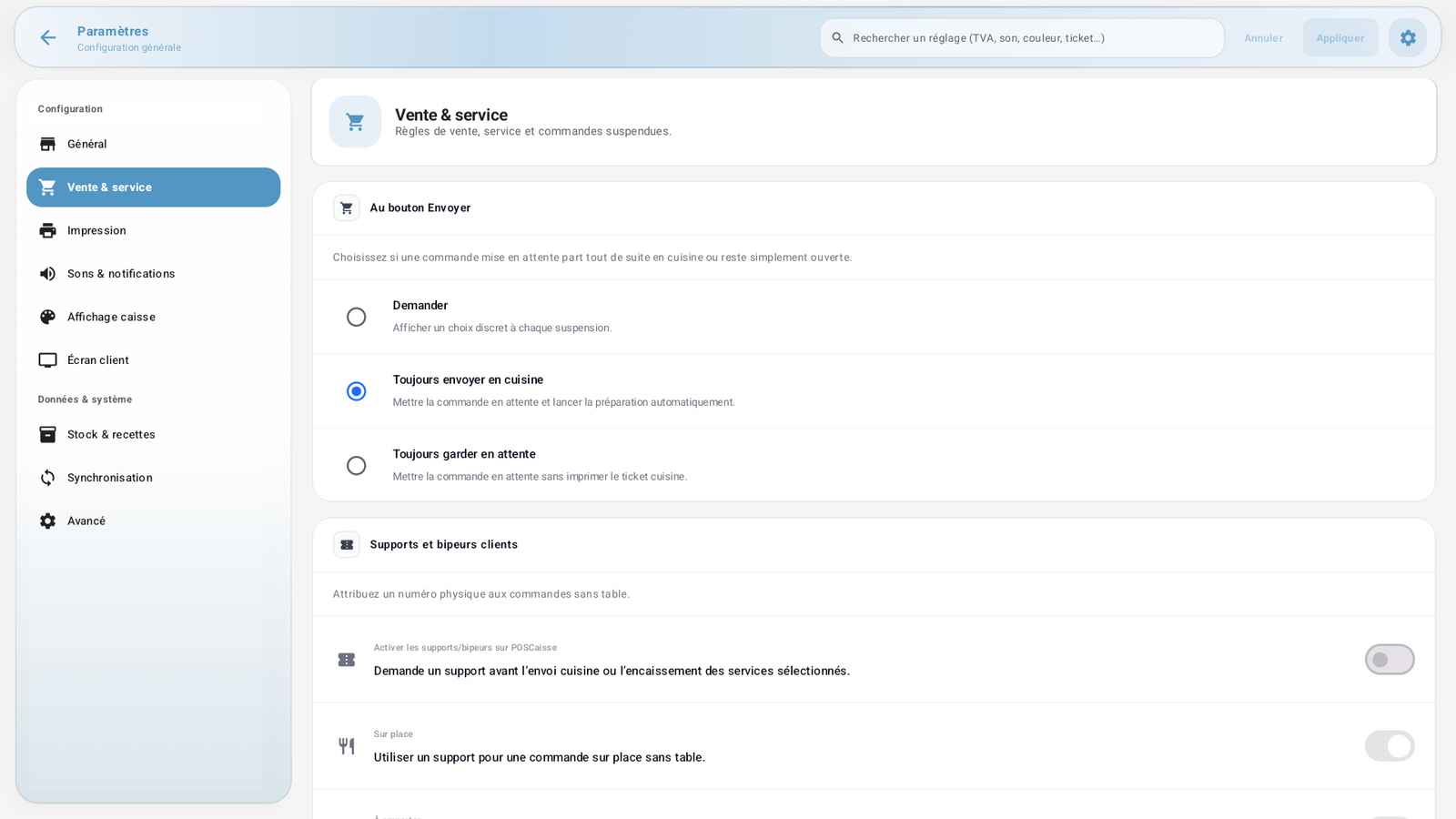 Enlarge screenshot
Configure the kitchen
Open Administration → Kitchen with the required permissions.
Check the Mode, Stations, Routing and Screens tabs.
Define the stations actually used and their destinations. Check product routing and assigned screens.
Test a representative order on each destination before service. A listed station does not guarantee a connected printer or KDS screen; the required modules and devices must be configured.
Send now or hold
In Settings → Sales & service, choose the behaviour of Send. Keep on hold stores the order; Send to kitchen starts the preparation flow. See Hold and recall for actions on an existing order.
Send courses
Use an order prepared with service courses.
Open the Courses widget and identify the service or table.
Check the next planned course and send it when customers are ready.
Sending all remaining courses must be a service decision. Wait for the action to finish and check its state before trying again.
Track customer supports
Supports and pagers must match the equipment actually handed out. Open Customer supports to track assignment. Confirm recovery only after the support has physically returned: this makes it available again. It does not prove payment or physical order handover.
Receive server cash
Use an open, unlocked till session with Receive server cash permission.
Open Server remittances and compare expected cash with payments already recorded by the server.
Count the money physically received before confirming the proposed receipt.
Check the balance and history. A remittance transfers cash already collected; it is not a new sale. After an interruption, read the current state before confirming again.
Troubleshooting
Check network, permissions, modules and kitchen destination. For pending printing, use the print queue instead of creating a second order. Mark preparation ready only after confirmation from the team.