
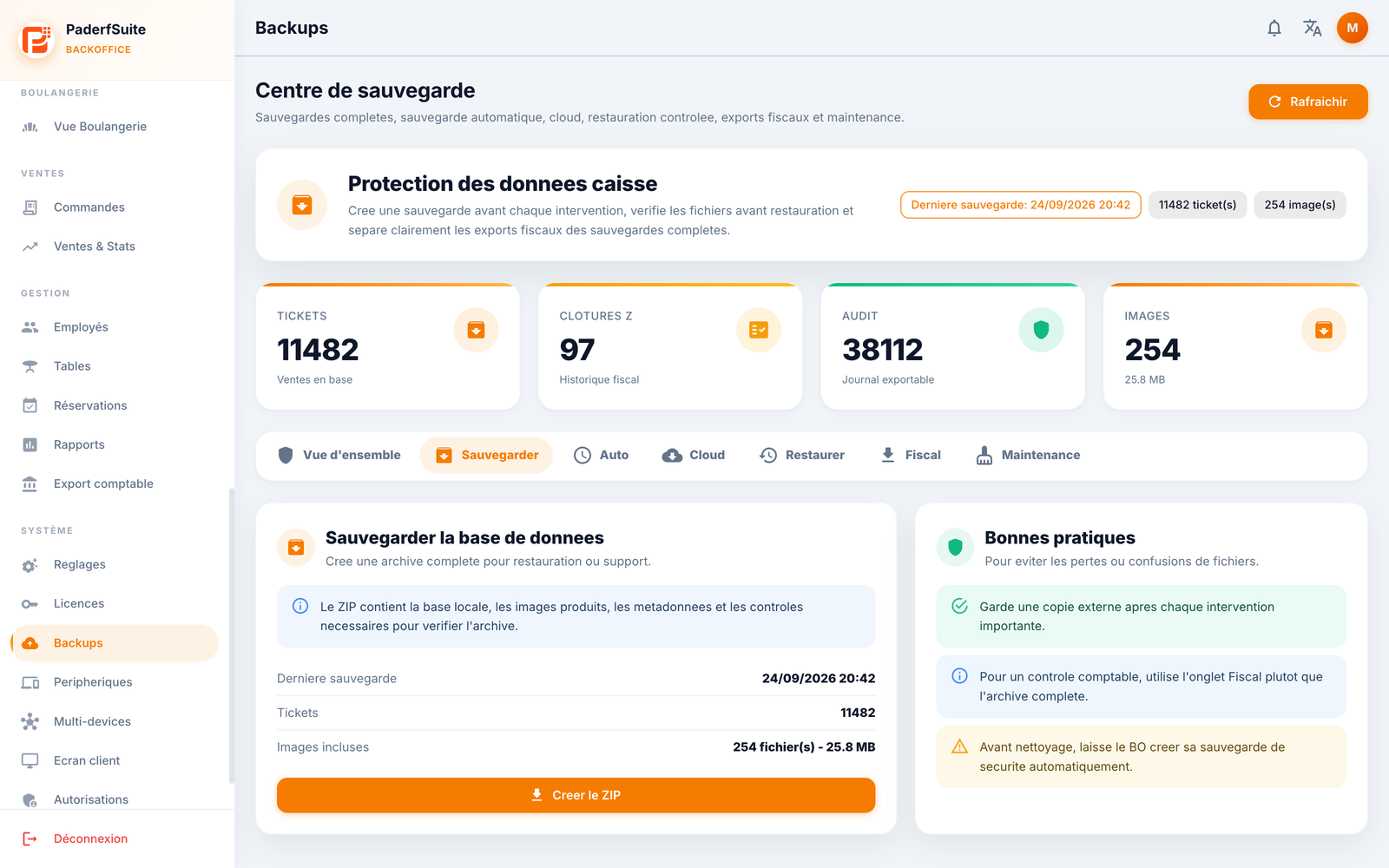
The Backup center brings together full copies, scheduling, fiscal exports and maintenance. A full backup is used to recover an installation; a report export is for reviewing or sharing data and does not replace it.
Visual reference
 Enlarge screenshot
Open the center
Open Backups in the system menu. Export and settings permissions determine the available actions. The overview shows the last backup, receipts, Z closures, audit entries and images. Use Refresh to update the information.
Create and keep a backup
Open Back up.
Select Create ZIP or Create and download, depending on the displayed label.
Wait for the download to finish. Check the file name, date and size; requesting a backup does not mean it has completed.
Keep a protected copy away from the register and identify its business and software version.
Check the actual format: this version’s button may still say ZIP while the register produces an encrypted .fpbackup archive. Keep the extension. Renaming it to .zip does not convert it or make it readable by the BO ZIP analyzer.
Schedule automatic copies
In Auto, check status, destination, frequency, last run, last success and result. Depending on the installation, destinations include local storage, external storage and cloud.
If editable, select an allowed destination and offered frequency, then save.
Select the external folder on the register when requested.
If Configuration managed by PosAdmin appears, activation and frequency are managed in the store’s cloud settings. Locked local fields are not an input error.
Check a successful run, not just an enabled switch. Cloud backup requires connectivity, an active plan and available quota.
Understand Cloud and Vault
Cloud shows storage, retention and available copies or recovery points according to the installation’s backup engine. Vault features require cloud BackOffice and the relevant permission; they are not present in every local session.
Keep encryption recovery material in a protected place. A file stored in the cloud is insufficient without the means to decrypt it or match it to the correct register. Check the instructions for the active engine before changing backup modes.
Verify an archive and restore
The local BO Restore tab analyzes a compatible ZIP archive, shows recognized sections and reports warnings. In the verified version, applying the restoration remains disabled on this screen.
For .fpbackup archives, use the restoration flow in POSCaisse. Check register identity, archive integrity and available sections. Back up the current state before replacement. Resolve format, identity or decryption errors before confirming; do not bypass the check.
Export fiscal data
In Fiscal, choose the scope: all data, transactions, Z closures or audit log. Set the period and an offered format: JSON, CSV, FEC or PDF. Run the export and check the resulting file. Export permissions are required.
Signing, chaining and export features provide traceability tools; NF525 certification has not been obtained.
Maintenance and cleanup
Maintenance offers image analysis and available maintenance operations. Read the analysis and affected scope first. Image optimization, demo-data cleanup and business-data deletion have different effects.
Respect confirmations, prerequisite backups and restrictions protecting retained data. Do not run cleanup to solve a simple display or connection problem.
Troubleshooting
Interrupted download: check browser downloads and register status before retrying.
Unrecognized archive: check its actual extension and use the matching tool.
Locked schedule: check whether PosAdmin manages it.
Unavailable cloud: check connectivity, authorization, quota and the last error. Keep a verified local or external copy.