
In brief
Menu ingredients are the components visible on the customer side (cheddar, onions, andalouse sauce…): the ones you can display in a composition, mark as removable and translate. They serve as a reference for customizations and recipes.
Who / when
For the manager who defines the ingredients offered in compositions and options: when building the menu, to translate an ingredient, make it removable, or clean up duplicates.
How to access it
Menu management → Menu ingredients
Prerequisites
🔑 View stock (read-only) 🔑 Manage recipes (creation, editing, merging, alignment)
Screen tour
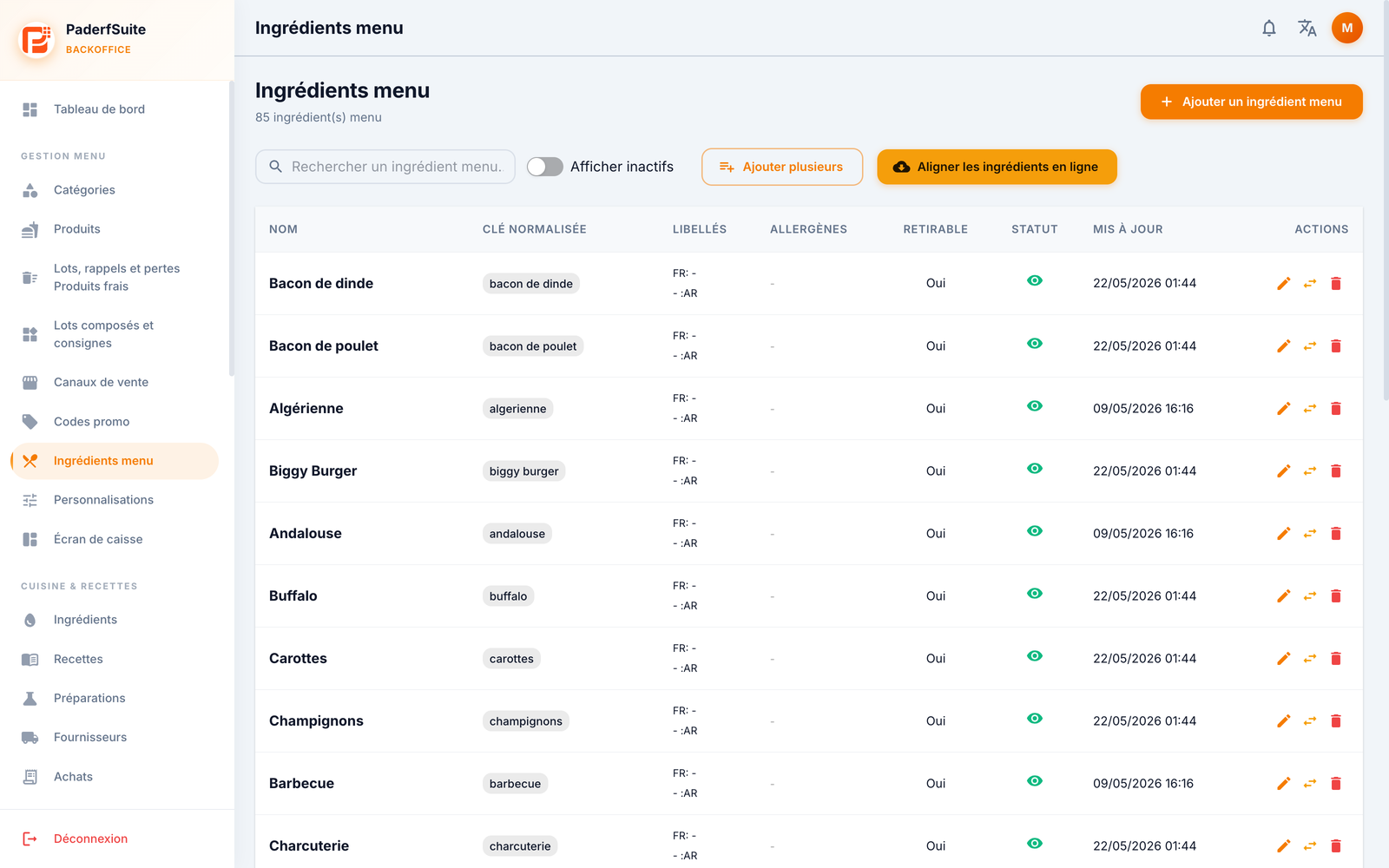 Enlarge screenshot
At the top: the number of menu ingredients, a search bar, a Show inactive switch and the Align online ingredients button. On the right, Add a menu ingredient.
The table shows, in order, the following columns:
Name: the main name.
Normalized key: a badge with the normalized name (used for matching).
Labels: the local FR and AR labels.
Allergens: the associated allergens.
Removable: Yes / No — indicates whether the customer can remove this ingredient.
Status: active (green) or inactive.
Updated: the date of last update.
Actions: edit, merge, delete.
Step-by-step procedures
Create or edit a menu ingredient
Click Add a menu ingredient (or the pencil on a row).
Fill in:
Name (required)
FR label
AR label
Allergens
Display order
Removable by default switch
Active switch
Confirm.
Merge duplicates
Click the Merge action on an ingredient.
Choose the target ingredient that will keep the data.
Confirm: the duplicates are consolidated onto the target.
Align online ingredients
Click Align online ingredients.
The dialog compares your local menu ingredients with the already-published online catalog and lists the matches.
Check, then apply.
Delete an ingredient
Deletion deactivates the ingredient (it can still be found via the Show inactive switch) rather than erasing it permanently.
Messages & special cases
"Deletion" actually corresponds to a deactivation: the ingredient becomes inactive and is no longer offered, but its historical links are preserved.
Merging is useful after an import: it avoids duplicates (for example two "andalouse" entries).
Tips
Fill in the FR and AR labels for correct display at the register and online depending on the language.
Mark as removable the ingredients the customer can ask to remove; this setting feeds the customizations.