
The Reservations screen manages time slots, tables and customer details. It complements Floor & service; creating a reservation does not create a paid sale.
Visual reference
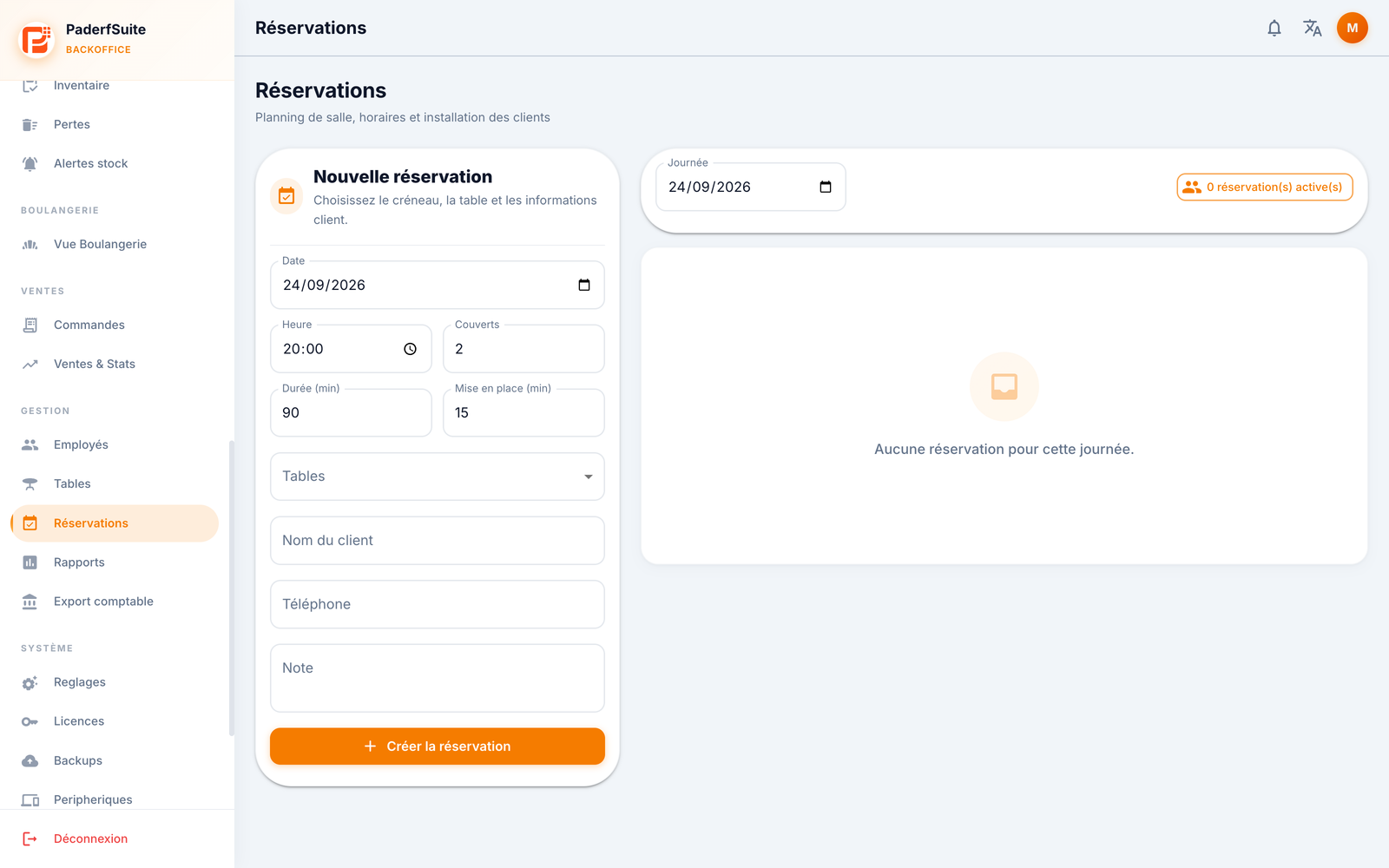 Enlarge screenshot
Create a reservation
Open Reservations with the required permissions.
In New reservation, choose date and time, party size, duration and setup buffer.
Select suitable tables and enter the customer’s name, useful phone number and an optional note.
Review the details, then click Create reservation.
Wait for confirmation and find the reservation on the relevant day. Check both the day viewed on the right and the form date: these are separate selections.
Track arrival and status
Check time, party size, tables and status. Seating is performed from POSCaisse, as indicated in the BO. A pending or confirmed reservation can be marked No-show; Cancel depends on its current status.
Do not mark a customer absent just to free a slot. Canceling a reservation does not void a paid receipt. Consult orders and occupancy in Floor & service for actual service.
Checks and recovery
Resolve time-slot, capacity, table or permission conflicts according to the displayed message. After a disconnection, refresh the day and look for the reservation before creating it again. A saved reservation does not mean a message was sent to the customer.