
Visual reference
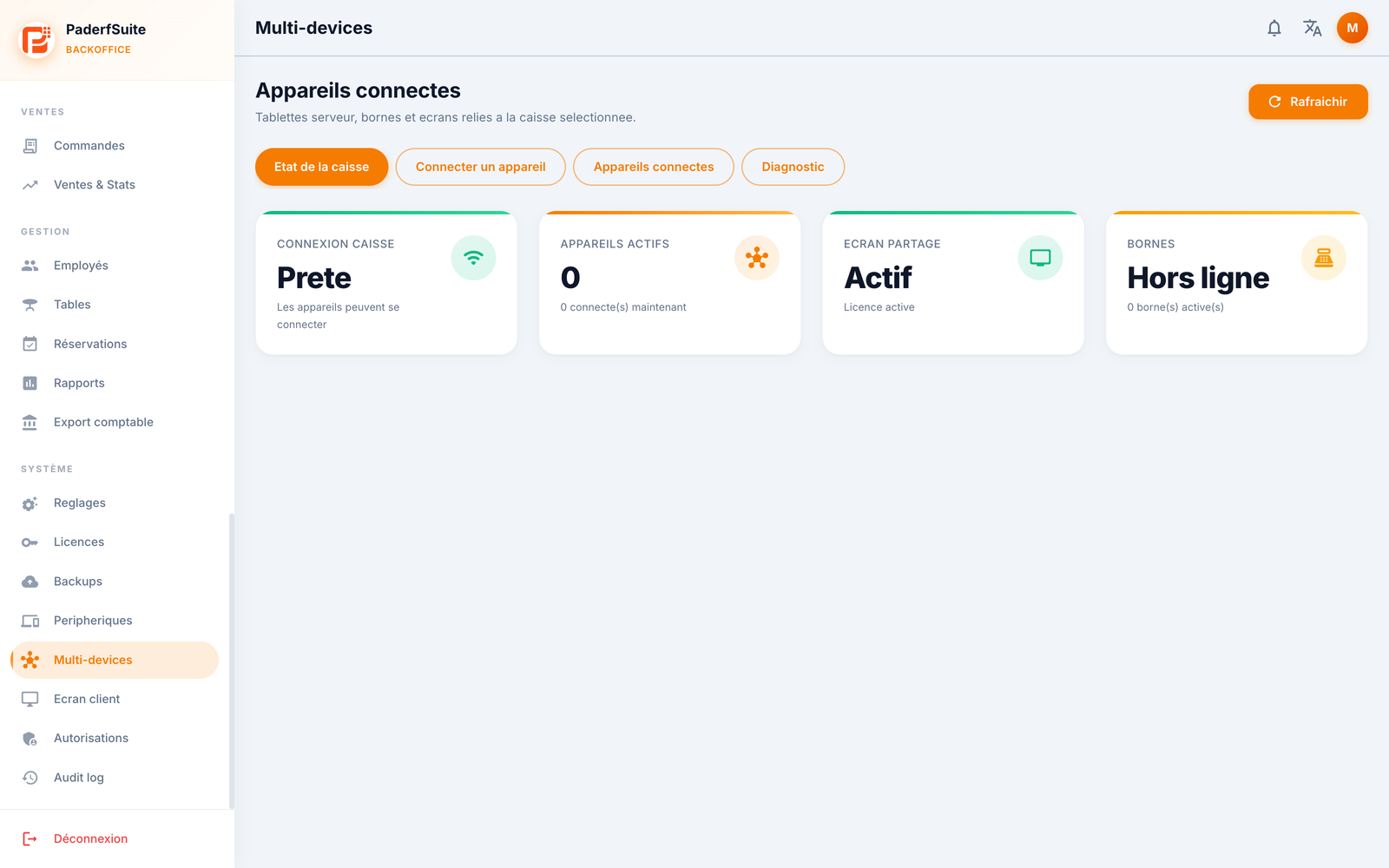 Enlarge screenshot
In brief
This screen manages your POS's multi-device setup: it shows the connection state, lets you connect new devices (PDA, kiosk, shared screen), handle pairing requests, manage already linked devices, and run a diagnostic. This is where pairing happens.
For whom / when
For the manager who wants to add a server tablet, a kiosk, or a shared screen, authorize a new device, or block a device that should no longer access the POS.
How to get there
System → Multi-devices
Prerequisites
🔑 Manage settings
Screen tour
The Refresh button is at the top right. The screen offers 4 views as tabs.
POS status tab
Four indicators summarize the situation:
POS connection: for example Ready (devices can connect).
Active devices: the number of linked devices and the number currently connected.
Shared screen: its state (for example Active, license active).
Kiosks: their state (for example Offline, number of active kiosks).
Connect a device tab
QR / pairing code to link a PDA, a Kiosk, or a Shared screen, with a TLS PIN.
Pairing requests to authorize or decline.
Shared screen settings: connection via PIN or NFC, session duration, demo mode.
Link to the Kiosk settings.
Connected devices tab
A table of the linked devices, with the columns: device, type, state, last activity, assigned user, version, and the block or delete actions.
Diagnostic tab
Address of the POS.
TLS PIN.
Code validity of the pairing code.
Step-by-step procedures
Connect a new device
Open the Connect a device tab.
Choose the type (PDA, Kiosk, or Shared screen).
On the device, scan the QR or enter the pairing code and the TLS PIN.
Confirm. The device sends a pairing request.
Authorize or decline a request
In Connect a device, locate the incoming pairing request.
Click Authorize to link the device, or Decline to reject it.
Configure the shared screen
On the Connect a device tab, in the Shared screen settings section.
Choose the connection (PIN or NFC), the session duration, and the demo mode if needed.
Block or delete a device
Open the Connected devices tab.
On the relevant row, choose Block (deny access) or Delete.
Confirm in the dialog.
Diagnose the connection
Open the Diagnostic tab.
Check the POS address, the TLS PIN, and the code validity.
Messages & edge cases
The number of devices you can link depends on your license limits (PDAs, kiosks, screens): see E2. Licenses & modules.
A pairing request must be authorized from this screen for the device to access the POS.
Blocking a device prevents it from accessing the POS without removing it; Deleting removes it permanently.
Tips
In case of a connection problem, the Diagnostic tab immediately gives the address and TLS PIN to check.
To check the hardware state of the devices (printers, drawer…), refer to E4. Devices.