
Before you start
An existing category and permission to edit restaurant menu products.
 Enlarge screenshot
Steps to follow
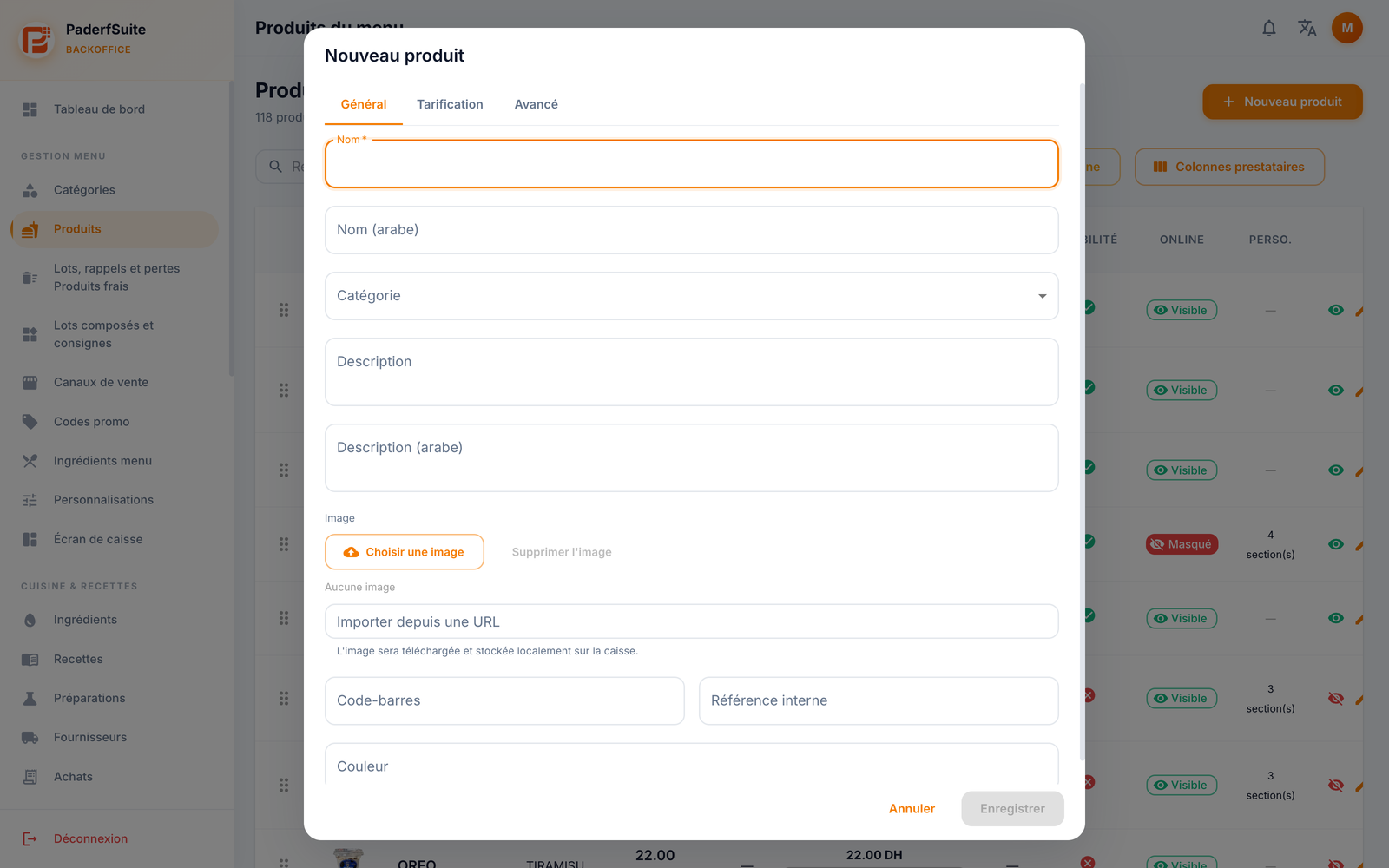
- In Menu management → Products, select New product (Nouveau produit). In General (Général), enter the name, category and relevant details, then add a clear image.
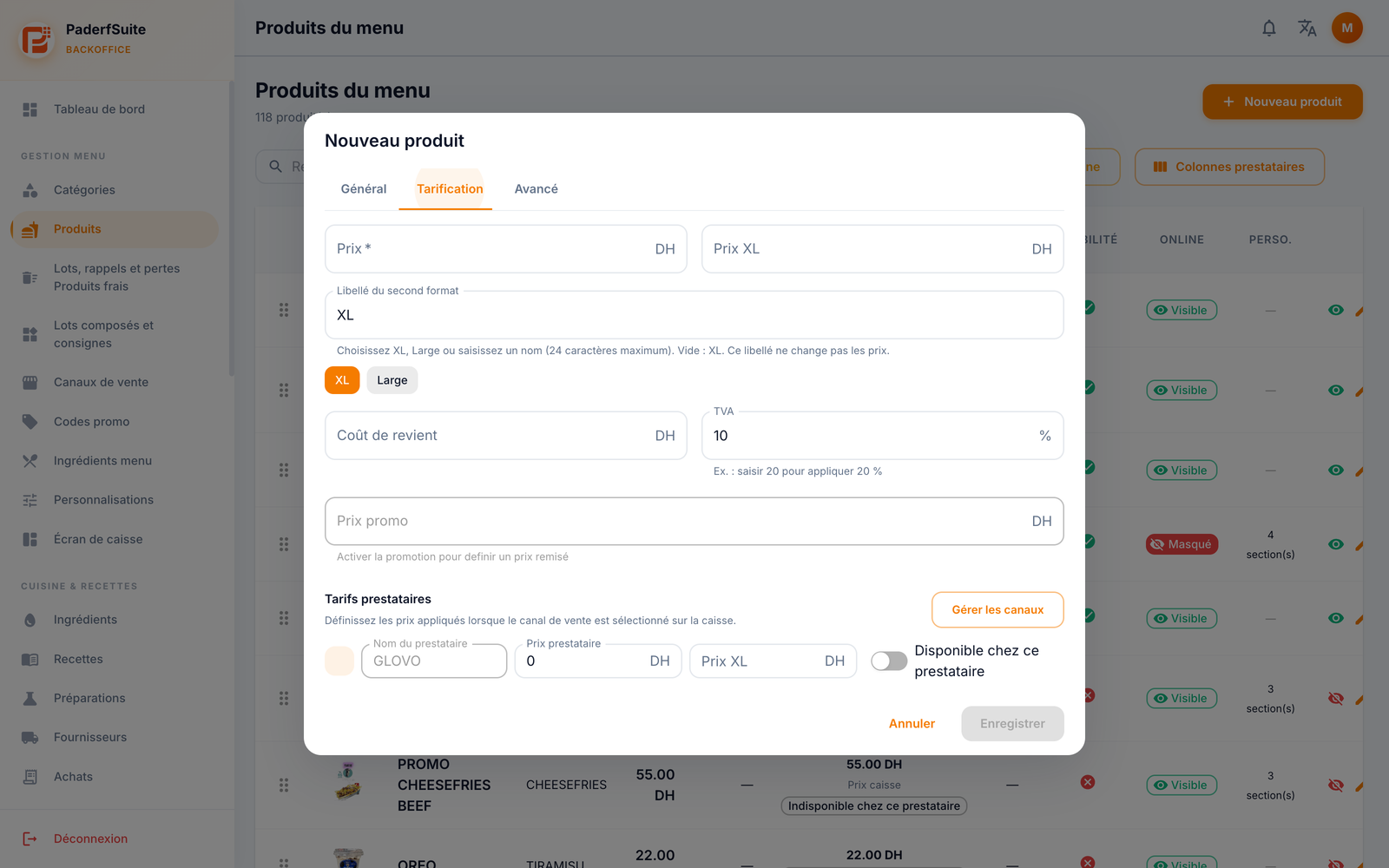
- In Pricing (Tarification), enter the price and check VAT. If you offer a second size, enter its price and label, up to 24 characters. Changing the label alone does not change prices.
 Enlarge screenshot
Actual screenshot · French interface · September 2026 · 3200 × 2000 - Check the prices and availability for configured providers. A counter price does not replace checking the relevant channel price.
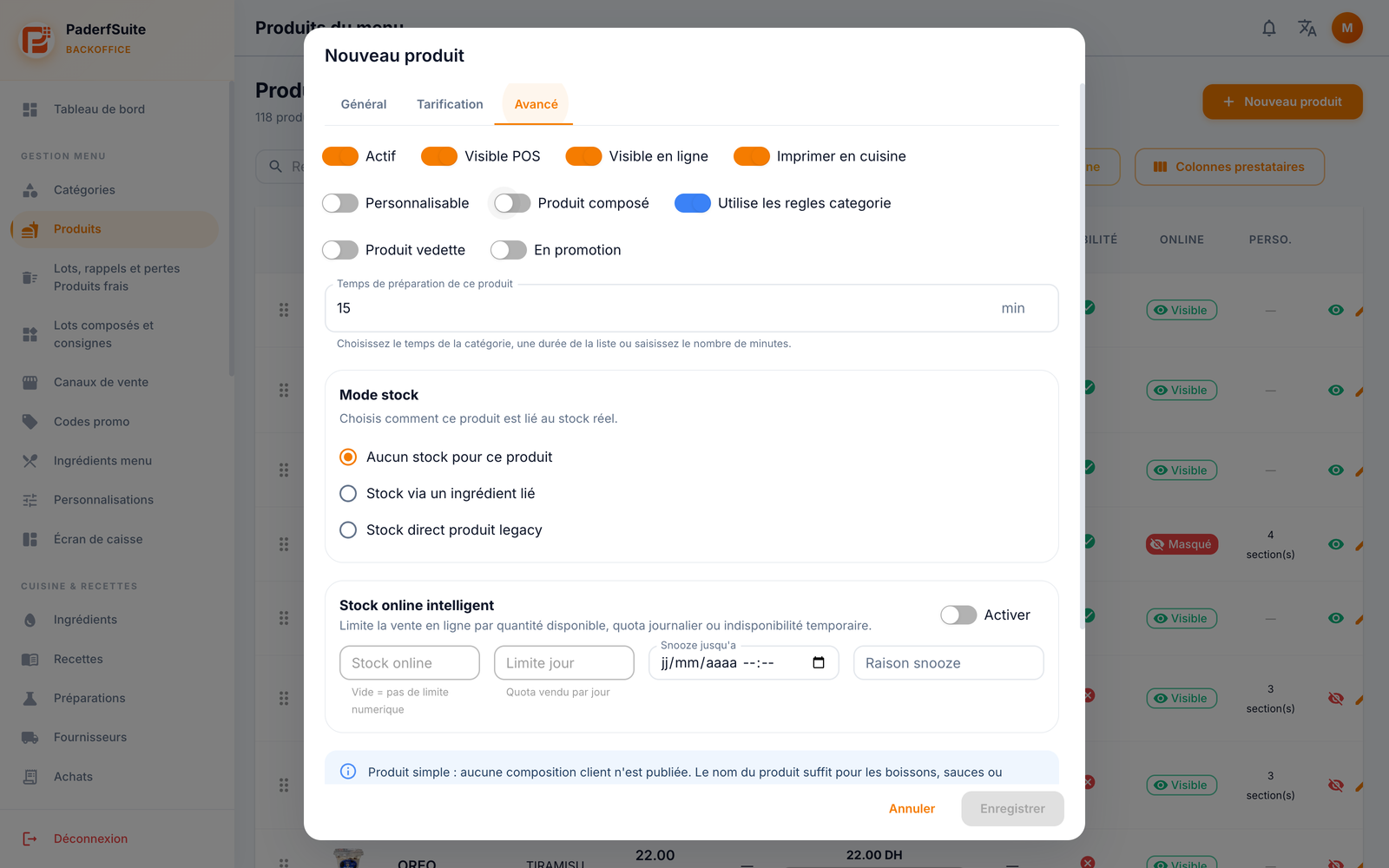
- In Advanced (Avancé), check Active, Visible POS, Visible online and Print in kitchen. Set customization, composition, category rules and preparation time as appropriate.
 Enlarge screenshot
Actual screenshot · French interface · September 2026 · 3200 × 2000 - Choose the appropriate stock mode and check online sales limits if used. Save once the fields are valid, then find the product in the list and verify its price and visibility.
What to remember
The retail catalogue has a separate workflow. An image imported from a URL is downloaded and stored locally on the till. Check prices and visibility after saving, before the first sale.