
Visual reference
 Enlarge screenshot
In brief
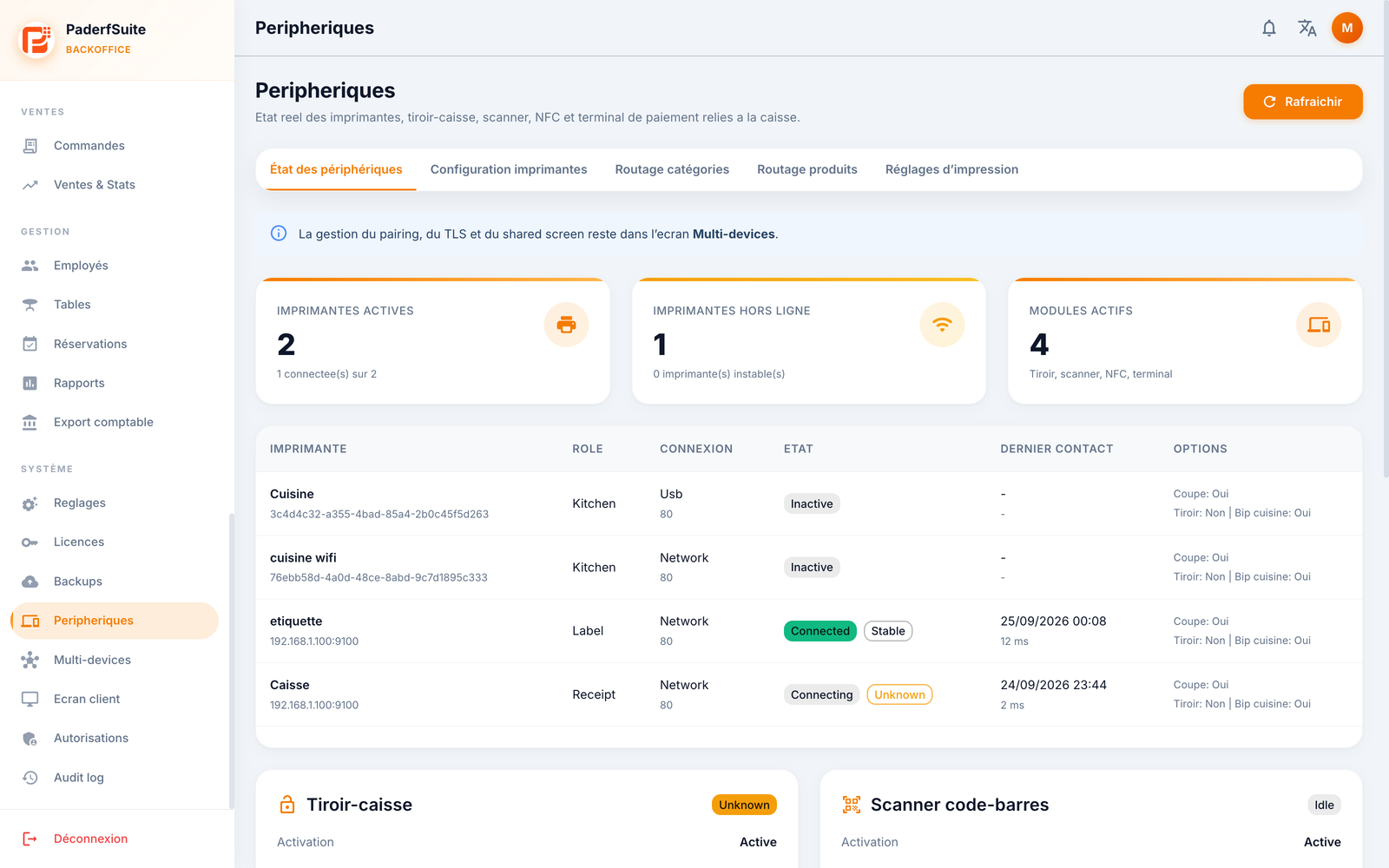
This screen shows the actual state of the devices connected to the POS: printers, cash drawer, barcode scanner, NFC reader, payment terminal, and customer display. It is a read-only view: configuration and pairing happen elsewhere.
For whom / when
For the manager who wants to check at a glance that their equipment is properly connected and operational, or to diagnose an offline printer before service.
How to get there
System → Devices
Prerequisites
🔑 Manage settings
Screen tour
An information banner reminds you of this at the top. Three indicators summarize the situation (active printers, offline printers, active modules). The Refresh button is at the top right.
Printers table
The columns, in order:
Printer: name and address.
Role: for example Kitchen or Receipt.
Connection: link type (Network, USB…).
State: Connected/Stable (green) or Inactive.
Last contact: date and response time.
Options: auto-cut, drawer opening, kitchen beep.
Device cards
Five cards detail the state of each piece of equipment:
Cash drawer: activation, connection, linked printer, manual opening, automatic opening.
Barcode scanner: activation, type, mode, auto add to cart, scan beep.
NFC reader.
Payment terminal.
Customer display.
Step-by-step procedures
Check the device state
Open System → Devices.
Review the indicators and the printers table.
Check the State and the Last contact of each printer.
Click Refresh to update.
Configure or pair a device
This screen does not allow configuration.
To pair a device, go to E5. Connected devices.
For the actual device setup, follow the PosCaisse guide.
Messages & edge cases
A printer that is Inactive or has no recent Last contact signals a connection problem to check on the hardware side.
Any change is made from the POS (PosCaisse) or from Connected devices, not here.
Tips
Use this screen as a control dashboard before opening: a single glance is enough to spot an offline printer.
The response time shown in Last contact helps spot a slow network connection.