
Before you start
Administrator access to the local BackOffice, a reachable till and enough computer storage.
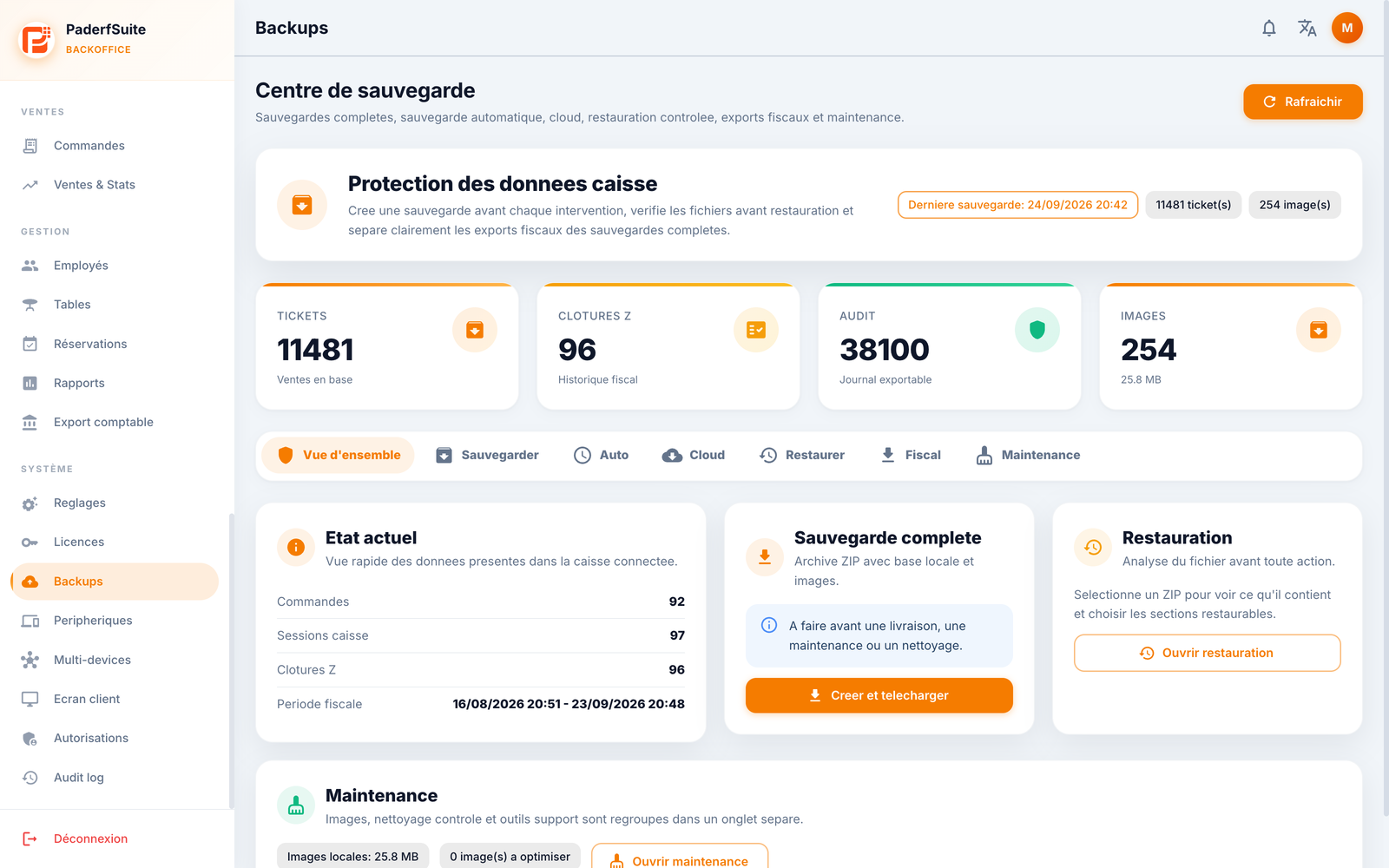 Enlarge screenshot
Steps to follow
- Open Backups (Sauvegardes) in the BackOffice and review the last backup status.
- Select Create and download (Créer et télécharger). Keep the page open during preparation; this can take several minutes.
- Wait for the download to finish. If the interface seems slow, check its status before trying again: a long wait does not necessarily mean backup creation failed.
- Keep the .fpbackup file in a private location and verify that the download completed. Preserve its name and extension.
- Before an important change, make sure you can locate the backup. Do not start a restore merely to check a download.
What to remember
The tested version produces an encrypted portable .fpbackup file, although some BackOffice labels mention ZIP. Downloading does not restore any data. Keep the backup separate from public documents.